Email marketing works when four things happen. The email reaches the inbox, the right people open it,
they find it useful, and you were allowed to send it. Each of these depends on steps that are easy to
skip. You do some steps once, some for each list, and some before every campaign.
This checklist takes you through those steps in order. Each item explains what to do and why it matters.
Where a mailbox provider or a law sets a rule, the item explains it and includes a link. Each phase also
points to a detailed guide and shows where AcelleMail helps.
This guide covers:
- The checklist at a glance
- Once, before your first campaign
- Build a list people asked to join
- Every email: what goes into it
- Before you send: test it
- During the send: keep a steady pace
- After the send: measure and clean
It ends with the most common mistakes and a one-screen summary.
Not legal advice. This guide explains the main rules in general terms and links to the official texts. It
reflects texts published up to 27 October 2026. For a decision that matters, ask a lawyer.
1. The checklist at a glance#
The checklist has six phases. You set up sending once. You set the sign-up rules once for each list, and
they then apply to everyone who joins. You repeat the other four phases for every campaign.
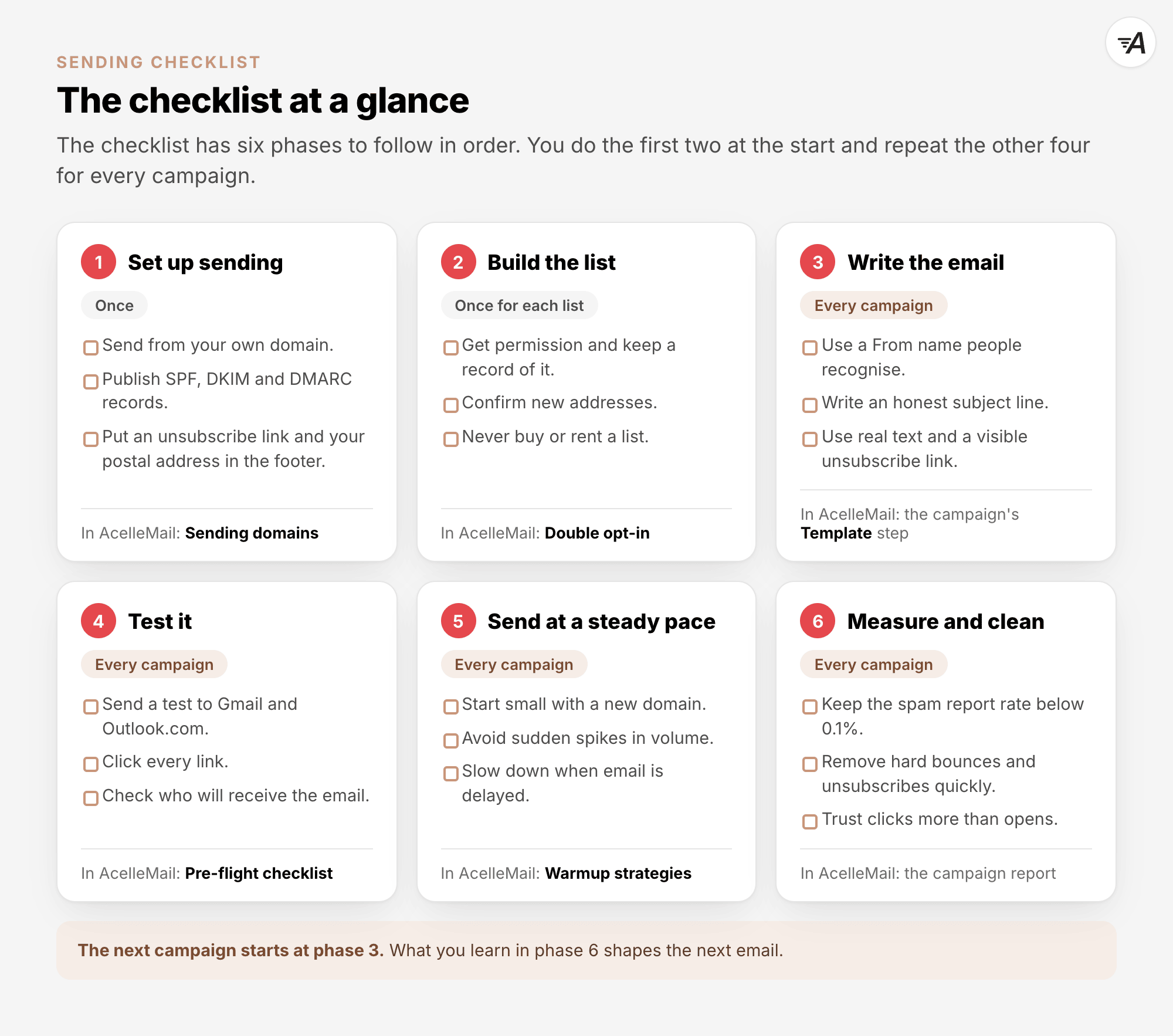
A campaign can fail at any phase. A well-written email can still go to the spam folder if the domain is
not authenticated. Even with a perfect setup, a bought list can still harm your reputation. It helps to
go through the phases in order, at least for your first campaigns.
2. Once, before your first campaign#
You complete these steps once, when you set up sending. Whether mailbox providers trust your email at
all depends on this setup.
- Choose how you send. Most senders use a sending service, such as Amazon SES, Mailgun or SendGrid,
rather than their own sending server. Email Sending Explained
compares the options.
- Send from your own domain. Use an address such as [email protected] instead of a free address
from Gmail or Yahoo. Google's guidelines say: "Don’t impersonate Gmail From: headers."
- Authenticate the domain. Publish SPF, DKIM and DMARC records for your domain. Email
Deliverability Explained explains what each record does.
- Check reverse DNS and encryption. Your sending service usually handles both. If you run your own
server, Google asks for "valid forward and reverse DNS records" and a TLS connection.
- Prepare your footer. A marketing email needs an unsubscribe link. Under US law, it also needs
"your valid physical postal address".
Since 2024, the largest mailbox providers have turned several of these steps into rules. They enforce
these rules most strictly for bulk senders. Google and Microsoft put the dividing line at 5,000 messages
a day. Yahoo does not give a number.
In the table, p=none is the mildest DMARC policy. It asks mailbox providers to take no special action on
email that fails DMARC. Aligned means that the domain checked by SPF or DKIM matches the domain in your
From address. In the usual setting, a subdomain of it also counts.
| Rule for bulk senders |
Gmail |
Yahoo |
Outlook.com |
| SPF and DKIM |
Required |
Required |
Required |
| DMARC, at least p=none, aligned with SPF or DKIM |
Required |
Required |
Required |
| One-click unsubscribe |
Required |
Required |
A visible unsubscribe link is advised |
| Spam rate |
Below 0.3%, ideally below 0.1% |
Below 0.3% |
No number given |
| Unsubscribes handled within |
48 hours (advised) |
2 days |
No time given |
| Who counts as a bulk sender |
More than 5,000 messages a day to Gmail |
No number given |
Domains sending over 5,000 messages a day |
The sources are Google's sender guidelines and their
FAQ, Yahoo's sender best
practices and Microsoft's announcement for
Outlook.
Smaller senders also have rules to follow. Google and Yahoo ask every sender to use at least SPF or
DKIM. Both also ask every sender to keep the spam rate below 0.3%.
The rules are enforced more strictly than before. Google says that from November 2025, messages that
fail its requirements "will experience disruptions, including temporary and permanent rejections". In
April 2025, Microsoft announced that Outlook would reject messages from bulk domains that fail its
checks. The announcement included this error: "550; 5.7.515 Access denied, sending domain
[SendingDomain] does not meet the required authentication level."
In AcelleMail: Sending domains#
Most of this setup happens with your sending service and DNS provider. AcelleMail also has a page for
domain setup under Sending → Sending domains. Add your domain there, then open it to see which
records it needs.
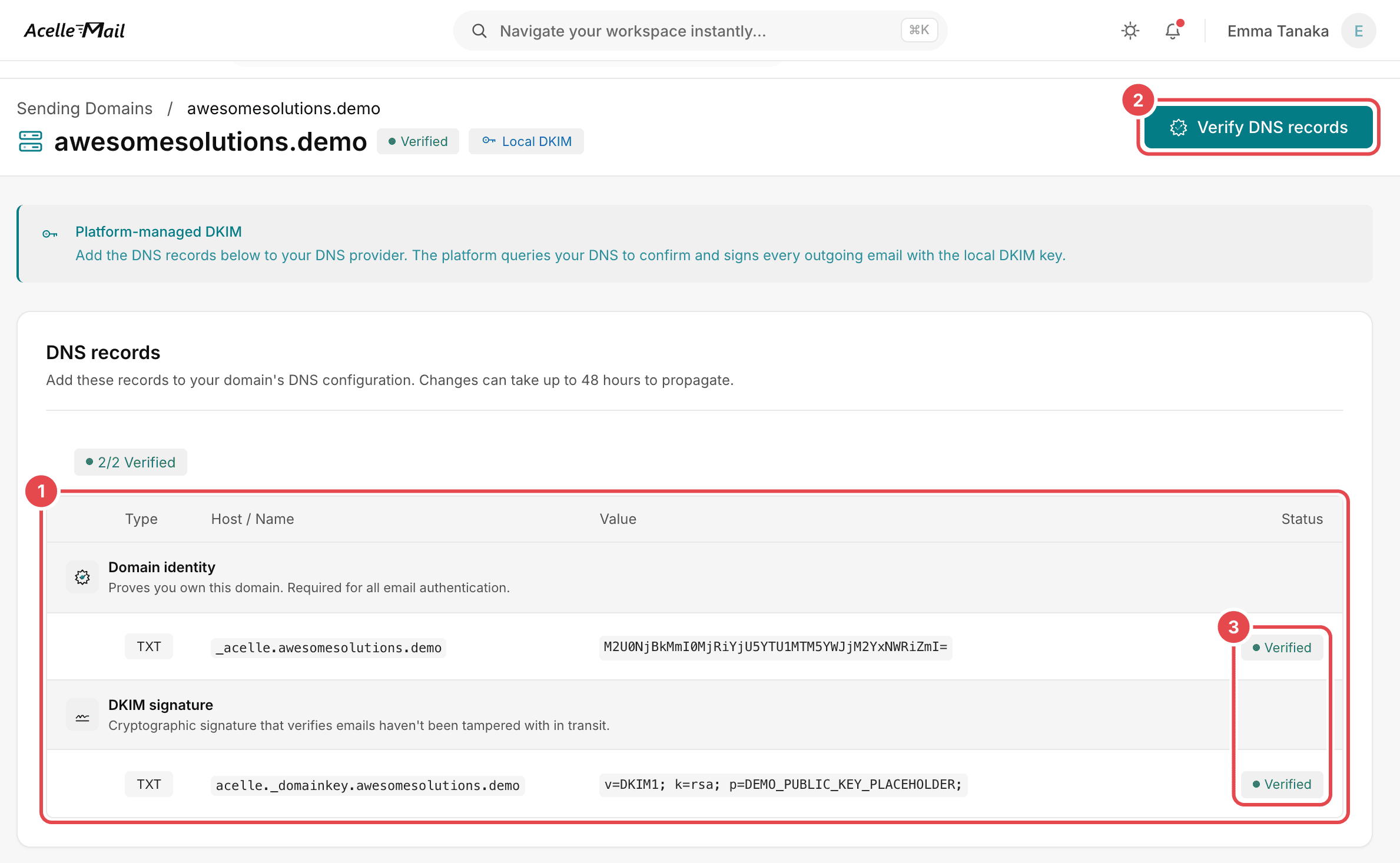
- DNS records lists each record to add, with its type, host and value. Domain identity proves
that you own the domain. DKIM signature lets AcelleMail sign every email.
- Click Verify DNS records to check them. The page notes: "DNS changes can take 15 minutes to 48
hours to propagate worldwide."
- Each record then shows Verified, or Pending if AcelleMail cannot find it yet.
What the page lists depends on how your account sends. In this example, the page says Platform-managed
DKIM. AcelleMail signs your email with its own key, so the page lists two records and does not check
SPF or DMARC. When your sending service manages the domain, the page lists the records that service asks
for, and these can include SPF and DMARC. Publish any record the page does not list, such as your DMARC
policy here, with your DNS provider.
3. Build a list people asked to join#
Who is on your list matters more than anything you write. Mailbox providers watch how your readers
respond. People who never asked for your email are most likely to report it as spam.
- Get permission first. Google asks senders to "Make sure recipients opt in to get messages from
you." In the EU, marketing email usually needs consent beforehand, with a limited exception for
existing customers. Email Consent and Opt-In
Explained covers the main rules.
- Keep a record of each consent. Under the GDPR, "the controller shall be able to demonstrate that
the data subject has consented". Keep a record of when and how each person joined.
- Confirm new addresses. Google also asks senders to "Confirm each recipient's email address before
subscribing them." You do this by sending a confirmation email. The person joins the list only after
they confirm. This process is called double opt-in, or confirmed opt-in. M3AAWG calls it "the highest
standard".
- Never buy or rent a list. The people on it never agreed to receive your emails. Bought lists also
contain old addresses that bounce or have become spam traps. Email List Quality
Explained explains the risks.
- Say what you will send. M3AAWG advises senders to tell recipients "the potential frequency and
type of communications". Then keep to the frequency and type of emails you described.
- Check an old list before you use it. Verify the addresses first, or start with your most recent
and active contacts.
In AcelleMail: list settings#
In AcelleMail, each list has its own sign-up rules. Open the list, then click Settings.
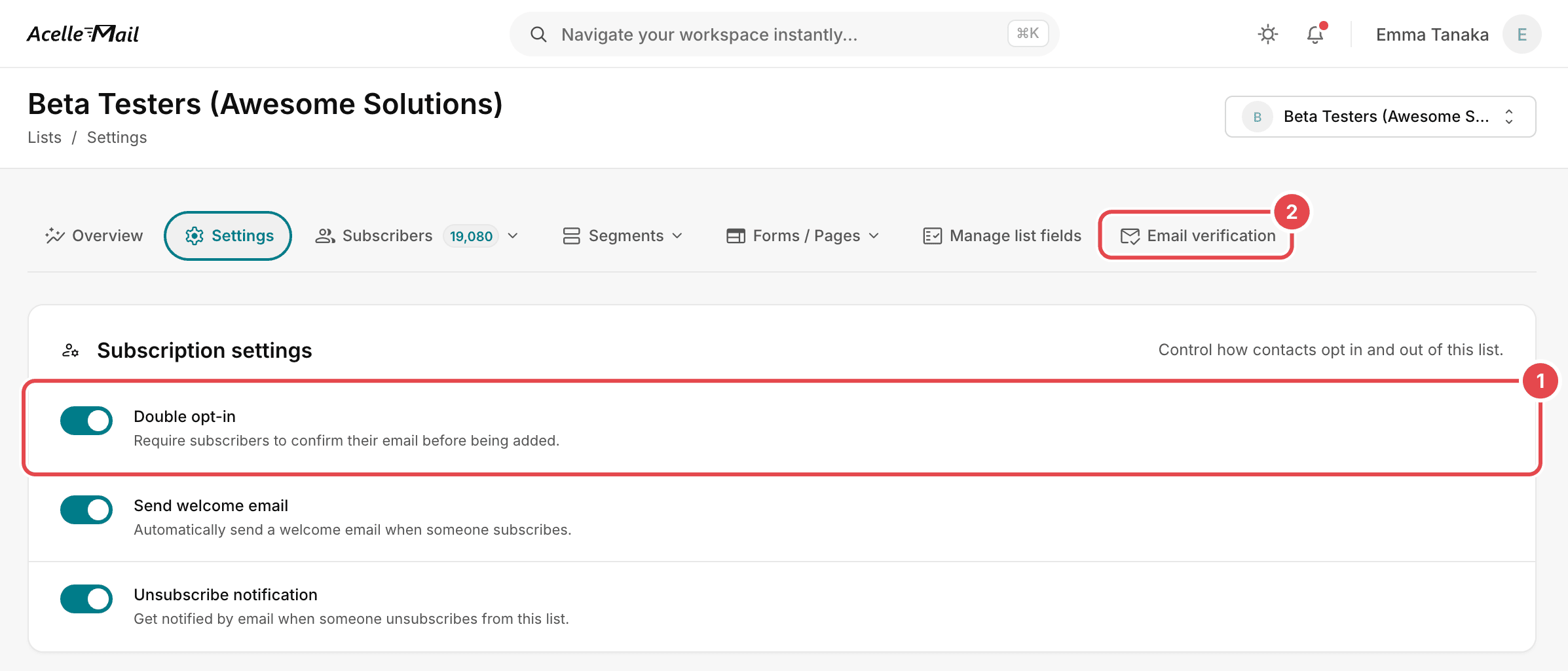
- The Double opt-in setting says: "Require subscribers to confirm their email before being added."
New subscribers receive a confirmation email first.
- The list's Email verification tab "checks every address on your list for deliverability". Use it
before you email an older list.
4. Every email: what goes into it#
With your setup and list ready, you create a new email for each campaign. These checks apply to every
email.
- A sender name people recognise. Use your brand as the From name, or use a person's name with your
brand. Keep the same From name for each campaign.
- An honest subject line. The US Federal Trade Commission says: "The subject line must accurately
reflect the content of the message." A short subject line also shows in full on phones.
- Preheader text. Many inboxes show a line of text after the subject. Write this text yourself, or
the inbox will show the first words of your email instead.
- Real text, not one large image. Many people read emails with images turned off. An email made
mostly of images can also get a higher spam score, as Spam Filters
Explained shows.
- Links to your own domain. Domain blocklists also check the domains in your links. Avoid shared
link shorteners.
- A visible unsubscribe link. Google asks for "a clearly visible unsubscribe link in the message
body". Gmail and Yahoo also require one-click unsubscribe from bulk senders. It works through two
headers in the email, described in RFC 8058. They let the
reader's email app unsubscribe them in one click, without opening a web page. The link in the body
does not replace them. AcelleMail adds both headers to campaign emails by default. An administrator
can check this under Settings → General (One-Click Unsubscribe Headers).
- Your postal address. Put it in the footer. For US recipients, also make it clear that the message
is an advertisement. The FTC's guide says: "Identify the message as an ad."
- One main purpose. An email that asks for one thing is easier to read, and its results are easier
to measure.
- The right readers. Send each email to the right segment of your list. A smaller group of
interested contacts usually responds better than the whole list.
Receipts, password resets and other transactional emails follow different rules, as Transactional vs
Marketing Email explains.
5. Before you send: test it#
A short check before each campaign catches most problems while they are still easy to fix.
- Send a test to yourself. Send it to your own Gmail and Outlook.com addresses, and read it on a
phone.
- Click every link. Check that each link opens the right page, and that the unsubscribe link works.
- Check the personal details. For a merge tag such as a first name, provide fallback text for
contacts without that detail.
- Check who receives it. Confirm the list, the segment and any exclusions.
- Check the content score if you can. A spam score shows how one filter checks your content. Your
reputation is not part of the score, so treat it as one clue among several.
- Check the time. Make sure the send time suits the time zone of most of your readers.
In AcelleMail: the Pre-flight checklist#
AcelleMail handles part of this check for you. The campaign's last step, Confirm, opens with a
Pre-flight checklist. It reviews the campaign before you launch it.
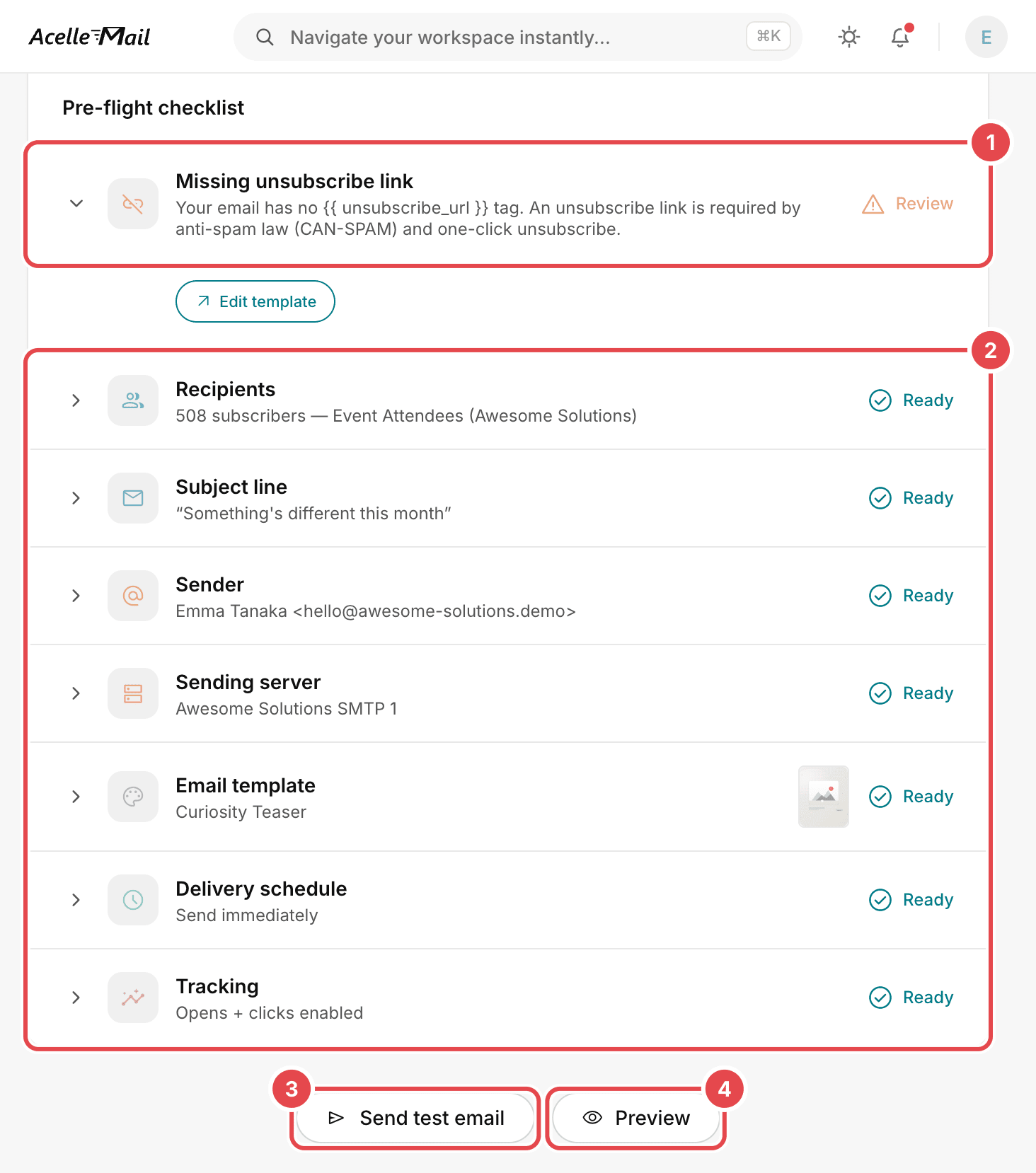
- Problems come first. This email has no unsubscribe link, so the checklist warns: "Your email has no
{{ unsubscribe_url }} tag."
- Below that, each part of the campaign shows Ready when it is set up correctly: Recipients,
Subject line, Sender, Sending server, Email template, Delivery schedule and
Tracking.
- Send test email sends the campaign to an address you choose. "The test email will use your
template and merge tags."
- Preview shows the email as your recipients will see it.
6. During the send: keep a steady pace#
Mailbox providers judge senders partly by how their sending volume changes over time. A steady pace
suggests that the emails come from a real sender. A sudden jump can look like activity from a hacked
account or a spammer.
- Start small with a new domain or IP address. Google advises: "Start with a low sending volume to
engaged users, and slowly increase the volume over time." Sender Reputation
Explained explains warm-up.
- Avoid sudden spikes. Google warns against "sudden volume spikes". Google's own example is doubling
your volume suddenly, which can lead to limits on your sending rate or a drop in reputation.
- Slow down when email is delayed. Google advises: "If messages start bouncing or start being
deferred, reduce the sending volume until the SMTP error rate decreases."
- Send at a time that suits your readers. No single time is best for every list. Test send times on
your own list, as Email A/B Testing Explained describes.
AcelleMail has two ways to control your sending pace. Warmup strategies, under Sending, increase
the daily volume of a new sending server step by step. On a campaign's Schedule step, Only during
the hours below limits sending to the hours you choose. These hours use your account's time zone. The
page warns: "Not the recipient's clock."
7. After the send: measure and clean#
The work continues after you send the campaign. What happens next decides how well your next campaign is
delivered.
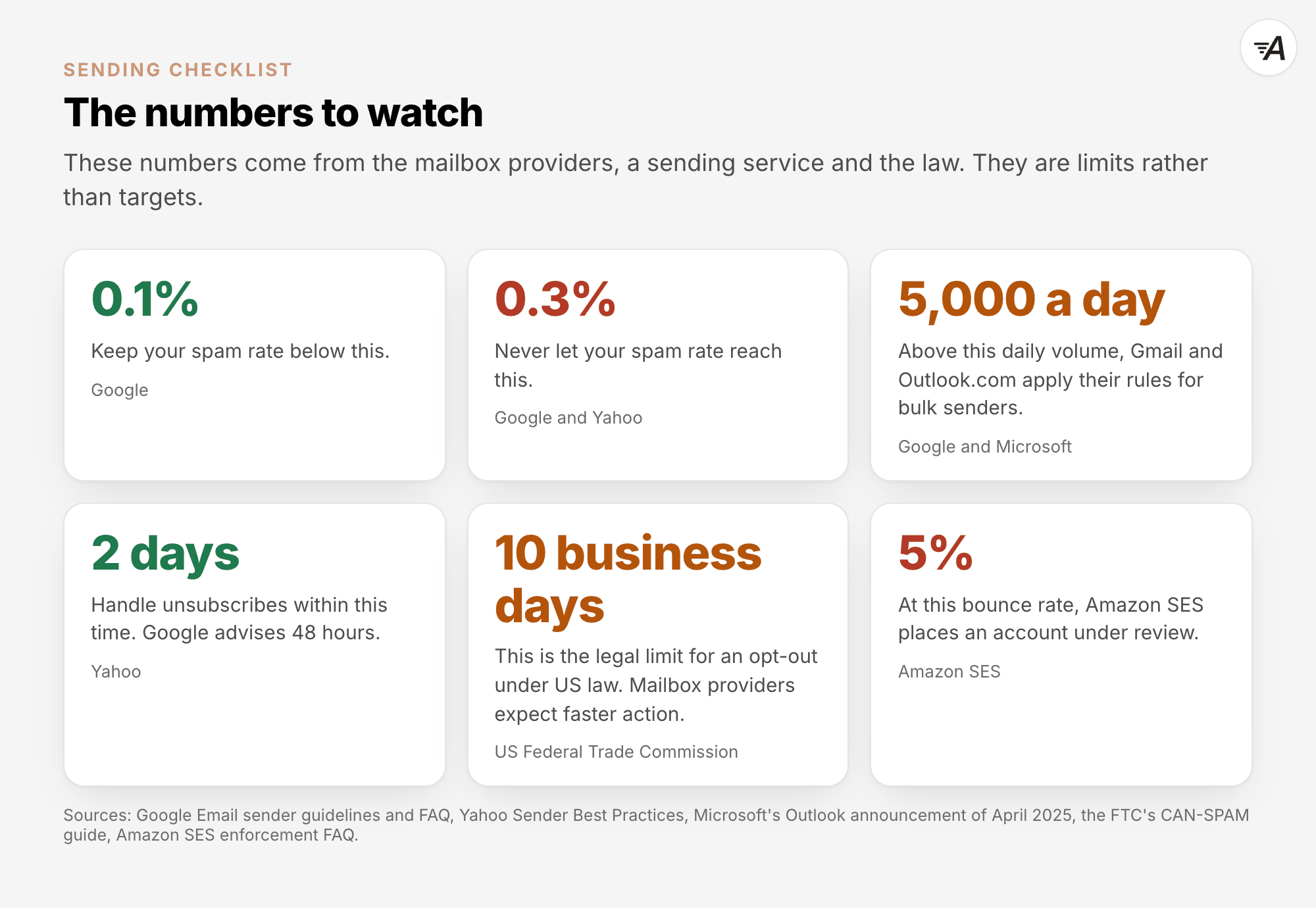
- Watch complaints first. Google's guidelines say: "Keep spam rates reported in Postmaster Tools
below 0.10% and avoid ever reaching a spam rate of 0.30% or higher." Yahoo also sets the limit at
0.3%. Amazon SES reviews an account at a complaint rate of 0.1%.
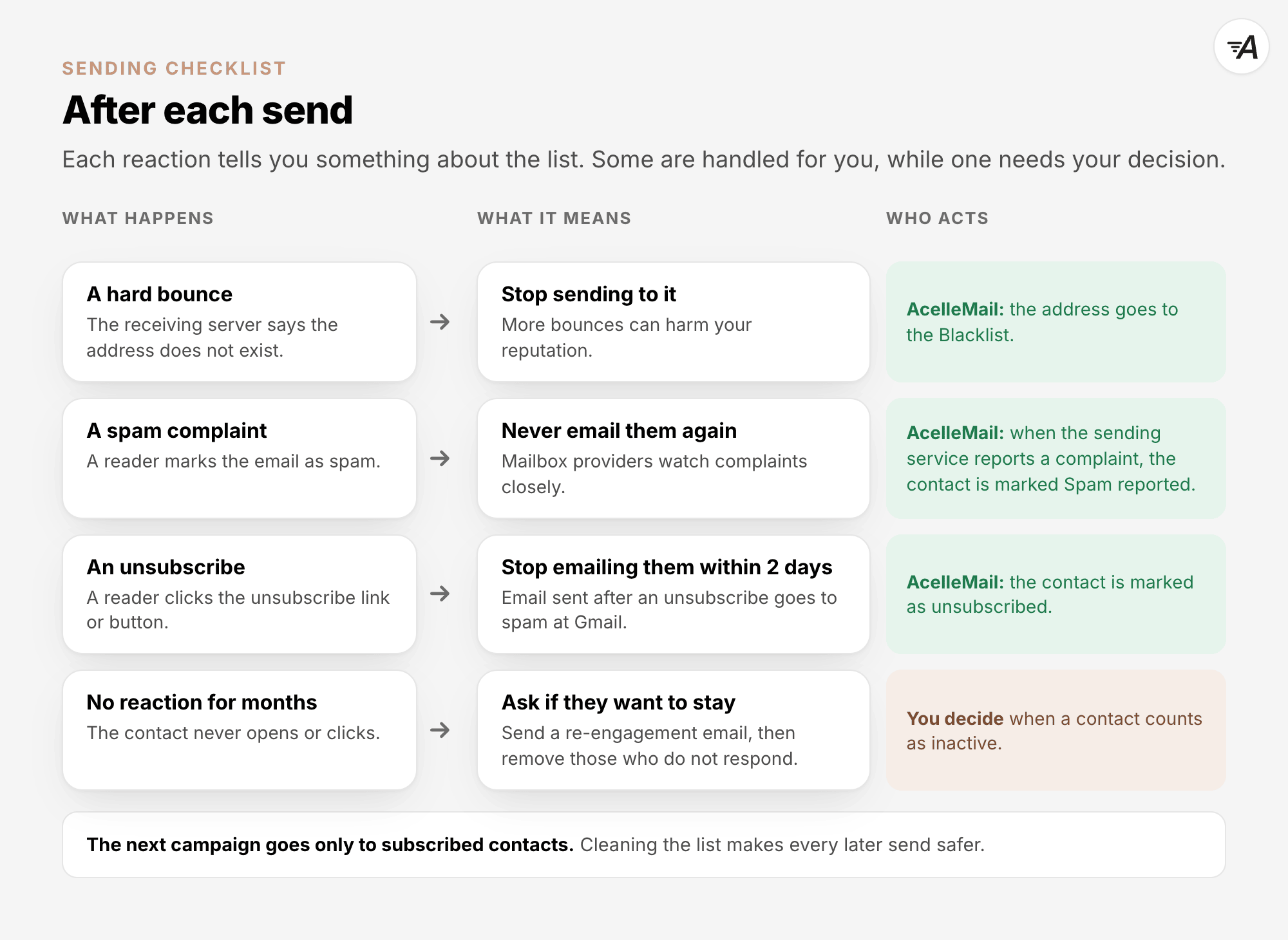
- Watch bounces. A hard bounce means the address does not exist. Remove the address after the first
hard bounce. Amazon SES reviews an account when its bounce rate reaches 5%.
- Handle unsubscribes quickly. Yahoo asks senders to "Honor unsubscribes within 2 days". Google
advises 48 hours. US law allows up to 10 business days, but mailbox providers expect you to act much
faster.
- Trust clicks more than opens. Apple's Mail Privacy Protection "prevents senders from seeing if
you’ve opened the email message they sent you". This makes opens a weak signal. Email Marketing
Metrics Explained explains which numbers to use.
- Check the providers' own dashboards. Google Postmaster Tools shows your spam rate at Gmail.
Microsoft's SNDS shows data about your sending IP addresses at Outlook.com. It can also send you a
report when a reader marks your email as junk.
- Re-engage or remove inactive contacts. Google advises senders to "Periodically send messages to
confirm that recipients want to stay subscribed." You can remove contacts who do not respond to a
re-engagement email.
In AcelleMail: the campaign report#
AcelleMail does part of this cleaning for you. An address that returns a hard bounce goes to the
Blacklist. When your sending service reports a spam complaint, the contact is marked Spam
reported. Campaigns go only to subscribed contacts, so neither group receives the next campaign. The
campaign report shows the numbers.
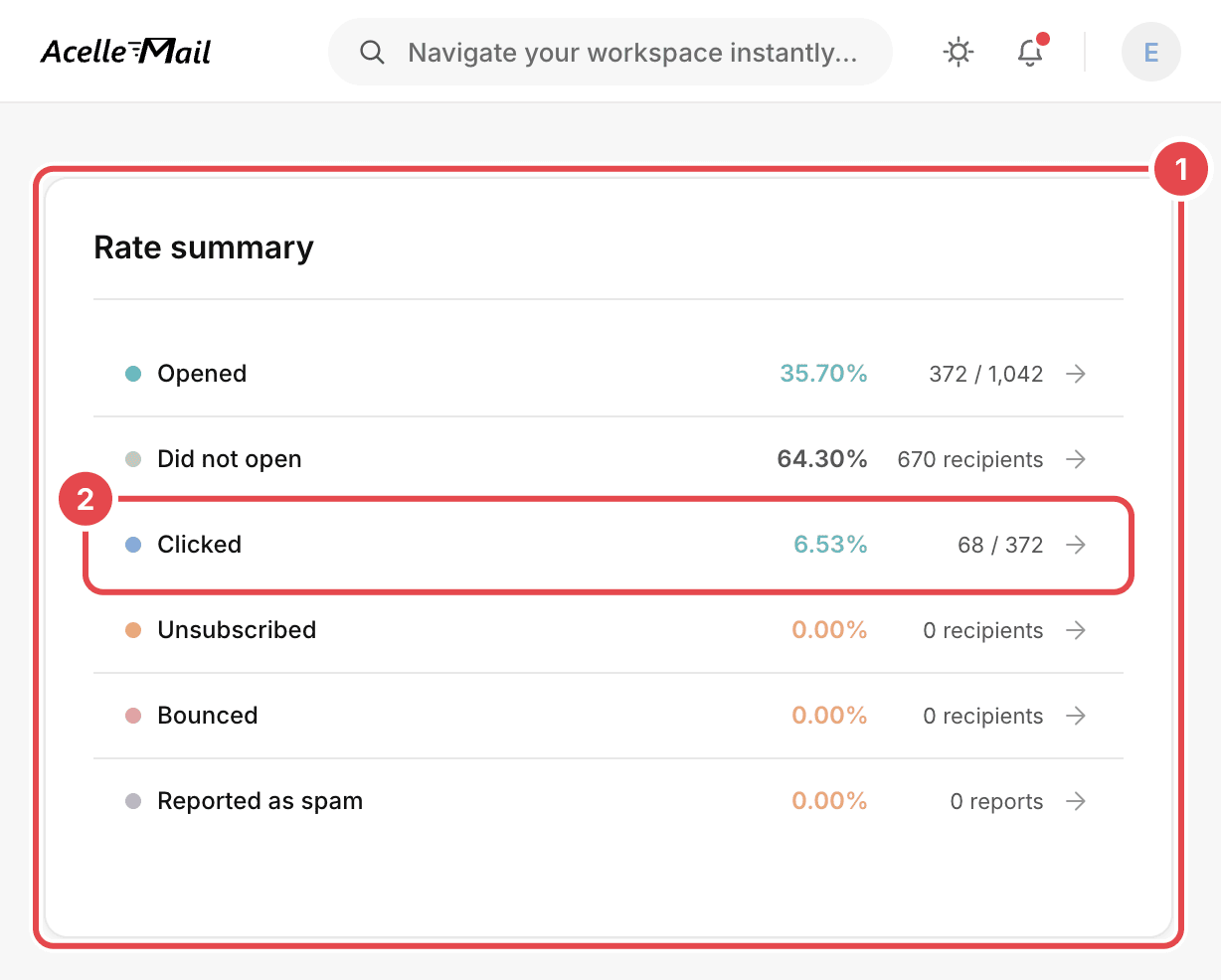
- Rate summary shows how contacts responded: Opened, Clicked, Unsubscribed, Bounced
and Reported as spam.
- Clicked shows 6.53%: 68 contacts clicked a link, out of the 1,042 who received the email. The 372
beside it is the number who opened it, a figure that Apple Mail makes less reliable.
The report counts one campaign, across all mailbox providers. Google's 0.1% and 0.3% limits refer to the
spam rate in Postmaster Tools. Gmail calculates that rate in its own way, from the email that reached
the inbox of its active users. So the two figures can differ. Use the report to spot a campaign that
went wrong, and Postmaster Tools to check Google's limits.
8. Common mistakes#
| What you see |
Why it is a problem |
What to do |
| You send from a free Gmail or Yahoo address. |
The message cannot pass DMARC for that address. Google also warns against impersonating Gmail From: headers. |
Send from your own authenticated domain. |
| You import a bought list. |
The people on it never agreed to receive your emails. The list also contains addresses that no longer work and spam traps. |
Build the list from sign-ups, and confirm new addresses. |
| You email an old list all at once after months without sending to it. |
Many addresses bounce, and readers have forgotten you. The sending volume also rises sharply. |
Start with recent, active contacts, and increase your sending volume slowly. |
| Your email has no unsubscribe link, or unsubscribing takes several steps. |
Readers report spam instead. Mailbox providers also require one-click unsubscribe. |
Use one-click headers and a visible link in the body. |
| You judge a campaign by its open rate alone. |
Apple Mail hides whether people have opened the email. |
Look at clicks, replies, unsubscribes and complaints. |
| You keep emailing people who never open or click. |
Inactive contacts lower your engagement. Old addresses can also become spam traps. |
Send a re-engagement email, then remove those who do not respond. |
| You test only in your own email app. |
Each mailbox provider shows email differently. |
Test in Gmail and Outlook.com, and on a phone. |
| You follow only the US legal minimum. |
Mailbox providers' rules are stricter. For example, Yahoo asks you to handle unsubscribes within 2 days instead of 10 business days. |
Follow the strictest rule that applies to you. |
Summary#
- Email marketing works when your email is delivered, read and wanted, and you are allowed to send it.
- Set up your own domain, SPF, DKIM and DMARC once. Include an unsubscribe link and your address in
your footer.
- Gmail, Yahoo and Outlook.com require bulk senders to authenticate their email. Gmail and Yahoo also
require one-click unsubscribe and a spam rate below 0.3%. Gmail may reject email that fails its
requirements, and Outlook.com rejects bulk email that fails authentication.
- Build your list from people who asked to join. Keep a record of consent and confirm new addresses.
- Keep every email honest and make it easy to unsubscribe. Use a recognisable sender, an accurate
subject line, real text and a visible unsubscribe link.
- Test before every send and keep a steady pace, especially with a new domain.
- After the send, check complaints, bounces and unsubscribes before you check opens. Remove addresses
that do not work.
- In AcelleMail, use Sending domains, Double opt-in, the Pre-flight checklist and the
campaign report for these steps.
Terms used here are defined in the Email Marketing Glossary.
