An A/B test compares two versions of an email. Each version goes to a separate group of contacts. It is
the most direct way to learn which subject lines, layouts and offers work for your readers.
However, one version almost always gets a few more clicks, even when the two emails are equally good.
When the groups are small, that "winner" is often just luck. This guide explains how to run a test whose
result you can trust. It also explains where to find each setting in AcelleMail.
This guide covers:
- What an A/B test is
- What to test, and which number decides
- A fair test: random groups, sent together
- How many contacts a test needs
- Reading the result
- Two habits that create false winners
- Learning from your tests
- A/B testing in AcelleMail
It ends with the most common mistakes and a one-screen summary.
1. What an A/B test is#
An A/B test, also called a split test, sends two versions of an email to two groups of contacts at the
same time. The groups are chosen at random. The test compares the versions using one measure that you
chose before sending.
The version you would normally send is the control. The new version is the variant.
A good test has five parts:
- You write down the question in advance, for example whether a shorter subject line brings more
clicks.
- The two versions differ in one thing only.
- The contacts are split into groups at random.
- One measure, chosen in advance, decides the result.
- The rule for deciding is also set before you send.
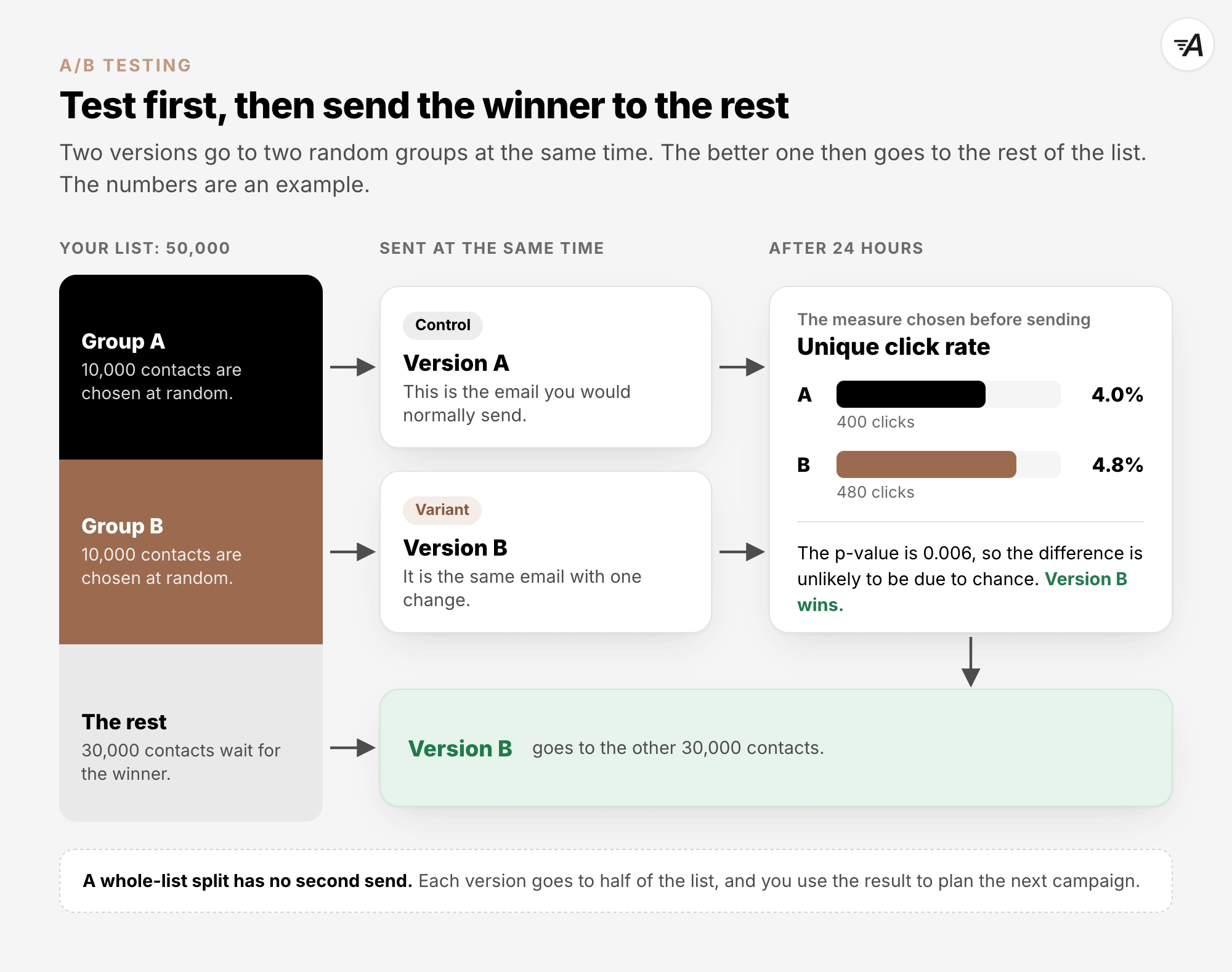
There are two common test designs. In a test-and-roll-out design, you send the versions to part of the
list and wait. Then you send the better version to everyone else. In a whole-list split, each version
goes to half of the list. You use the result to plan the next campaign.
The numbers for both versions are affected by chance. Even when the two versions perform exactly the
same, one of them will usually get a few more clicks. A statistical
test tells you how often chance alone
would produce a difference that large.
The diagram below shows the steps of a test-and-roll-out campaign. Section 5 explains the p-value it
shows.
2. What to test, and which number decides#
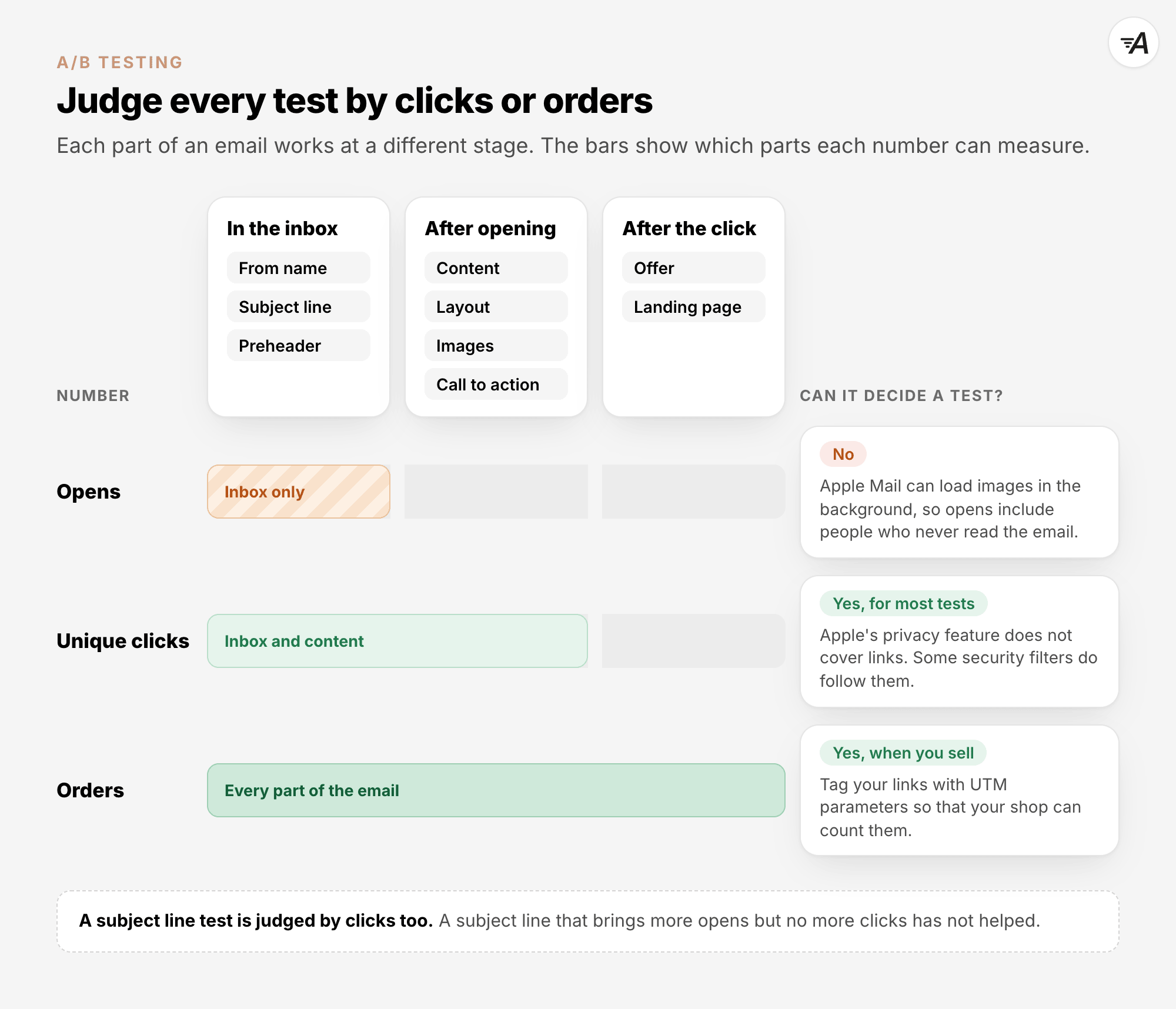
Each part of an email matters at a different stage. People see the From name, subject line and preheader
in the inbox, before they open the email. The content, layout, images and call to action matter after
people open it. The offer and the page the link leads to matter after the click.
Choose a measure that your change can affect. The report must also record that measure reliably.
Why opens can mislead#
Opens are not reliable. Apple's Mail guide for
Mac explains what happens
when Mail Privacy Protection is on. Remote content, which includes the small image that records an open,
"is privately downloaded in the background when you receive a message (instead of when you view it)".
Its iPhone guide
says the feature "prevents senders from seeing if you've opened the email message they sent you".
So your report includes opens from people who never read the email. A higher open rate for one version
may only mean that its group happened to include more Apple Mail readers. Email Marketing Metrics
Explained and Open Rates + Apple
MPP explain this in more detail.
Why clicks are a better guide#
Clicks are more reliable. The same iPhone guide says: "Mail Privacy Protection does not extend to links
or email attachments such as PDF or other files."
Clicks are not perfect either. Some company mail systems use security filters that follow links to check
them. Microsoft's guide to Safe Links in Defender for Office
365 says that "URLs are scanned
prior to message delivery". Even so, unique clicks are the most reliable measure in an email report. A
unique click counts each contact once, however many times they click.
Use clicks to judge a subject line, From name or preheader test as well. A subject line that brings more
opens but no more clicks has not helped. When the goal is a sale, the winner is the version that brings
more orders. Tag the links with UTM parameters so that your shop or analytics tool can count the orders
from each version. UTM Parameters in
AcelleMail shows how.
Change one thing at a time. If the subject line and the button both change, you cannot tell which of
them made the difference.
The diagram below shows which measure you can use to judge each part of an email.
3. A fair test: random groups, sent together#
Every contact should have the same chance of being assigned to each group. The email is then the only
difference between the groups that is not due to chance.
If you assign contacts to groups in order, such as putting the oldest contacts first, the groups can
differ for reasons unrelated to the email. Contacts who joined years ago often behave differently from
contacts who joined last week. The statistical tests that compare two rates, such as those in the NIST
e-Handbook, assume that the groups
were chosen at random. They also assume that one contact's response does not affect another's.
Send all versions at the same time. This way, the time of day and the day of the week affect each
version equally.
If you test versions and then send the winner to everyone else, the test groups should fairly represent
the whole list. The winning version needs to work for those contacts too.
4. How many contacts a test needs#
The number of contacts a test needs depends on four things:
- One factor is your current rate, for example the click rate of similar campaigns.
- Another is the smallest difference that would be worth acting on.
- The significance level is the risk you accept of reporting a difference when the versions perform the
same. The usual choice is 5%, which means about one test in 20.
- The power is the chance that the test finds a real difference of the size you chose. A common choice
is 80%.
The table shows how many contacts each version needs to detect an increase of 10%, 20%, 30% or 50%. The
figures are for a two-sided test, which looks for a difference in either direction. They use the 5%
level with 80% power and are rounded up to the nearest 100.
| Current click rate |
+10% |
+20% |
+30% |
+50% |
| 2% |
80,700 |
21,200 |
9,800 |
3,900 |
| 4% |
39,500 |
10,400 |
4,800 |
1,900 |
| 6% |
25,800 |
6,800 |
3,200 |
1,300 |
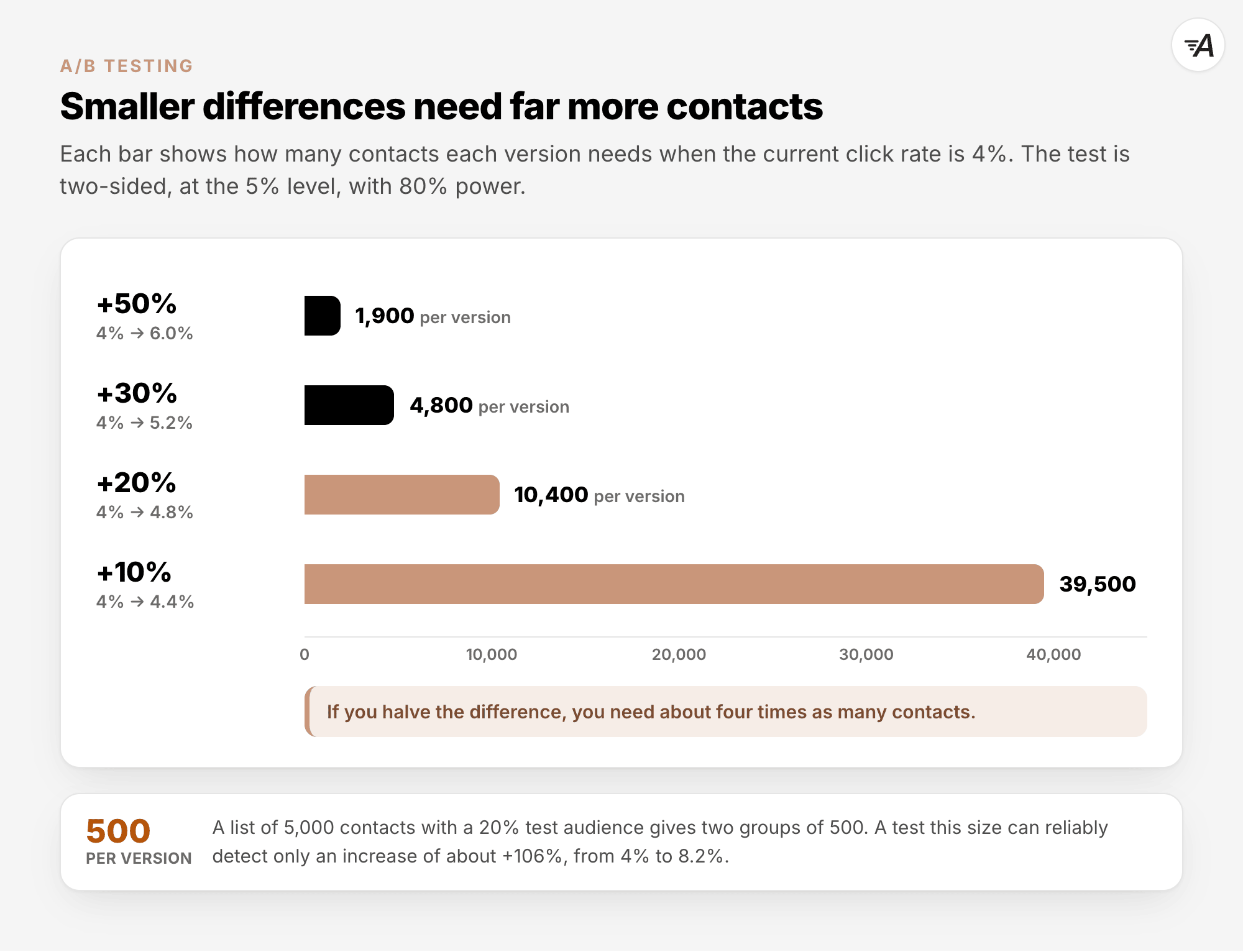
The increases are relative. +20% means that a 4% click rate rises to 4.8%, and +10% means that a 2%
click rate rises to 2.2%.
If you want to detect half the difference, you need roughly four times as many contacts. At a 4% click
rate, detecting +20% needs 10,400 contacts per version. Detecting +10% needs 39,500 contacts per
version.
What a smaller test can detect#
You can also look at the smallest difference a test of a given size can find. At a 4% click rate, with
80% power, these are the smallest increases each group size can detect:
| Contacts per version |
Smallest increase it can detect |
| 500 |
About +106% (4% → 8.2%) |
| 1,000 |
About +71% |
| 2,500 |
About +43% |
| 5,000 |
About +29% |
| 10,000 |
About +20% |
| 25,000 |
About +13% |
A list of 5,000 contacts with a 20% test audience gives two groups of 500. A test of that size can
reliably detect only a very large difference, roughly a doubling of the click rate.
With a smaller list, you still have options. You can test bigger changes, such as a different offer
rather than one word in the subject line. Another option is to send each version to half of the whole
list and use the result for the next campaign. You can also run the same kind of test over several
campaigns.
We worked out these figures with the standard formula for comparing two rates. To check your own
numbers, try Evan Miller's sample size
calculator. Calculators use slightly different
formulas, so their answers can differ from this table by a few per cent.
The diagram below shows how the number of contacts grows as the difference you want to detect gets
smaller.
5. Reading the result#
The p-value tells you how likely a difference at least as large as yours would be if both versions
performed exactly the same. The assumption that both versions perform the same is called the null
hypothesis. The NIST e-Handbook
defines the p-value as "the probability of the test statistic being at least as extreme as the one
observed given that the null hypothesis is true".
A small p-value means that chance alone would rarely produce your result. The usual threshold is 5%,
which is a p-value of 0.05. The same handbook explains that this level "implies that the null hypothesis
is rejected 5 % of the time when it is in fact true". This means that when two versions perform the
same, about one test in 20 will still show a "significant" difference.
Set the threshold before the test. The handbook says: "It is good practice to decide in advance of the
test how small a p-value is required to reject the test."
A result that is not significant does not prove that the versions are equal. It means that the test
could not tell them apart. The handbook's page on statistical
tests describes such a result as
"possibly indicating we may not yet have enough data".
The same difference, different certainty#
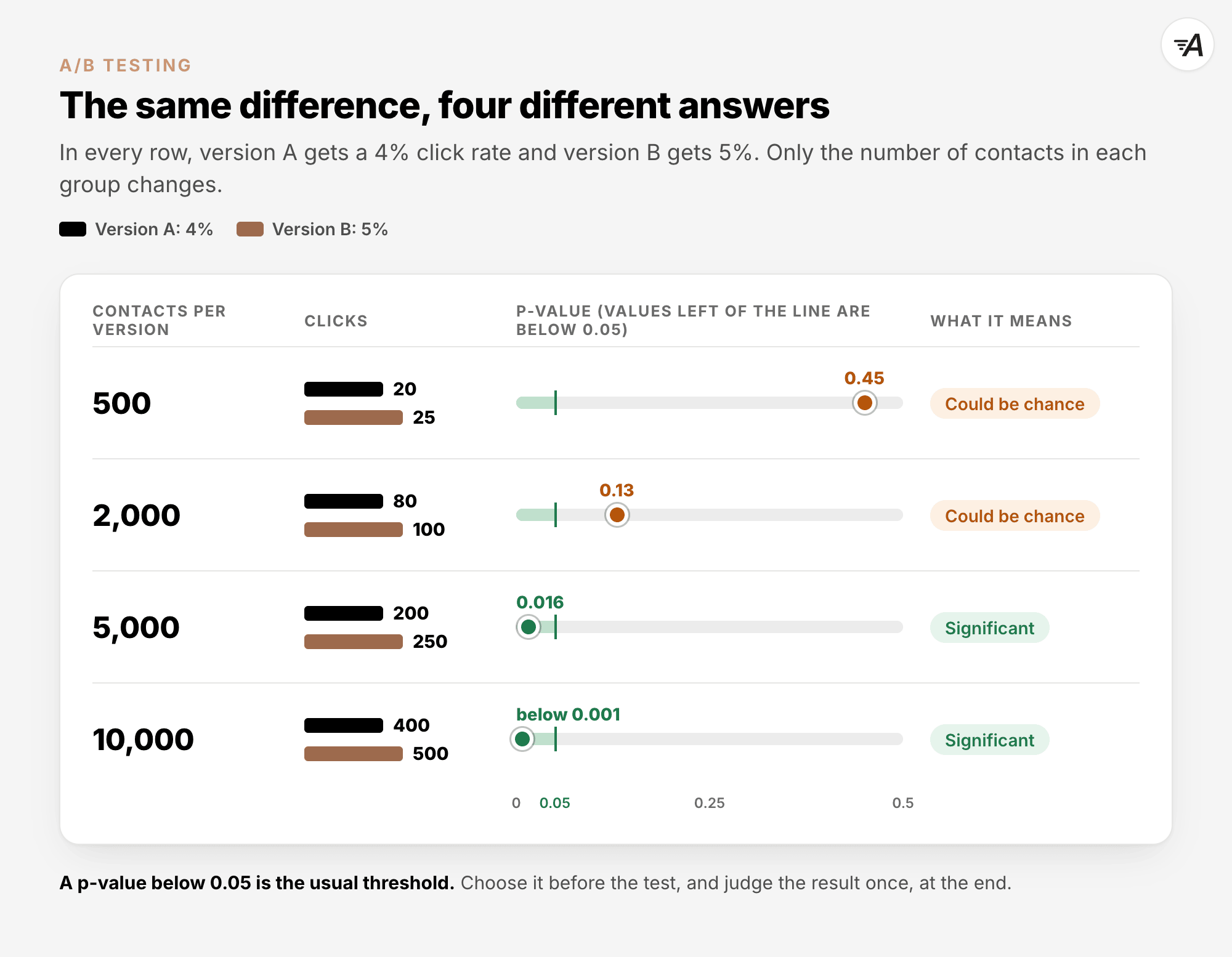
Suppose one version gets a 5% click rate and the other gets 4%. That is a 25% increase in every row
below. Only the size of the groups changes.
| Contacts per version |
Clicks at 5% |
Clicks at 4% |
p-value |
| 500 |
25 |
20 |
0.45 |
| 2,000 |
100 |
80 |
0.13 |
| 5,000 |
250 |
200 |
0.016 |
| 10,000 |
500 |
400 |
below 0.001 |
Only the last two rows have a p-value below 0.05. The p-values come from the standard z-test for two
proportions. AcelleMail uses the same
test in its report.
Statistical significance is not the same as practical value. With very large groups, even a tiny
difference can be significant without being worth acting on. Decide before the test what size of
difference would change what you do.
The diagram below shows the four rows of the table side by side.
6. Two habits that create false winners#
Checking again and again, and stopping early#
It is tempting to watch the results and stop the test as soon as one version looks like a clear winner.
The problem is that the significance calculation assumes "that the sample size was fixed in advance", as
Evan Miller explains.
His example shows how much this matters. A website tests a new logo that makes no difference at all. The
test is checked after every visitor and stopped at the first significant result, or after 150 visitors.
It wrongly finds a significant result 26.1% of the time, instead of 5%. He calls this a worst case,
because the test is checked after every single visitor.
The researchers Johari, Pekelis and Walsh describe ordinary p-values
and confidence intervals as "wholly unreliable" when users decide when to stop by "continuously
monitoring" their tests.
For an email test, decide before sending how long you will wait. Judge the result once, at the end.
Miller advises: "Decide on a sample size in advance and wait until the experiment is over".
Testing too many versions#
Each extra version takes contacts from the others, so every group gets smaller. It also adds
comparisons, and each comparison is another chance of a false winner.
With three versions, there are three pairs to compare. Consider a test where all three versions perform
equally well and each pair is judged at the 5% level. The chance that at least one pair shows a
"significant" difference is about 12%. With four versions, there are six pairs, and the chance is about
20%. We worked out these figures with a simulation of 200,000 tests.
Statisticians make adjustments for this. The Bonferroni
method, for example, divides the 5%
by the number of comparisons. For most lists, two versions are enough.
7. Learning from your tests#
Keep a simple log of every test. Write down the question, what changed, the measure used to decide the
result, the size of each group, the result and the p-value.
A result that was not significant does not show that one version is better. Record it as a test that
could not show a difference between the versions, and do not turn it into a rule for future campaigns.
Before you adopt a change as standard practice, repeat the test to see whether you get the same result.
Over time, the log shows which kinds of change matter to your readers. It also keeps uncertain results
separate from changes that have performed better more than once.
8. A/B testing in AcelleMail#
AcelleMail can run both types of test. You can test part of the list and then send the winner to
everyone else, or split the whole list. To start, open Campaigns → Email and click Create
campaign. On the A/B Test card, click Create. The test is set up in three steps: Campaign,
Variants and Winner Rules.
A new A/B campaign starts with a test audience of 100%, Exact split and Highest open rate. You
will change all three settings in the steps below.
Step 1: Campaign#
- Under Split configuration, set the Test audience size (1). The slider runs from 1% to 100% of
the list. The test audience is shared between the variants, and everyone else receives the winner. A
test audience of 100% means the whole list is split, with no winner sent afterwards.
- Under Assignment strategy (2), choose Hash split. It puts each contact in a group using a
code calculated from the contact's unique ID. This mixes old and new contacts in every group. The
screen describes the group sizes as "Approximate (±3%)".
- Check the Rollout summary (3). It shows the test audience, who will receive the winner, the rules
for choosing the winner and how long AcelleMail waits before deciding.
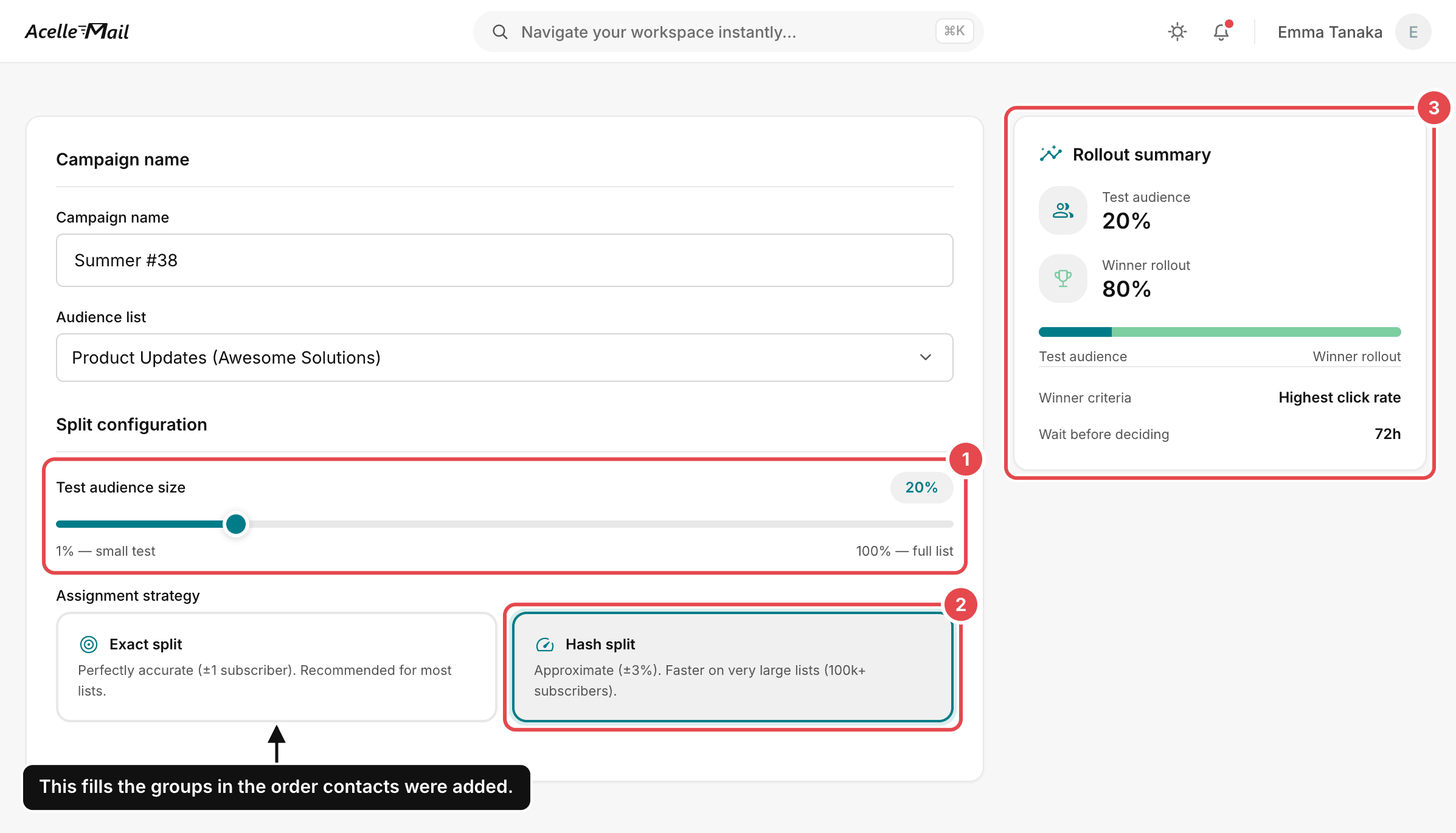
Exact split fills the groups in the order the contacts were added to the list. The test audience
contains the oldest contacts. Variant A gets the first group of these contacts, and Variant B gets the
next. These groups can differ before either email is sent. The screen calls Exact split "Recommended
for most lists" because its groups have exactly the size you set. For a fair test, it matters more that
the groups are chosen at random than that their sizes match to the last contact.
Step 2: Variants#
- Add the first version with Add variant. It becomes the control and carries the Control badge.
Each variant is a complete email with its own subject line, design and content.
- To make the second version, click the copy button on the control's card (Duplicate variant). Then
change one thing in the copy.
- Each new variant gets an even share of the test audience, and Balance splits lets you change the
shares. Keep them equal, because two groups of the same size give the test its best chance of finding
a real difference.
Step 3: Winner Rules#
After the wait you set in this step, AcelleMail picks the variant with the highest rate and sends it to
the rest of the audience. The rate is unique clicks or unique opens divided by the emails the report
counts as Delivered. AcelleMail does not check whether the difference is statistically significant,
so the chosen winner can be ahead by chance. For this campaign, that does little harm, because two
versions that differ only by chance are about equally good. The harm comes later, if you treat that
winner as a lesson.
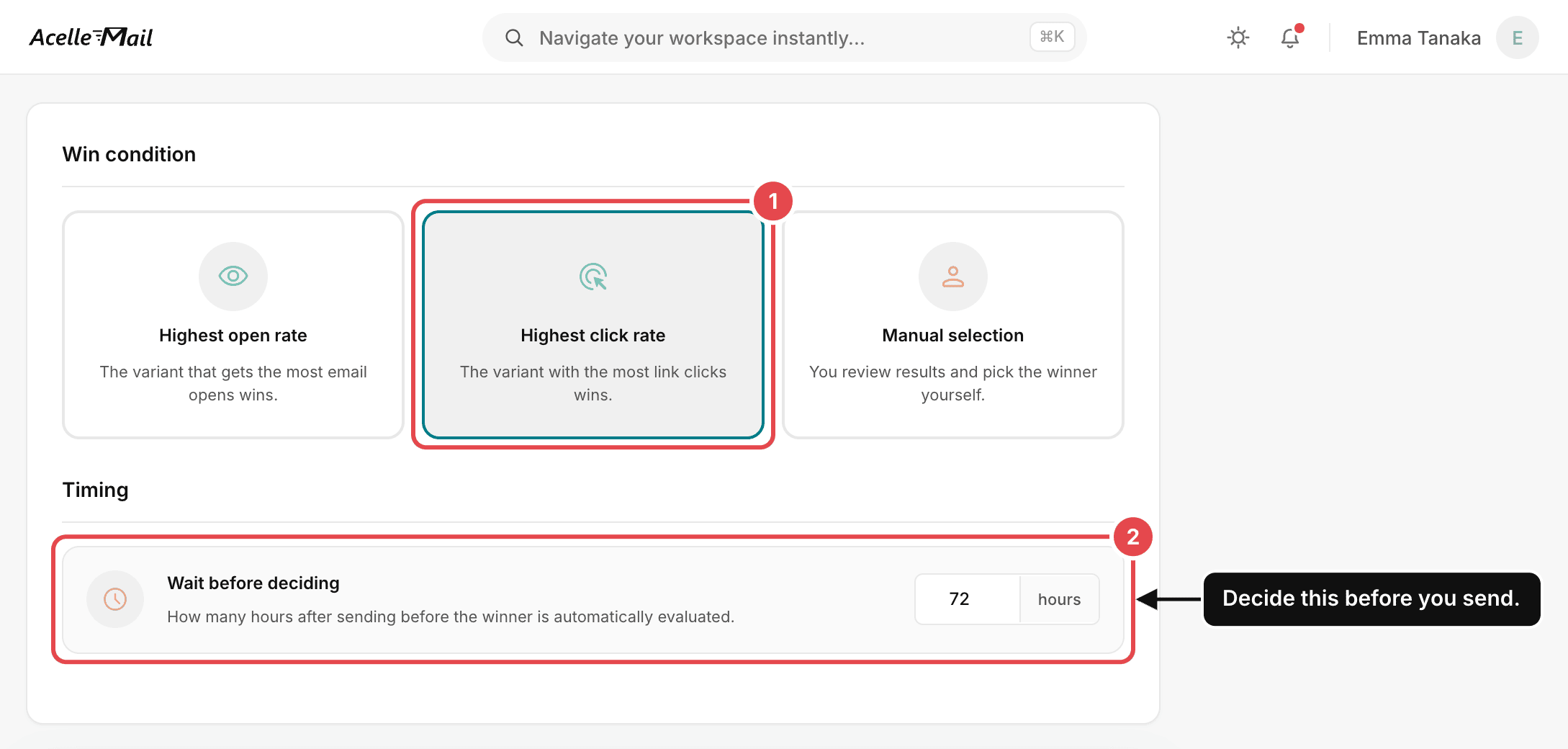
- Under Win condition (1), choose Highest click rate. The other options are Highest open
rate and Manual selection.
- Set Wait before deciding (2) before you send. This sets how many hours AcelleMail waits after
sending the test emails before choosing the winner. With a short wait, the variants are judged only
on the people who respond quickly. These people may not behave like the rest of your readers. A long
wait delays the email for everyone else. Choose a wait that covers most of the clicks your past
campaigns received.
With Manual selection, the rest of the audience waits until you click Choose as winner on one of
the variants in the report. Use it when orders decide your test. Compare the orders from each version in
your shop or analytics tool, then choose the winner yourself. To check whether the difference is
significant, enter the contacts who ordered and the emails delivered for each version in Evan Miller's
chi-squared test.
AcelleMail sends all variants in the same run, at the same time. An A/B test therefore compares the
emails themselves, not send times. To compare send times, use separate campaigns.
Read the report#
To see the results, click the campaign's name in the campaign list, or open its A/B Report tab.
While AcelleMail waits to choose a winner, a banner says "Awaiting winner determination". Once a winner
is chosen, the banner (1) names it and reports the improvement over the runner-up.
With exactly two variants, the Statistical confidence card (2) shows the Z-score, the
P-value, the Lift and the Sample size. It also shows one of two sentences: "This result is
statistically significant (p < 0.05)." or "Not enough data for statistical significance yet."
The percentage the card calls "confident" is 1 minus the p-value. It is not the chance that the winner
is better, so read the P-value itself. The card compares the rate used by the Win condition.
When you choose Manual selection, it compares open rates.
The report in the screenshot below is an example. Variant A had 26 clicks from 596 delivered emails, and
Variant B had 21 clicks from 591. The banner says "Click rate improved by 22.8% over the runner-up." The
card shows a p-value of 0.4741 and "Not enough data for statistical significance yet." To detect a
difference of that size reliably, each variant would need about 9,100 contacts.
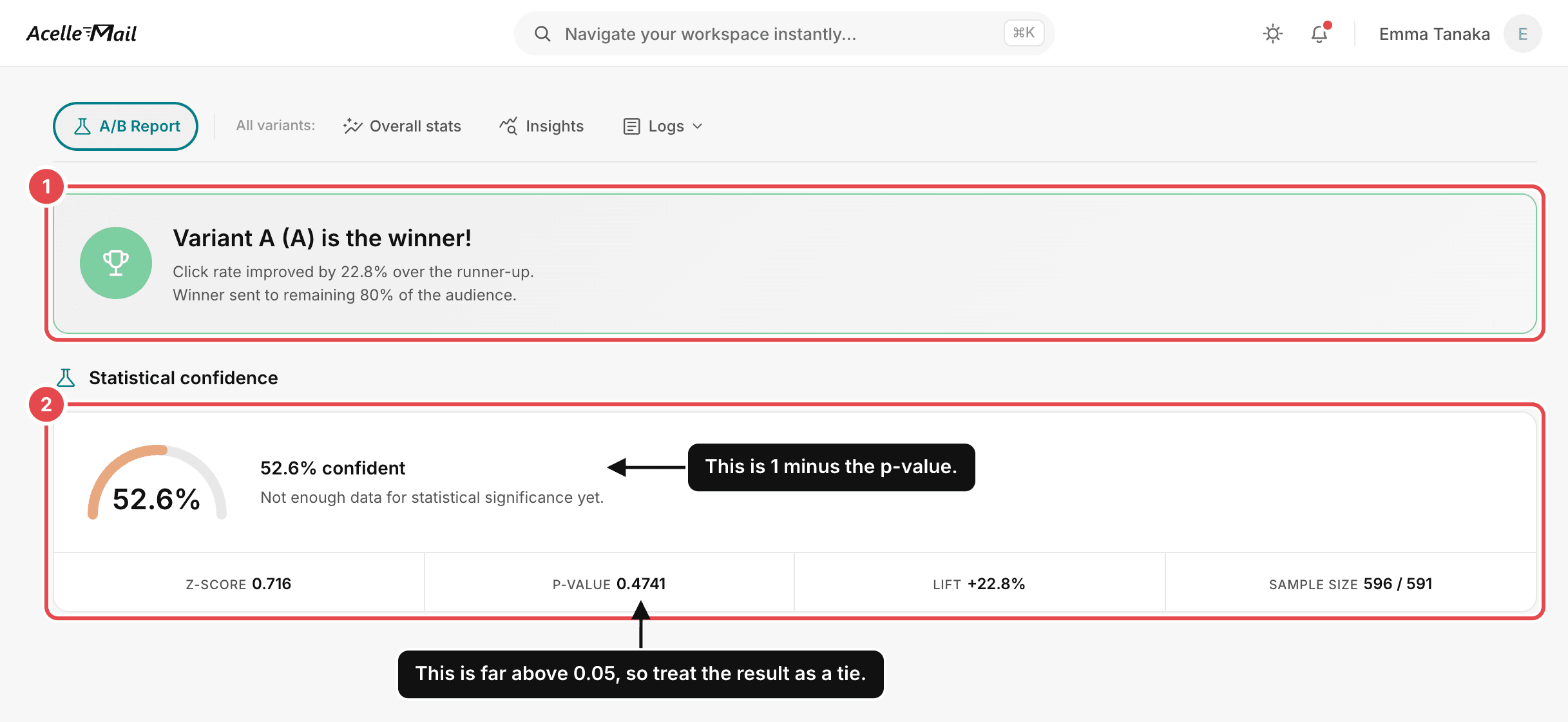
Treat a result like this as a tie. Sending either variant to the rest of the list was fine, but do not
adopt the change as a rule.
The Engagement over time chart shows the opens and clicks for each variant. It tells you how long
your readers usually take to respond. This helps you choose the wait for the next test.
9. Common mistakes#
| What you see |
Why it is a problem |
What to do |
| You choose the winner by open rate. |
With Apple Mail Privacy Protection, opens are recorded for emails nobody has read. |
Compare the versions by unique clicks. |
| You use 500 contacts for each version to test a small change. |
A test of that size can reliably detect only very large differences. |
Work out how many contacts you need first. Test a bigger change, or use the whole list. |
| You declare a winner with 26 clicks compared with 21 clicks. |
A difference that small can easily be due to chance. |
Read the p-value, and treat the result as a tie. |
| You check the result again and again and stop when it looks good. |
Stopping early creates many more false winners. |
Before sending, decide how long to wait. Judge the result once. |
| The subject line and the content change together. |
You cannot tell which change made the difference. |
Change one thing at a time. |
| A small list is split between four versions. |
The groups get smaller, and each extra comparison increases the chance of a false winner. |
Test two versions. |
| Exact split is selected. |
The groups follow the order in which contacts joined the list. |
Choose Hash split. |
Summary#
- An A/B test compares a control and a variant. Before you send, decide on the question, the measure
and how you will choose a winner.
- Choose a measure that the change can affect. Prefer unique clicks to opens, or orders when the goal
is a sale.
- Assign contacts at random and send all versions at the same time.
- Work out how many contacts the test needs before you send. Small differences need far more contacts
than large ones.
- Read the p-value as well as the difference. A result that is not significant does not prove the
versions are equal.
- Decide in advance how long to wait, and judge the result once. Two versions are enough for most
lists.
- Keep a record of your tests, and repeat a promising result before you make it standard practice.
- In AcelleMail, choose Hash split and Highest click rate. Check the P-value in the report,
because the automatic winner does not need to be significant.
Terms used here are defined in the Email Marketing Glossary.
