Every mailbox provider keeps a record of your earlier emails and of how its users responded to them.
That record is your sender reputation. It helps the provider decide whether to accept your next email
and whether to put it in the inbox or the spam folder.
Microsoft says: "Deliverability to
Outlook.com is based on your reputation."
You cannot set your reputation or buy it. You build it slowly through the emails you send and how people
respond to them, but you can damage it quickly.
This guide covers:
-
What sender reputation is
-
IP reputation and domain reputation
-
What builds and what damages reputation
-
Your sending service keeps a record too
-
Warming up a new IP address or domain
-
How to see your reputation
-
Repairing a damaged reputation
-
Reputation tools in AcelleMail
It ends with the most common mistakes and a one-screen summary.
1. What sender reputation is#
Google explains sender reputation in its help for Postmaster
Tools: "Reputation is a rating of the quality of
domains and IP addresses used to send email, and is determined by the sending behavior of a domain or IP
address." It adds: "Messages from senders with a high reputation are more likely to be delivered to
Gmail’s Inbox instead of to Spam."
Gmail shows four ratings in Postmaster Tools:
| Rating |
Google's description |
| High |
"History of very low spam rates, and complies with Gmail's sender guidelines." |
| Medium |
"History of sending legitimate email, but occasionally sends spam." |
| Low |
"History of sending a significant volume of spam regularly." |
| Bad |
"History of sending a high volume of spam regularly." |
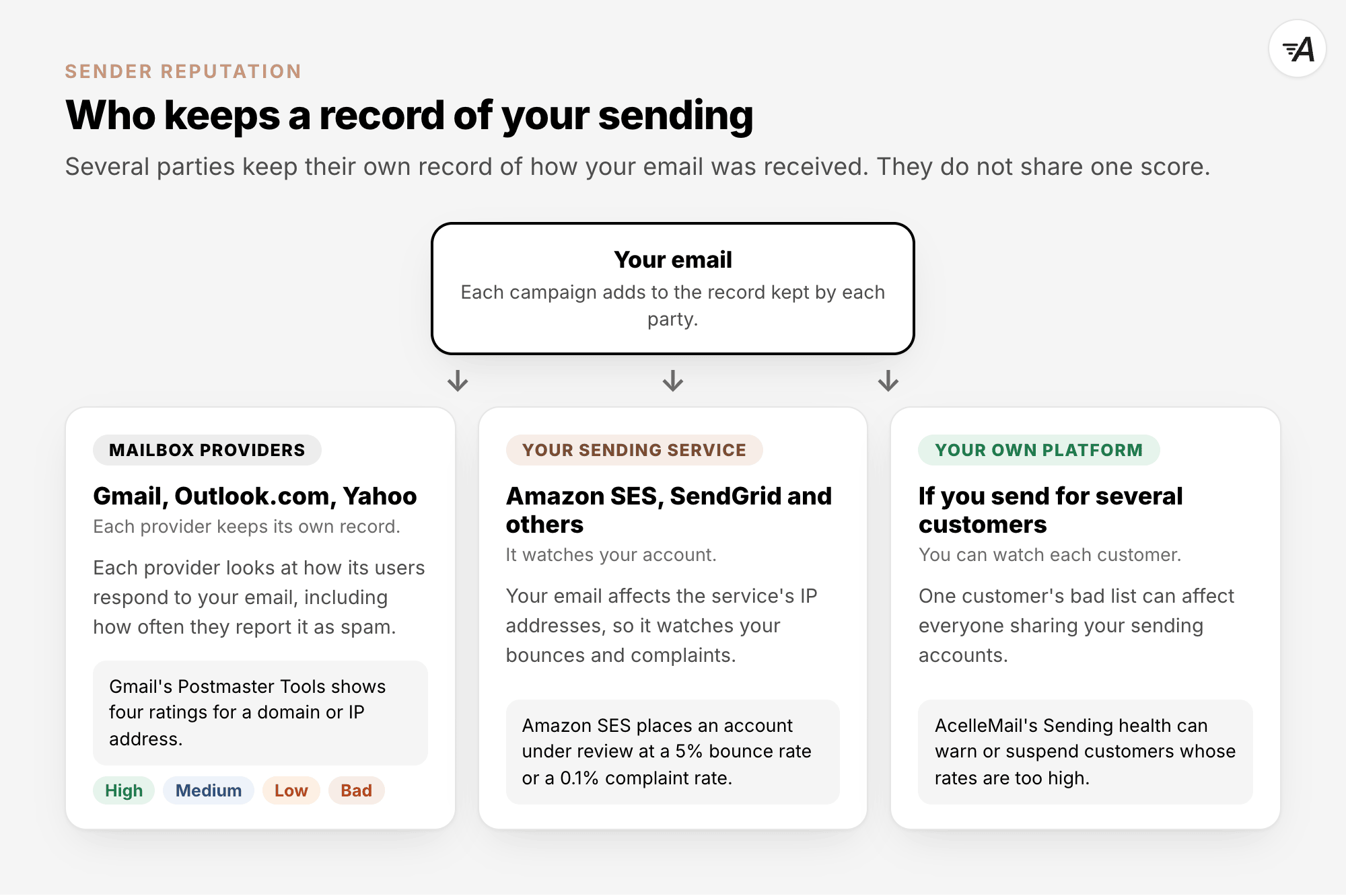
There is no single score shared by every provider. Gmail, Microsoft and Yahoo each keep their own
record. They base it on the emails they receive from you and how their users respond. So your reputation
can be good with one provider and weaker with another. In Microsoft's words, "Reputation is always the
responsibility of the sender."
2. IP reputation and domain reputation#
Providers usually track two kinds of reputation for your email:
- IP reputation belongs to the IP address of the server that sends your email.
- Domain reputation belongs to your domain. In Gmail's Postmaster Tools, it covers the domain that
signs the email with DKIM, or the SPF domain when there is no DKIM signature.
Yahoo says: "Each IP and DKIM domain has a reputation,
which can impact the delivery of your email."
|
IP reputation |
Domain reputation |
| What it belongs to |
The sending IP address |
Your domain, as used in DKIM or SPF |
| Who shares it |
Everyone who sends from the same IP address |
Only email authenticated with your domain |
| When you change IP address or service |
You leave the old IP reputation behind |
It stays with your domain |
When you use a shared IP address, emails from other senders also affect its reputation. Google explains
in its email sender guidelines: "The IP address quota
is shared for all senders that use that IP address. When the IP address hits its quota, all domains that
send from that IP address stop sending emails."
This does not mean you need a dedicated IP address. Amazon
SES advises: "If you don't plan to send
large volumes of email on a regular and predictable basis, we recommend that you use shared IP
addresses." Shared IP addresses are ready to use immediately. Dedicated IP addresses keep your
reputation apart from other customers, but they need setup and a warm-up. Dedicated vs Shared Sending
IP compares the two.
It also helps to keep different types of email separate. Yahoo advises against sending bulk or marketing
email from the same IP addresses as personal email, transactional email and alerts. Transactional vs
Marketing Email explains why.
3. What builds and what damages reputation#
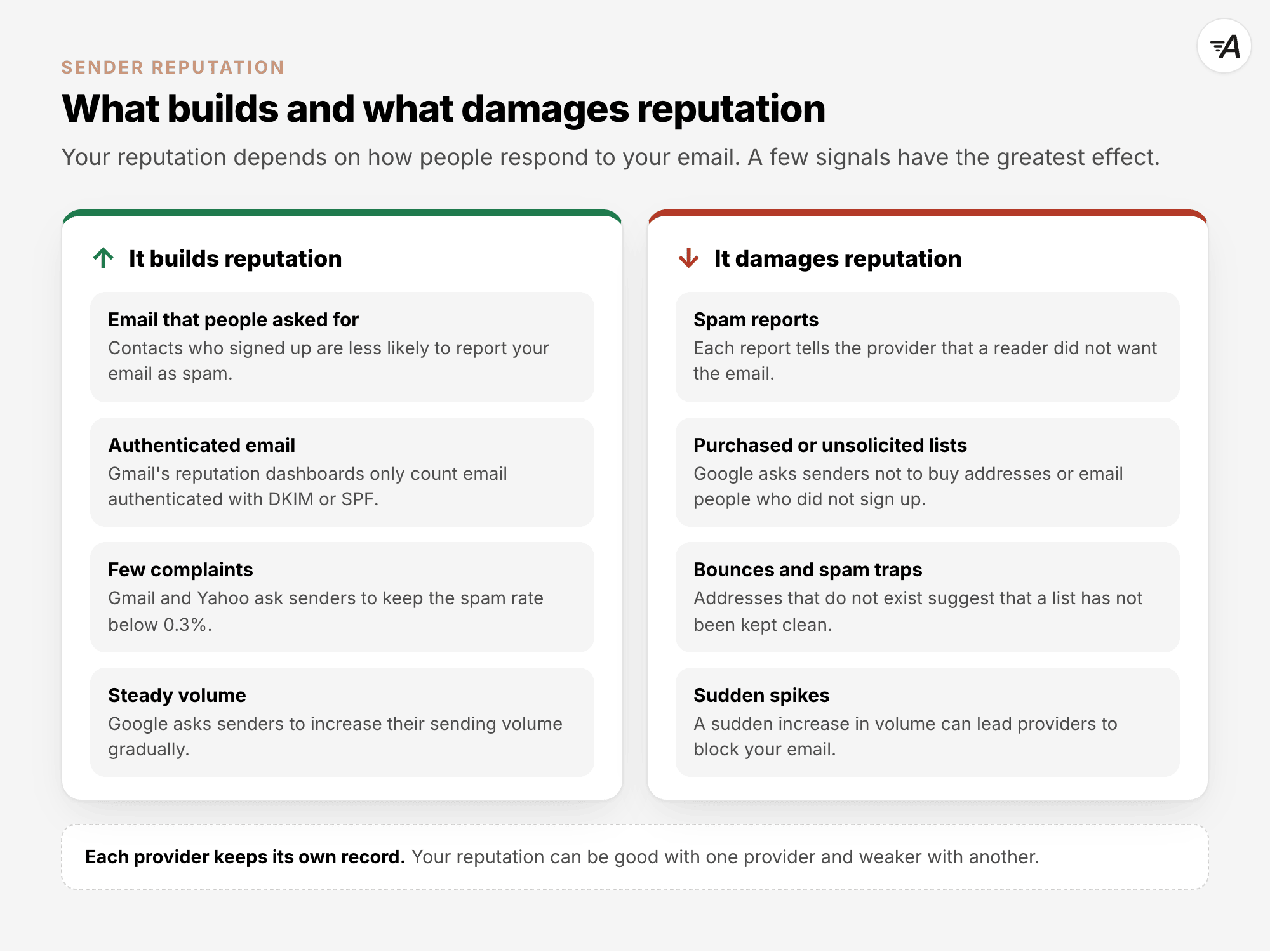
Your reputation depends on how people respond to your emails. A few signals have the greatest effect.
- Complaints. Every spam report counts against you. Gmail asks every sender to keep the spam rate
reported in Postmaster Tools below 0.3%, and Yahoo sets the same limit. Email Marketing Metrics
Explained shows how the rate is calculated, and Spam
Filters Explained shows how readers' reports train the filters.
- Email nobody asked for. Google asks senders to avoid practices such as "Don't purchase email
addresses from other companies." and "Don't send messages to people who didn't sign up to get messages
from you."
- Bounces and spam traps. Sending emails to addresses that do not exist or to spam traps suggests
that you have not kept your list clean. Email List Quality
Explained covers both.
- Sudden jumps in volume. Amazon
SES says that its sending
quotas help "decrease the likelihood that email providers block your emails because of sudden,
unexpected spikes in your email sending volume or rate." Section 5 explains how to increase your
volume gradually.
- Authentication. Gmail's reputation dashboards only include emails authenticated with DKIM or SPF.
This means emails without authentication do not count towards a domain's reputation in Postmaster
Tools. That does not make them any safer to send. Email Deliverability
Explained explains the records.
4. Your sending service keeps a record too#
Mailbox providers are not the only ones that watch your email. Your sending service, which Email
Sending Explained describes, also watches your account because
your emails affect its IP addresses and its own reputation. Amazon
SES publishes the levels it uses to
decide when to take action:
| Rate |
Amazon SES's advice |
Account placed under review |
Sending may be paused |
| Bounce rate |
below 2% |
5% or more |
10% or more |
| Complaint rate |
below 0.1% |
0.1% or more |
0.5% or more |
So a single bad list, for example an old or purchased one, can put the whole account at risk. If you run
AcelleMail for several customers, the customers who use your shared sending servers all send through the
same sending service accounts. That is why AcelleMail can watch each customer's bounces and complaints
(section 8).
5. Warming up a new IP address or domain#
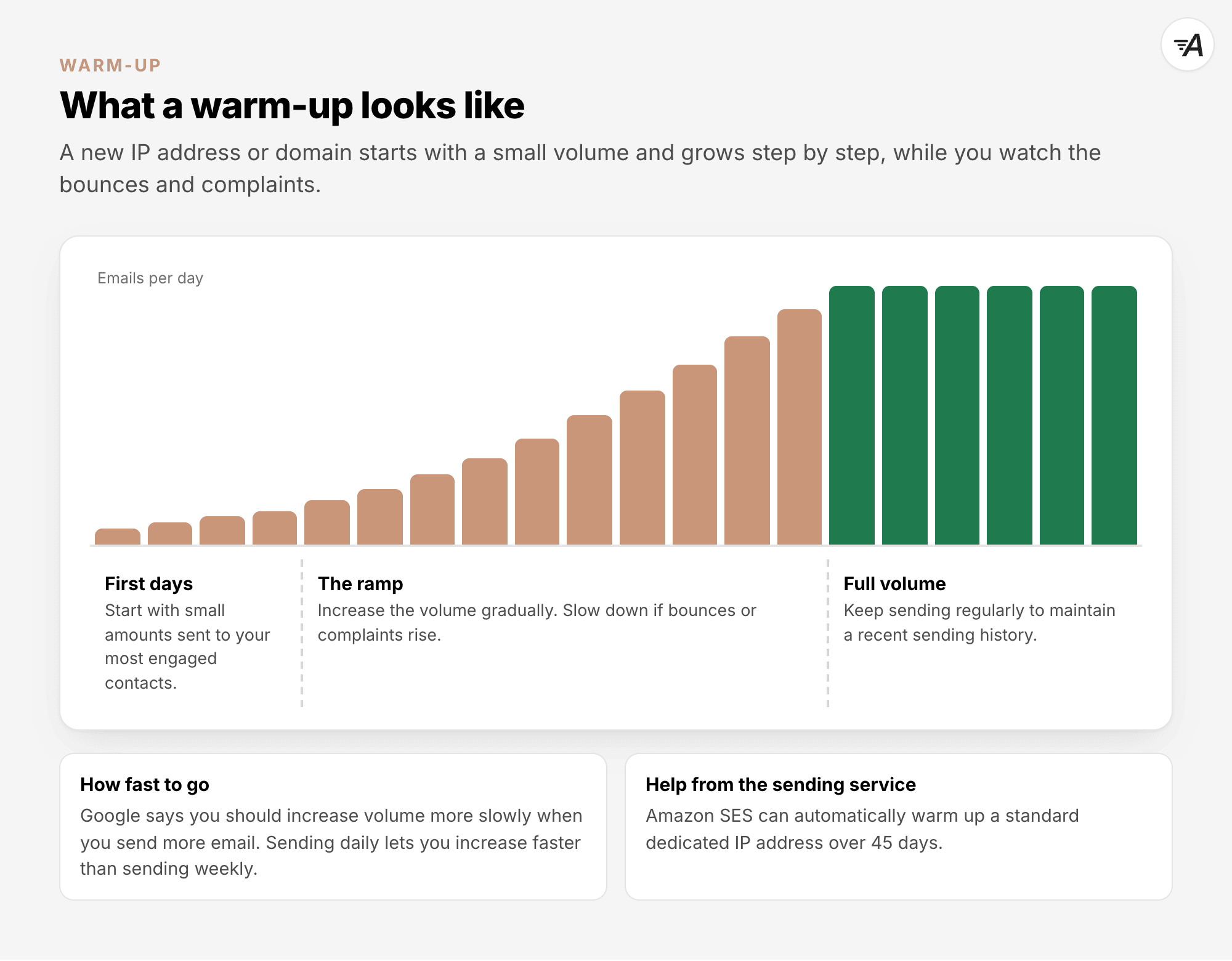
A new IP address or domain has no history, so providers are careful with senders they do not know yet.
Amazon SES explains: "Email providers are less likely to accept mail from new IP addresses that have
little or no history." The solution is to increase your sending volume step by step.
SendGrid describes
this process as follows: when you add a dedicated IP address, "gradually increase the volume of email
messages sent through the IP address".
Google's sender guidelines name three factors that affect how quickly you can increase your volume:
- The amount of email. The more email you send, the more slowly you should increase the volume.
- How often you send. You can increase the volume more quickly when you send daily instead of
weekly.
- Recipient feedback. Send only to people who subscribed, and give them a way to unsubscribe.
Google also says: "As you gradually increase your sending email volume, you should monitor your email
delivery with Postmaster Tools."
Sending services can handle part of the work. Amazon
SES can warm up standard dedicated
IP addresses for you. Its warm-up percentage "steadily increases over 45 days, independently from your
sending volume". Afterwards, Amazon SES says that you "should send around 1,000 emails every day to each
email provider that you want to maintain a positive reputation with". That advice is for a dedicated IP
address, which is one more reason why small senders do better on shared IP addresses (section 2).
A new dedicated IP address needs a warm-up, as does a new domain or subdomain. An IP address that has
been inactive also needs one. SendGrid advises warming it up again when no email has gone through it "in
more than 30 days". The shared IP addresses of a sending service are already in use, so you do not need
to warm them up yourself. However, a new domain using those IP addresses still starts without a sending
history. Start by sending to contacts who are most likely to open your emails. IP Warmup
Schedule and Domain
Warmup give example schedules.
6. How to see your reputation#
Each provider shows only what it sees of your email. No provider shows the full picture.
- Gmail. Postmaster Tools has dashboards for the spam rate, IP reputation and domain reputation. It
also shows your compliance status against Gmail's sender requirements. Gmail Postmaster Tools
Walkthrough shows how to set it up.
- Outlook.com. Microsoft's Smart Network Data Services (SNDS) provides data about the IP addresses
you control. It includes the Junk Email Reporting Program, which sends you a report when users mark
your messages as junk. A new SNDS portal is replacing the old site, according to an announcement
updated on 22 September 2026. Microsoft SNDS Walkthrough
explains the setup.
- Your own reports. You can check each campaign's bounces and complaints after every send. These can
help you assess your sending reputation.
These tools do not combine their results into one score. Each tool shows only what its own provider
sees, so read the results one by one.
7. Repairing a damaged reputation#
When your numbers drop, find the cause before you change anything. Common causes include a purchased or
very old list, a sudden increase in volume, missing authentication, or a type of email that people did
not expect.
Then change how you send while your reputation recovers. Stop sending to people who have not engaged for
a long time, clean the list, and fix the authentication. Send fewer emails and send only to your most
engaged contacts until the complaint and bounce rates come down. This process takes time. Microsoft
says: "Building & maintaining good reputation is a long-term proposition."
Avoid moving to a new IP address or domain to escape the problem. The new one starts without a sending
history. If the cause is still there, the same problem can happen again.
8. Reputation tools in AcelleMail#
Warm-up strategies#
A warm-up strategy tells AcelleMail how many emails a sending server may send each day during its
warm-up. Open Sending → Warmup strategies to create one.
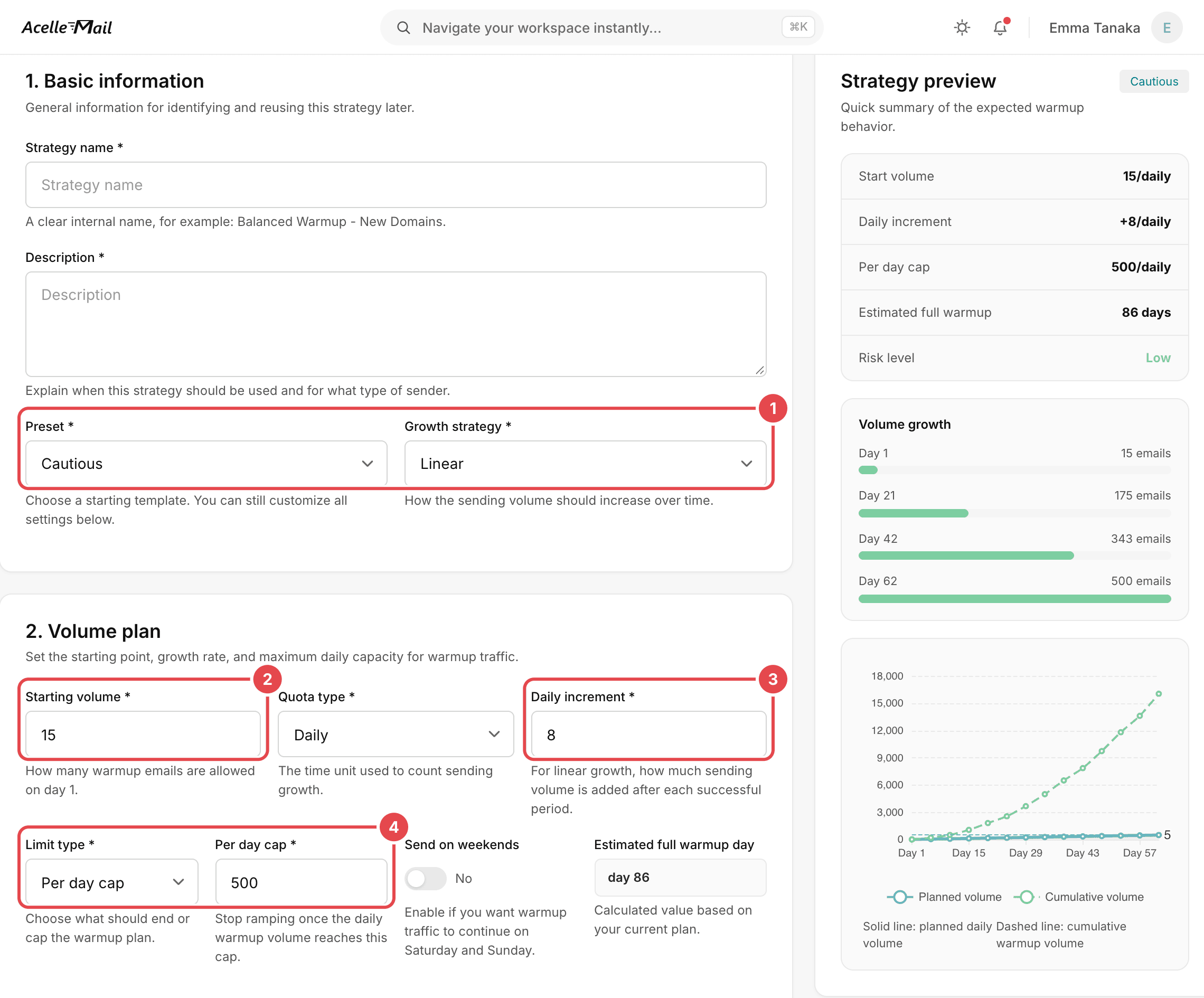
- Preset and Growth strategy: start with Balanced, Cautious or Aggressive, and
choose Linear or Exponential growth.
- Starting volume: how many emails the server may send on day 1.
- Daily increment: how many emails the server adds each day with linear growth.
- Limit type and Per day cap: what ends the warm-up, for example a daily cap.
The Strategy preview on the right shows the plan as a chart. In this example, the Cautious
preset starts at 15 emails a day, adds 8 a day and stops growing at 500 a day. If the server does not
send at weekends, the preview estimates that the full warm-up will finish on calendar day 86.
AcelleMail applies the starting volume, daily increase, cap and weekend setting to the campaigns and
automations that the server sends. It counts the plan by calendar day for the whole server, not
separately for each mailbox provider. The warm-up starts the first time a campaign uses the server.
After the last planned day, the server sends at full speed.
To use a strategy, open the sending server. In its Warmup card, choose the strategy under Select
strategy and click Assign strategy. The card explains: "Ramp this server's sending volume up
gradually so mailbox providers build trust before you send at full speed."
Sending health, for administrators#
If you run AcelleMail for several customers, Sending health watches each customer's hard bounces and
complaints. Administrators set it up under Settings → Sending health.
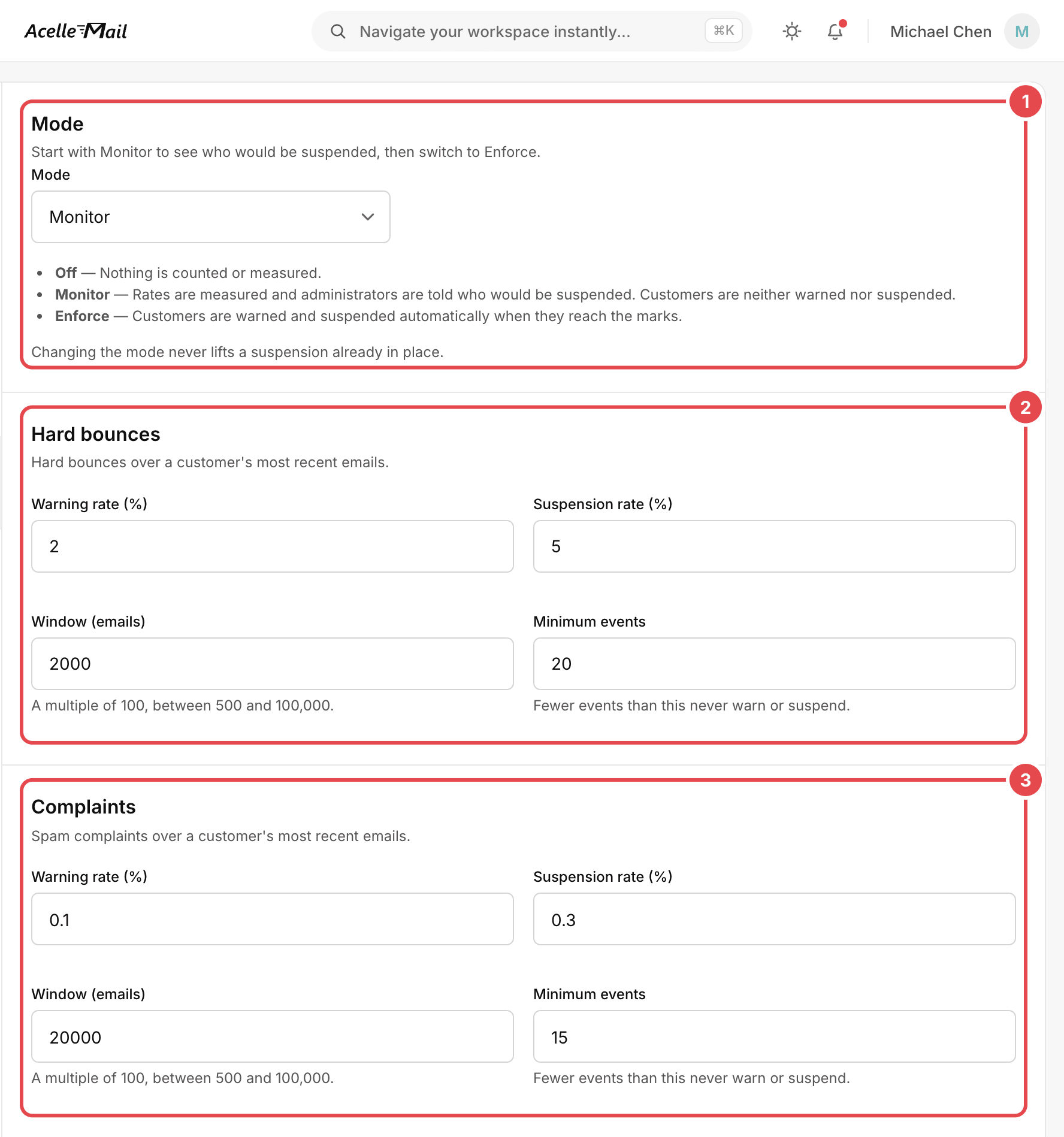
- Mode: Off, Monitor or Enforce. In Monitor mode, "Rates are measured and
administrators are told who would be suspended. Customers are neither warned nor suspended." In
Enforce mode, "Customers are warned and suspended automatically when they reach the marks."
- Hard bounces: by default, a warning at 2% and a suspension at 5%, based on a customer's last
2,000 emails, with at least 20 bounces.
- Complaints: by default, a warning at 0.1% and a suspension at 0.3%, based on the last 20,000
emails, with at least 15 complaints.
These defaults follow the levels in sections 3 and 4. The warnings start at Amazon SES's advice: 2%
bounces and 0.1% complaints. In Enforce mode, a customer is suspended at 5% hard bounces or 0.3%
complaints. Amazon SES places an account under review at 5% bounces, and Gmail and Yahoo ask senders to
keep the spam rate below 0.3%. Both levels are lower than the 10% and 0.5% at which Amazon SES may pause
the shared account.
9. Common mistakes#
| What you see |
Why it is a problem |
What to do |
| You move a large list to a new dedicated IP address on the first day. |
A new IP address has no history, and providers are less likely to accept its email. |
Warm it up, starting with your most engaged contacts. |
| You buy a dedicated IP address for a small, irregular newsletter. |
Amazon SES recommends shared IP addresses unless you send large volumes regularly. |
Stay on shared IP addresses. |
| Marketing email and order emails come from the same IP address and domain. |
Complaints about the marketing email can then affect the order emails too. |
Keep the two kinds of email apart, as Yahoo advises. |
| You ignore complaints because the rate looks small. |
Gmail and Yahoo want the spam rate below 0.3%, and Amazon SES reviews an account from 0.1%. |
Watch the complaints for each campaign. |
| One customer on your platform imports an old list. |
If customers share a sending server, that customer's bounces and complaints count against the whole sending account. |
Watch each customer's rates with Sending health before the sending service acts. |
| You switch to a new domain after a reputation problem. |
The new domain starts without history, and the cause is still there. |
Fix the cause first, then rebuild slowly. |
| You stop sending for months, then email everyone at once. |
SendGrid advises a new warm-up when an IP address has sent nothing for more than 30 days. |
Increase the volume gradually again. |
Summary#
- Sender reputation is each provider's record of your earlier emails and of how its users responded to
them. Gmail rates it from High to Bad.
- IP reputation belongs to the sending IP address and is shared by everyone using a shared IP address.
Domain reputation stays with your domain.
- Complaints, unwanted emails, bounces and sudden jumps in volume damage it. Wanted, authenticated
emails help build it.
- Your sending service keeps a record too. Amazon SES reviews an account at 5% bounces or 0.1%
complaints.
- Warm up a new IP address or domain slowly and steadily, starting with engaged contacts.
- Check your standing in Gmail's Postmaster Tools and Microsoft's SNDS.
- Repair takes time. Fix the cause, then rebuild slowly.
- In AcelleMail, use a warm-up strategy for each new server, and Sending health if you run
AcelleMail for several customers.
Terms used here are defined in the Email Marketing Glossary.
