Deliverability is your ability to get email into the inbox. Being accepted by the receiving server is
only half of it; the message also has to be filed where the reader will see it. Mailbox providers such
as Gmail, Outlook.com and Yahoo make that decision for every message, and they make it from signals you
control.
This guide covers:
- Delivered vs inboxed
- What mailbox providers weigh
- Authentication: SPF, DKIM and DMARC
- Reputation: earn it slowly
- Engagement and spam complaints
- List quality and bounces
- The Gmail, Yahoo and Microsoft sender rules
- How to see where you stand
Each part shows where the idea lives in AcelleMail. The guide ends with the most common mistakes and a
one-screen summary.
1. Delivered vs inboxed#
Two separate decisions stand between your campaign and a reader:
- The receiving server accepts or refuses the message. Accepted means delivered. Refused is a
bounce, and the receiving server says why: the address does not exist, the mailbox is full, the
message was blocked.
- The mailbox provider files the accepted message: in the inbox, in a tab such as Gmail's
Promotions, or in the spam folder.
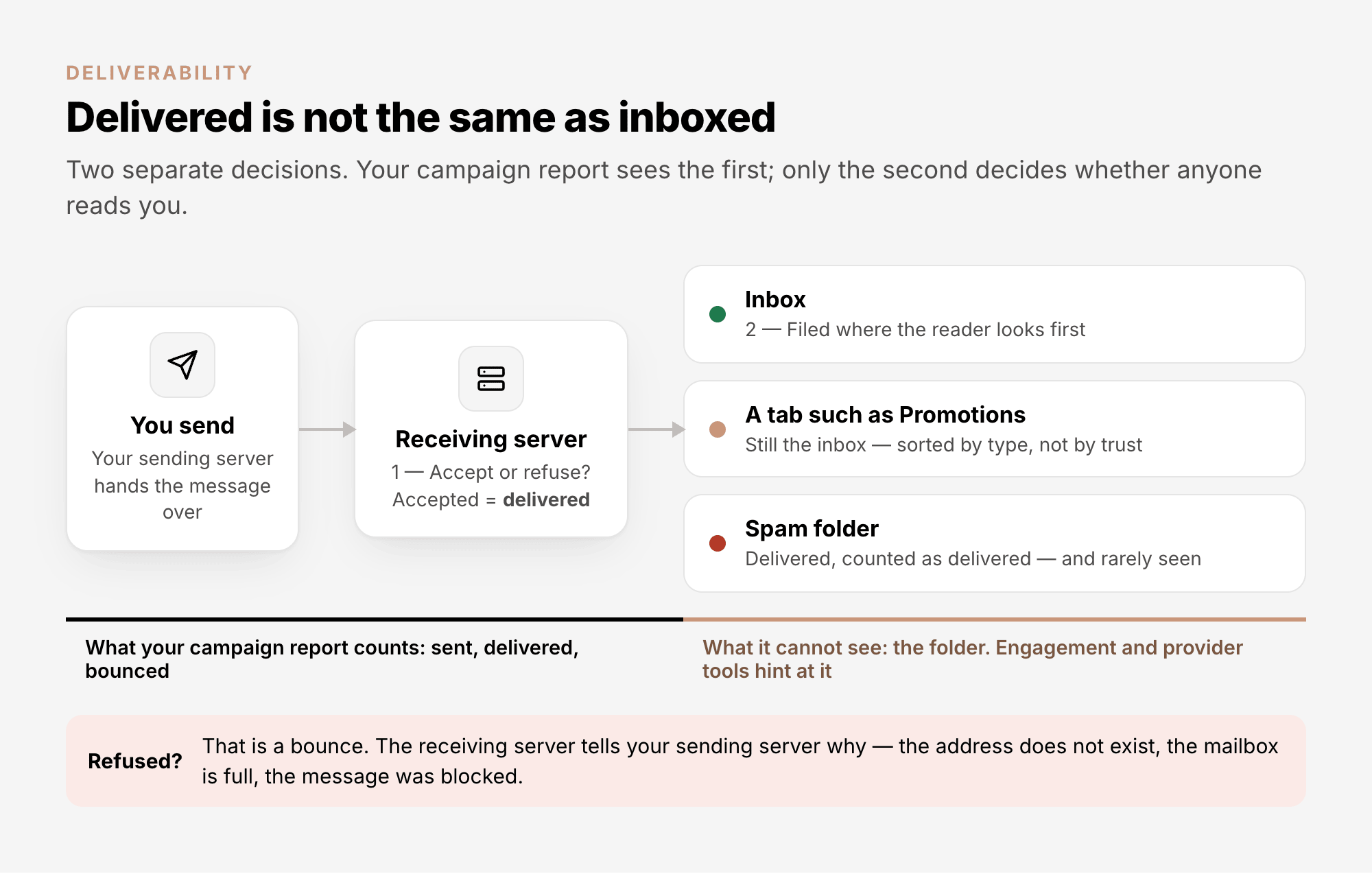
Your campaign report sees the first decision, and not even all of it. In AcelleMail, Delivered
counts the messages your sending server accepted, including ones that bounce later. A refusal shows up
when the bounce comes back (section 6). The report cannot see the folder at all. A campaign can be 99%
delivered and still land mostly in spam; falling opens and clicks, and the mailbox providers' own tools
(section 8), can only hint at it.
The Promotions tab is not the spam folder. Mail there is in the inbox, sorted by type.
2. What mailbox providers weigh#
No provider publishes a formula. What they do publish points the same way: prove who you are, send mail
people asked for, make leaving easy, and keep complaints low. In practice that comes down to five
signals:
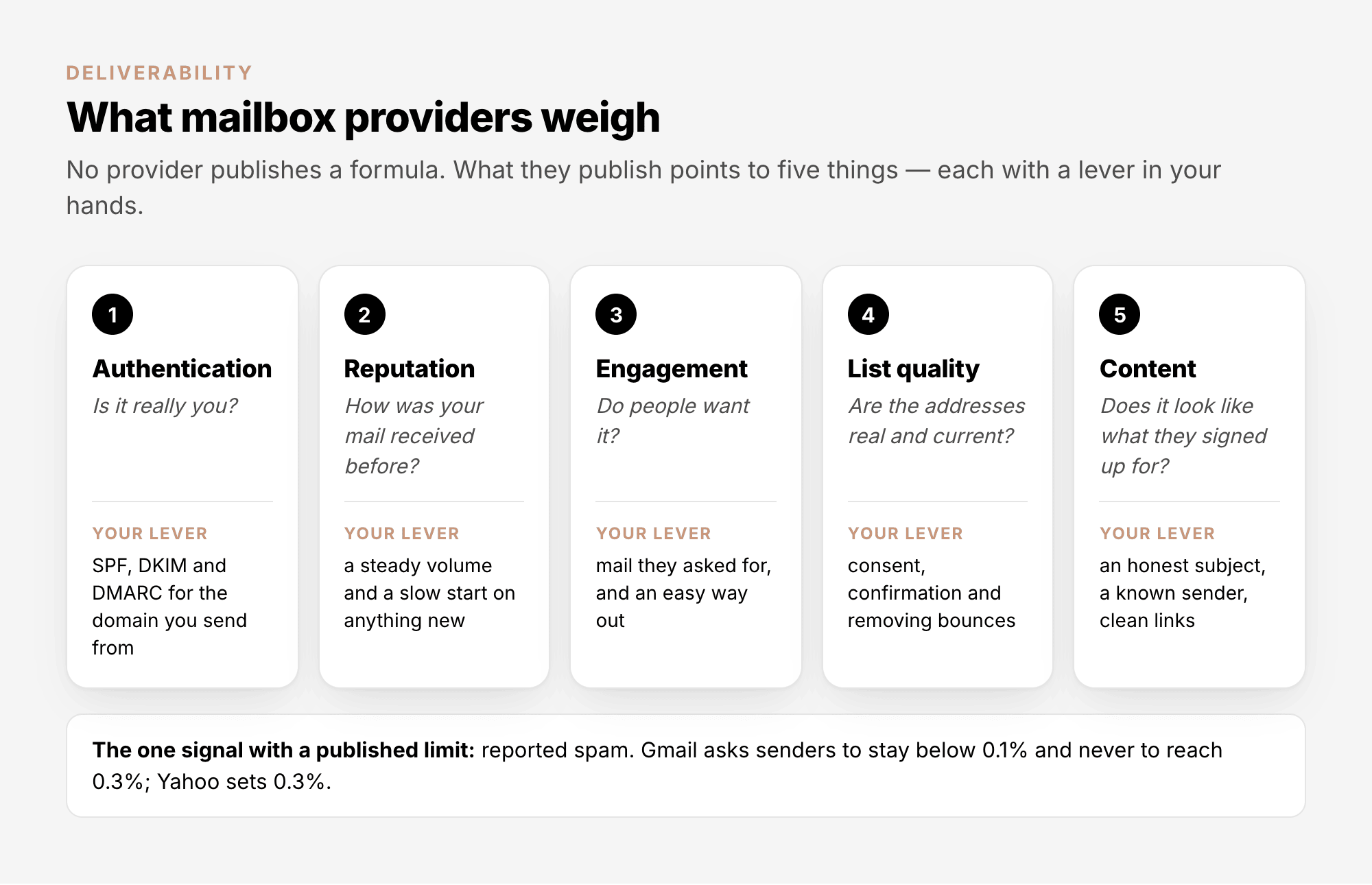
The rest of this guide takes them one at a time.
3. Authentication: SPF, DKIM and DMARC#
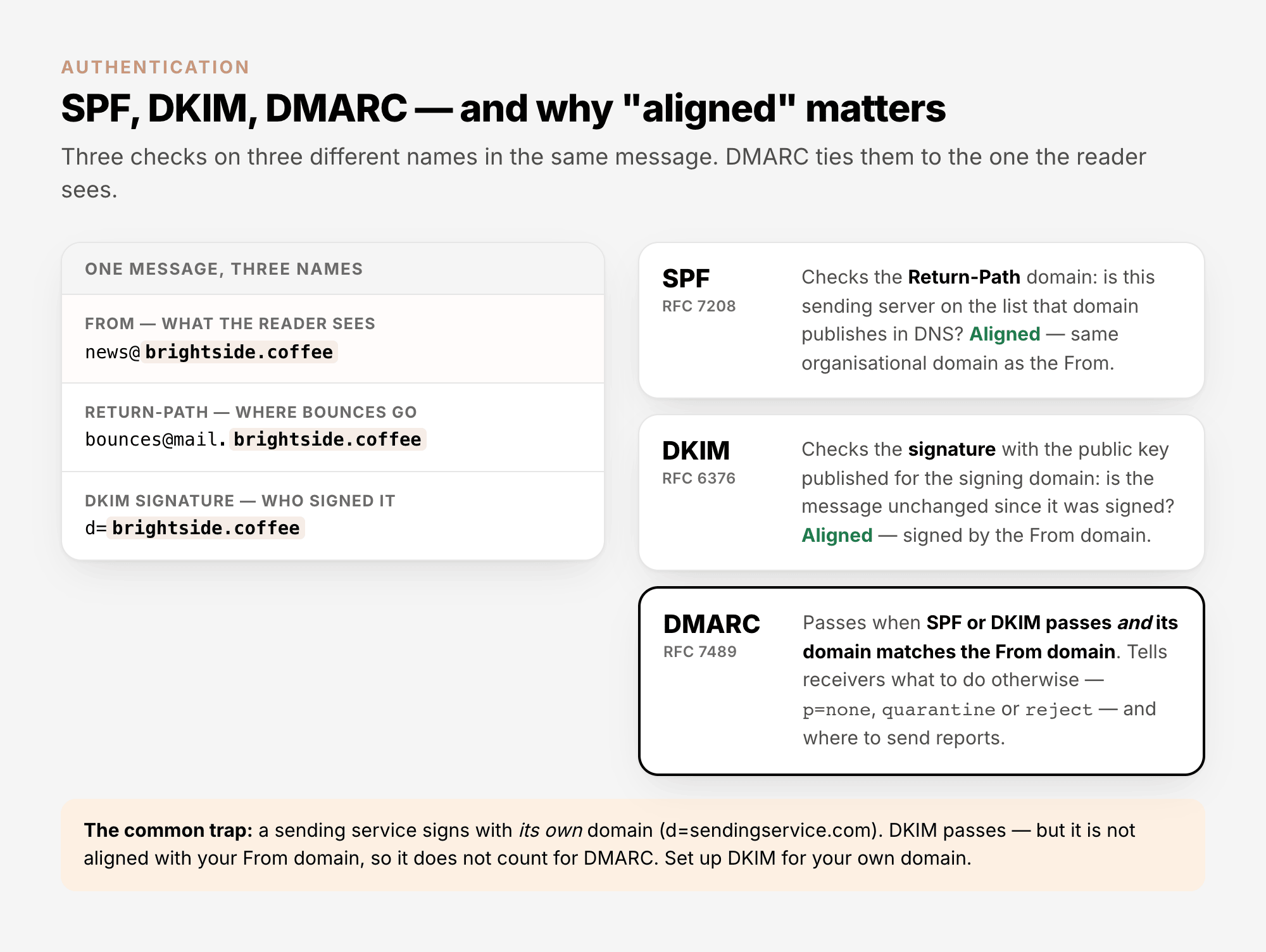
Anyone can type your address into the From line of an email. Three DNS records let a receiving server
check that a message claiming to come from your domain really does:
| Record |
What it checks |
Standard |
| SPF (Sender Policy Framework) |
Is the server that sent this message on the list your domain publishes? It checks the domain of the Return-Path, the address bounces go back to. |
RFC 7208 |
| DKIM (DomainKeys Identified Mail) |
Is the message unchanged since your domain signed it? The receiver verifies the signature with a public key published in your DNS. |
RFC 6376 |
| DMARC |
Did SPF or DKIM pass for the domain in the From line? It also tells receivers what to do when neither does (nothing with p=none, the spam folder with p=quarantine, refuse with p=reject) and where to send reports. |
RFC 7489 |
The word that matters is aligned. SPF and DKIM each check a domain, but not necessarily the one the
reader sees. DMARC passes only when SPF or DKIM passes and its domain matches the From domain, or is
part of the same domain, such as mail.brightside.coffee for brightside.coffee ("relaxed" alignment,
the default):
Two practical points from the providers themselves:
- DKIM key length. Gmail requires a DKIM key of at least 1024 bits and recommends 2048. The keys
AcelleMail creates for your domains are 1024-bit, which meets that minimum.
- Start DMARC at
p=none with a report address (rua=). The policy asks receivers to take no
action yet, and the reports (from the providers that send them) show every service sending mail as
your domain. Tighten the policy only when all of them pass; see DMARC Enforcement
Migration.
In AcelleMail#
Open Sending → Sending domains, add the domain you send from, publish the records AcelleMail lists
for it at your DNS provider, then click Verify DNS records on the domain's page. The list shows each
domain's state:
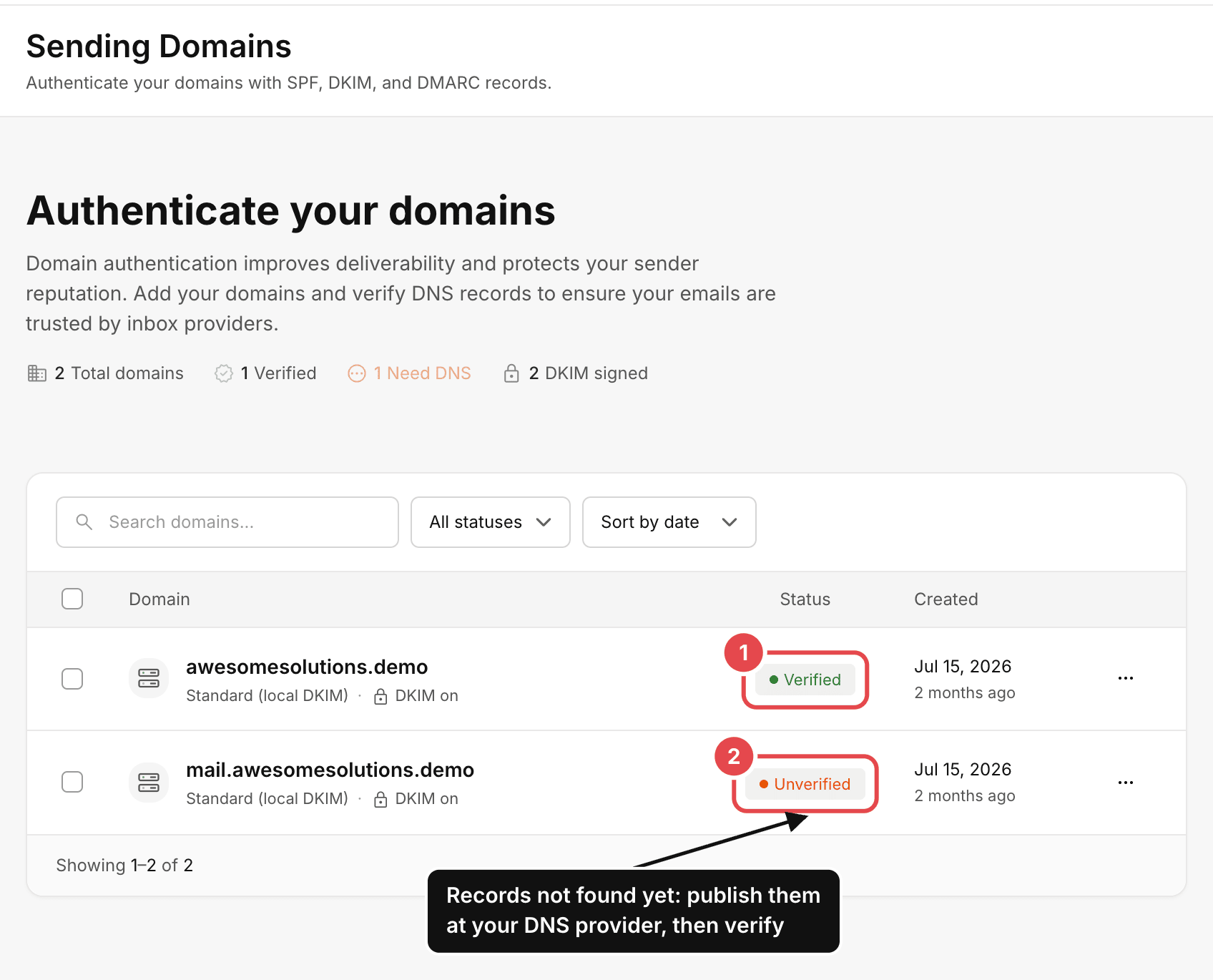
- Verified: the records AcelleMail lists for the domain were found.
- Unverified: the records were not found yet. DNS changes can take time to spread; publish them,
wait, and verify again.
Verified does not cover DMARC: it is one record for your whole domain, and you publish it yourself.
Whether SPF is checked depends on how the domain was set up. The step-by-step setup is in How to Set Up
SPF, DKIM, and DMARC Records and Complete DNS
Setup for Email Sending.
4. Reputation: earn it slowly#
Mailbox providers keep a reputation for your sending IP addresses and your domain, built from
how your mail has been received over time. Two consequences:
- Anything new starts with no history. A new domain or a new dedicated IP address has no reputation,
good or bad. Start with small volumes to your most engaged contacts and raise them step by step. This
is called warming up. Google's own advice is to "increase sending volume slowly to avoid delivery
problems", and it tracks volume, feedback and limits per domain and IP address.
- Consistency counts. A steady rhythm from the same domain builds trust faster than bursts.
On a shared IP, other senders' behaviour affects the reputation you share; on a dedicated IP, it
is all yours, which also means you have to earn it. See Dedicated vs Shared Sending
IP.
In AcelleMail#
AcelleMail can ramp the volume up for you with a warmup strategy. The schedules and the setup are in
Domain Warmup and IP Warmup
Schedule. Separately, every sending server has
a Sending limit that caps how fast it sends. You find it under Sending → Sending servers: open
the server, then the Configuration card. That menu appears if your plan lets you add your own
sending servers; otherwise your administrator sets both.
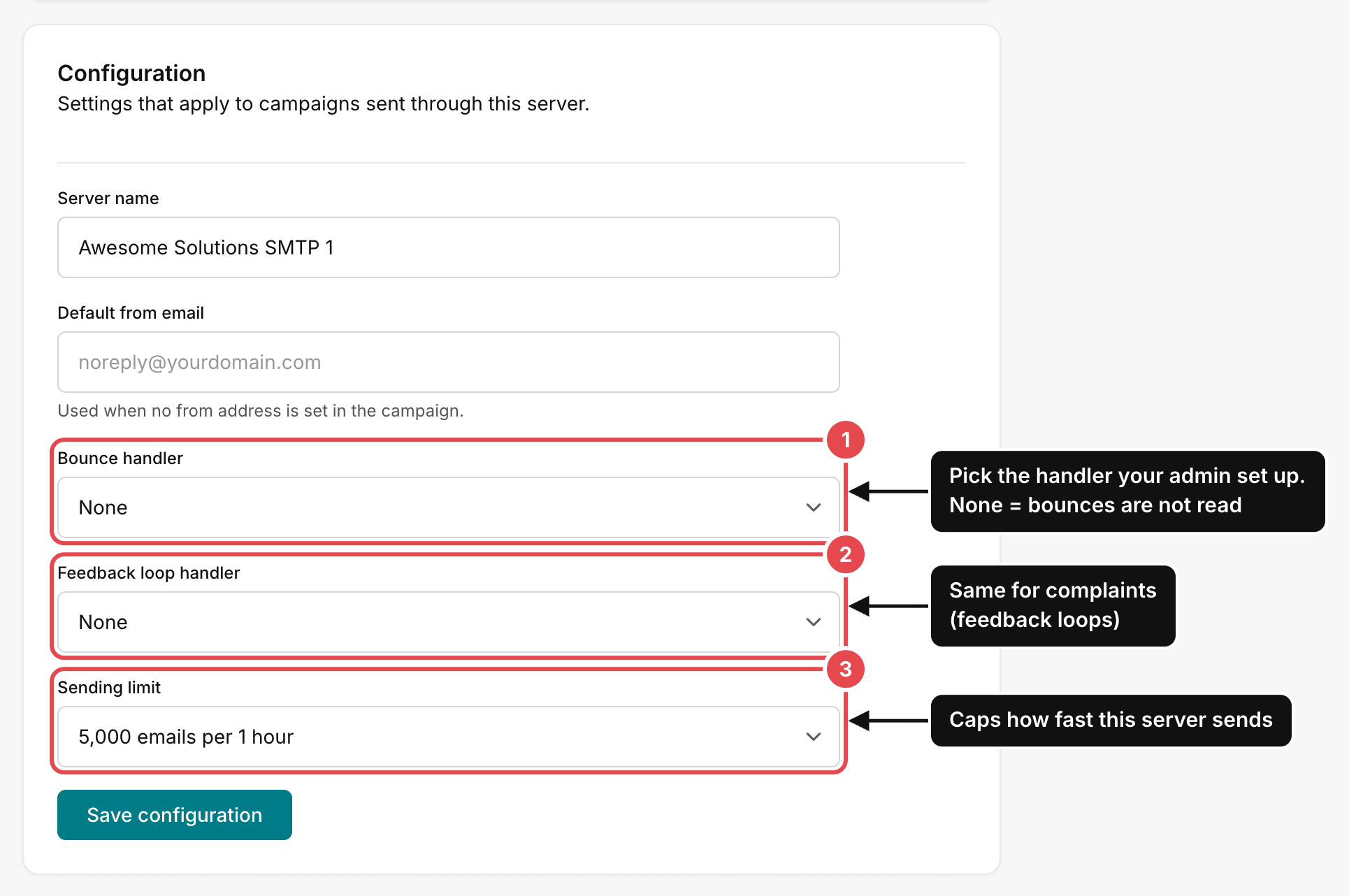
The other two settings on that card, Bounce handler and Feedback loop handler, come up in the
next two sections.
5. Engagement and spam complaints#
Providers learn from how people treat your mail. The clearest signal is the spam button, and it is
the one signal with a published limit:
- Gmail asks senders to keep the spam rate shown in its Postmaster Tools below 0.1%, and never
to reach 0.3%. A bulk sender above 0.3% cannot ask Google to look into its delivery problems
(Google calls this mitigation) until the rate has stayed below 0.3% for seven days in a row.
- Yahoo sets 0.3%, counted against mail delivered to the inbox.
Complaints come from mail people did not ask for, no longer want, or cannot find a way out of. Consent
and an easy unsubscribe are the fixes; see Email Consent
Explained.
In AcelleMail#
Complaints reach AcelleMail through feedback loops, services some mailbox providers run to report
complaints back to the sender. Each campaign lists them under Sending logs → Feedback log. What
happens next depends on how the complaint arrives:
- Reported by a sending service such as Amazon SES: AcelleMail marks the contact Spam reported,
and campaigns skip it.
- Read by a Feedback loop handler (number 2 in the screenshot above, a mailbox your administrator
sets up under FBL Handlers): the complaint is logged, but the contact is not changed. Blacklist
those contacts yourself, as shown in Email List Quality
Explained.
Details: Feedback Loops (FBL).
Gmail does not report individual complaints. Its spam rate is only in Postmaster Tools; see Gmail
Postmaster Tools Walkthrough.
6. List quality and bounces#
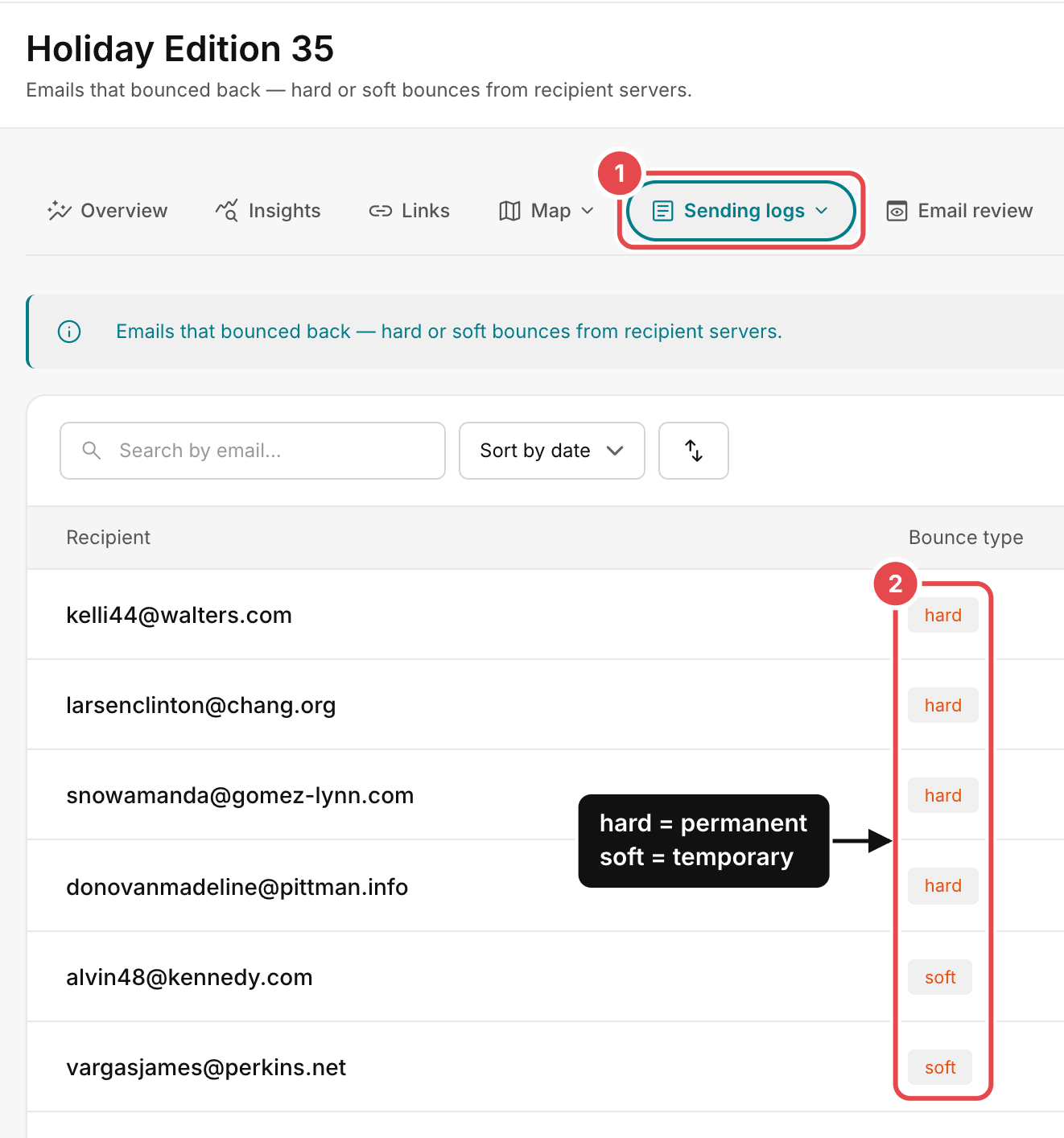
A hard bounce is permanent: the address does not exist, or the server will never accept it. A soft
bounce is temporary: the mailbox is full, or the server is briefly unavailable. A high hard-bounce
rate tells providers your list was not collected or kept with care.
Worse than a bounce is a spam trap: an address no person uses, kept by mailbox providers and
blocklist operators to catch senders with poor list habits. You cannot spot one by looking at it; you
avoid them with consent, double opt-in and regular cleaning. See Email List Quality
Explained.
In AcelleMail#
Bounces reach AcelleMail through the sending server's Bounce handler (number 1 in the screenshot
above): a mailbox AcelleMail reads, which your administrator sets up under Bounce Handlers. Services
such as Amazon SES report bounces through their own notifications instead; see How to Set Up Amazon SES
with AcelleMail.
AcelleMail treats every permanent refusal (a 5xx reply from the receiving server) as a hard bounce, and
a hard bounce marks the contact Blacklisted for all your lists. That includes refusals that are
really about you, such as a failed authentication check: if a whole domain starts hard-bouncing at once,
check section 3 before you blame the list. Once the cause is fixed, ask your administrator to take those
addresses off the blacklist.
Each campaign lists its bounces under Sending logs → Bounce log:
Before you send to an old or imported list, verify it. See How to verify your email list before you
send.
7. The Gmail, Yahoo and Microsoft sender rules#
In 2024 Gmail and Yahoo turned long-standing advice into requirements, and Microsoft followed in 2025:
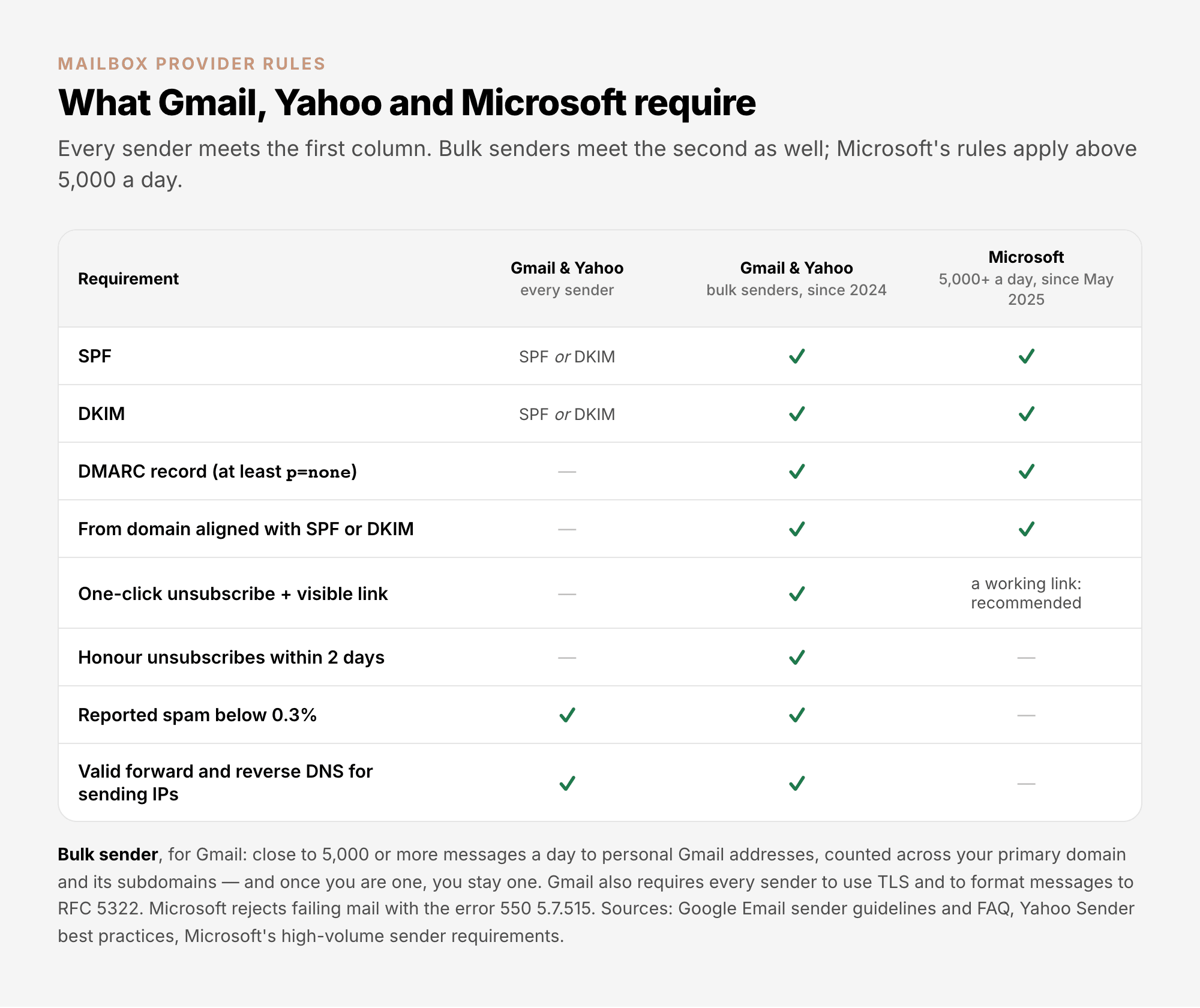
The details that decide whether they apply to you:
- Who is a bulk sender, for Gmail: anyone sending close to 5,000 or more messages a day to personal
Gmail addresses. Mail from your primary domain and all its subdomains counts together, and once you
qualify, the status is permanent. The rules cover personal Gmail accounts, not Google Workspace ones.
- Gmail is enforcing. In November 2025 Gmail began ramping up enforcement: messages that fail the
requirements can be refused, for a while or for good.
- Yahoo's bulk rules match Gmail's, with two differences: Yahoo publishes no volume number for
"bulk", and it accepts a
mailto: unsubscribe header, though it "highly recommends" the one-click
method.
- Microsoft has required SPF, DKIM and DMARC (at least
p=none, aligned) since May 2025 from
domains sending more than 5,000 messages a day to Outlook.com, Hotmail and Live addresses. Mail that
fails is refused with the error 550 5.7.515.
The official pages: Google's Email sender guidelines and
FAQ, Yahoo's Sender best
practices and Microsoft's requirements for high-volume
senders.
In AcelleMail, the one-click unsubscribe header is the One-Click Unsubscribe Headers admin setting.
See Email Consent Explained, section 6.
8. How to see where you stand#
Your campaign report shows deliveries, bounces and spam reports. For what it cannot see, use the
providers' own tools:
What to watch week by week is in Sender Reputation
Monitoring.
9. Common mistakes#
| What you see |
Why it is a problem |
What to do |
| Two SPF records on one domain |
SPF fails with a permerror, because the standard allows only one |
Merge them into a single record |
| DKIM signed with the sending service's domain |
DKIM passes but is not aligned with your From domain, so it does not count for DMARC |
Set up DKIM for your own domain |
DMARC jumped straight to p=reject |
Mail from a service you forgot, such as invoices or a help desk, is refused |
Start at p=none, read the reports, then tighten |
| A new domain or server sending full volume on day one |
No reputation yet; Google asks senders to increase volume slowly |
Warm up: a warmup strategy, or a low Sending limit |
| An old, bought or imported list mailed without checking |
Hard bounces and spam traps |
Verify the list first; mail only people who asked |
| An SMTP sending server with no bounce handler |
Dead addresses keep getting mail |
Pick a Bounce handler on every SMTP server |
| An unsubscribe link that is hard to find |
People press "Report spam" instead |
A visible link plus the one-click header |
Summary#
- Delivered means accepted; deliverability is about reaching the inbox.
- Providers weigh authentication, reputation, engagement, list quality and content.
- Publish SPF, DKIM and DMARC, and make sure they are aligned with your From domain.
- Warm up anything new, and keep your volume steady.
- Keep spam complaints below 0.1%, and never let them reach 0.3%.
- Make sure bounces and complaints reach AcelleMail, through a Bounce handler on every SMTP server
or the sending service's own notifications. Check the Feedback log for complaints.
- Gmail's and Yahoo's every-sender rules apply to everyone. Gmail's bulk rules apply once you send
close to 5,000 messages a day to Gmail addresses; Yahoo publishes no number; Microsoft's rules apply
above 5,000 a day to Outlook.com.
- Watch Postmaster Tools, SNDS and your DMARC reports.
Terms used here are defined in the Email Marketing Glossary.
