

An email can reach the inbox and appear in Primary, Promotions, Updates or another category. That category can affect whether someone notices it because alerts and AI views treat categories differently.
Microsoft added an automatic Promotions tag in July 2026 and an optional Promotions folder for Microsoft 365 organisations. The tag labels bulk promotional mail, and the folder can keep that mail out of the main inbox. Microsoft said both should be available in all those organisations by the end of October 2026. Gmail's AI Inbox began rolling out to paid Google Workspace users in the US on 12 October 2026. It shows information only from messages in Primary. So it helps to know how the inboxes differ. Microsoft Learn, Google Workspace Updates, Gmail Help on AI Inbox
This guide explains the providers' categories as of November 2026. It also covers who can change where emails appear and what senders can control. Our examples use Brightside Coffee, an invented shop that sells coffee beans and grinders.
This guide covers:
- Delivered, filed and seen
- Gmail's five tabs
- Apple Mail's four categories
- Outlook: Focused, Other and the new Promotions folder
- Yahoo Mail's optional categories
- What you can change as a sender
- Measuring where your email lands
- Your sender details and tests in AcelleMail
It ends with the most common mistakes and a one-screen summary.
1. Delivered, filed and seen
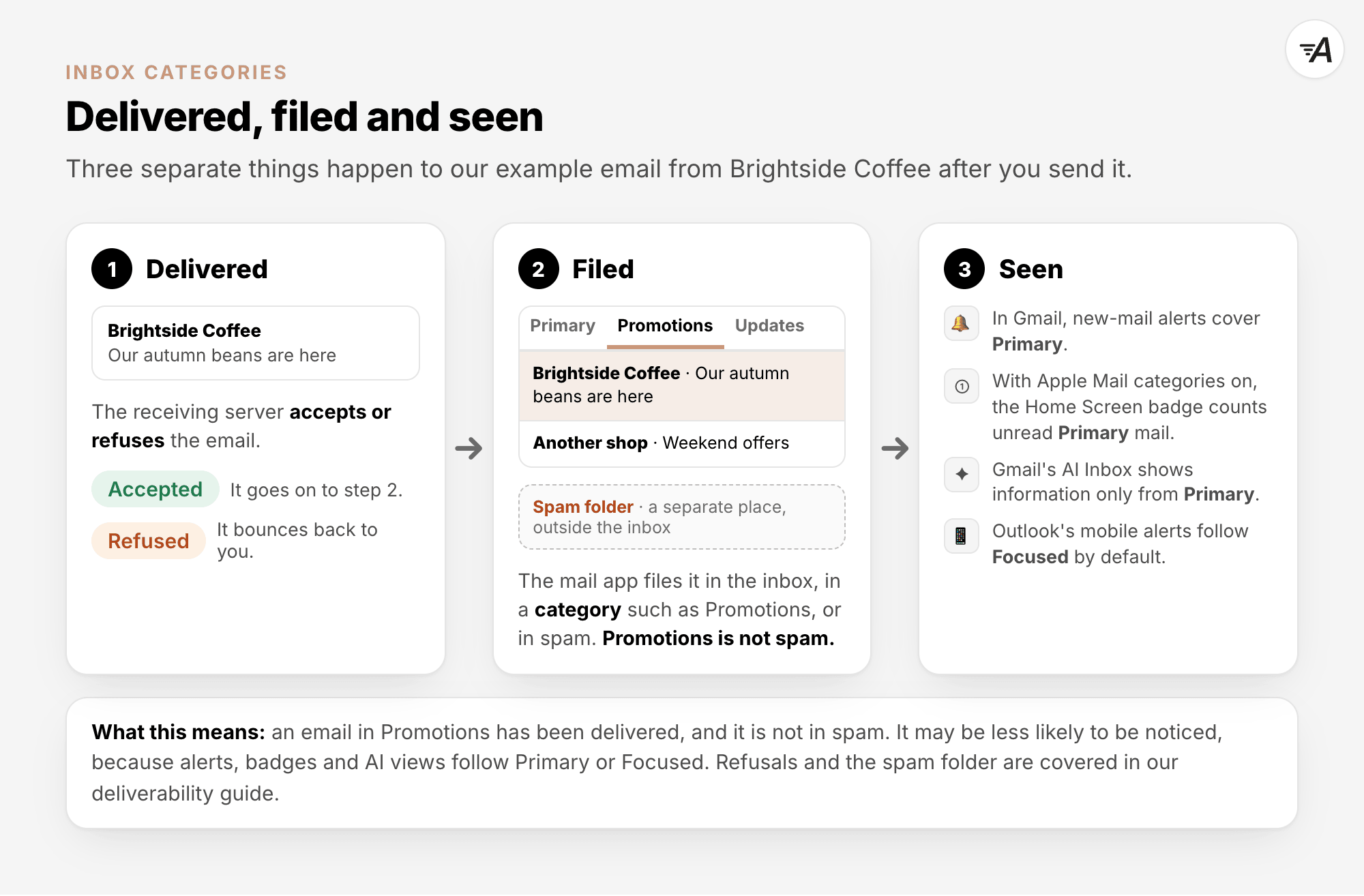
Three separate things happen between sending an email and someone noticing it:
- The receiving server accepts or refuses the message.
- The mailbox provider or the mail app decides where to put an accepted message, such as the spam folder or an inbox category.
- The reader may notice the message in their inbox, through an alert or through another feature.
Gmail's tabs are parts of the inbox, so Promotions does not mean spam. Microsoft explains the broader difference: "Bulk mail isn't the same as spam." Microsoft's anti-spam FAQ
However, categories can affect how easily readers notice a message. In Gmail, new-mail alerts cover only Primary, although Android readers can turn on alerts for other labels. Gmail Help, Gmail notifications on Android
When Apple Mail categories are on, the Home Screen badge counts unread Primary messages. In Outlook's mobile app, notifications follow Focused, and on iOS the badge count does too. Readers can change both in the app's settings. Gmail's AI Inbox shows information only from Primary. Apple Support, Microsoft Support, Gmail Help on AI Inbox
Email Deliverability Explained covers acceptance and the spam folder. This guide focuses on what happens inside the inbox.
The diagram below shows these three stages.
2. Gmail's five tabs
Gmail sorts messages into tabs automatically when a reader uses the Default inbox type. Gmail Help defines the five categories as follows:
- "Primary: Emails from people you know and messages that don’t appear in other tabs."
- "Social: Messages from social networks and media-sharing sites."
- "Promotions: Deals, offers, and other promotional emails."
- "Updates: Automated confirmations, notifications, statements, and reminders that may not need immediate attention."
- "Forums: Messages from online groups, discussion boards, and mailing lists."
Readers can choose which of these tabs to show, but they cannot create new ones. Choosing another inbox type turns the tabs off. Gmail Help
In 2020, Google said Gmail used machine learning to consider several signals. These included who the email comes from and what type of content it contains. Another was how Gmail users had interacted with similar content. It called the reader's own direct input the most important signal. Google's explanation dates from 2020 and does not describe every current sorting rule. Google, 2020
A reader can move a message to another tab, and Gmail learns that reader's preferences over time. Starring an email can make it appear in Primary as well as in its existing category. On a computer, this depends on the setting "Include starred in Primary". Filters can also put a sender's messages in a chosen tab. Gmail Help
So Brightside Coffee's offers could land in different tabs for two readers who made different choices.
In September 2025, Google announced a "most relevant" order for the Promotions tab. It said readers who prefer the previous order could choose "most recent" instead. The announcement covered personal Google accounts on mobile. Google, September 2025
Senders can add Promotions annotations, which show extra details such as a deal, an expiry date or an image preview. A carousel shows several image previews in a row. These annotations may not appear for every recipient. They do not affect how Gmail chooses a tab, and their features appear only in Promotions. Gmail also shows some promotional emails in bundles, groups of emails at the top of Promotions. Google says an email can appear in a bundle with or without annotations, and Gmail picks these emails based on how users engaged with earlier emails. Google for Developers, Google's annotations FAQ
AI Inbox also matters here because it shows information only from messages in Primary. It is in beta and works only in the US and in English. Personal accounts need an eligible Google AI plan, while Workspace accounts need an eligible Workspace plan. Gmail Help on AI Inbox
The paid Workspace rollout started on 12 October 2026 for domains on Google's Rapid Release update schedule. Domains on the Scheduled Release schedule followed from 26 October 2026. Google Workspace Updates
AI Email Summaries Explained explains these AI views in more detail.
3. Apple Mail's four categories
Apple Mail introduced categories in iOS 18.2, released on 11 December 2024. They came to iPadOS 18.4 and macOS Sequoia 15.4 on 31 March 2025. They are not offered in every country or region. Apple security releases, Apple's iPhone User Guide
Apple's iPhone User Guide gives these definitions:
- "Primary: Find personal messages and time-sensitive information."
- "Transactions: Keep track of your confirmations, receipts, and shipping notices."
- "Updates: Catch up on news, newsletters, and social updates."
- "Promotions: Browse your coupon and sales emails."
Apple puts newsletters under Updates, so Brightside Coffee's newsletter and its coupon email fit different categories.
When a Transactions, Updates or Promotions message includes time-sensitive information, it also appears in Primary. Opening a message in any of these categories opens a digest view, which shows the other messages from that sender in the same category. Readers can turn off Group by Sender if they prefer. Apple's iPhone User Guide
Categorize Sender lets readers choose a category for all current and future messages from a sender. On Mac, readers can Control-click a message, choose Categorize Sender and select a category. Apple's iPhone User Guide, Apple's Mail User Guide
Readers turn off categories separately on each device. On Mac, they choose View and turn off Show Mail Categories. Apple's iPhone User Guide, Apple's Mail User Guide
Apple says the iOS Mail app sorts messages into categories entirely on the device. For Mail on iCloud.com, Apple uses information about the sender and the message headers, the technical details that travel with an email, but not the message body. Apple's privacy page
We found no statement from Apple saying whether categories are on by default in the Mail app. On iCloud.com, Apple says readers can turn on categorisation when they first open Mail, or later in Settings. Apple Support, iCloud User Guide
4. Outlook: Focused, Other and the new Promotions folder
Focused Inbox works with personal Outlook.com accounts and with Microsoft 365 accounts. It separates the inbox into Focused, for messages it considers most important, and Other, for the remaining messages.
Microsoft says Outlook considers who readers interact with when sorting messages. It also moves automated or bulk email towards Other. Readers can choose Always move to Focused inbox for future messages from a sender. Microsoft Support
The Promotions tag and folder are a separate feature. Microsoft describes them for Microsoft 365 business and school mailboxes in the cloud. We found no such page for personal Outlook.com accounts. Microsoft Learn
Since July 2026, messages identified as bulk and promotional have automatically received the Promotions tag. This happens regardless of their bulk complaint level, or BCL.
Microsoft gives incoming mail a BCL from 0 to 9, and a higher value means the bulk sender gets more complaints. Each anti-spam policy sets a BCL threshold, which is 7 in the default policy. In the default policy, in new policies and in the Standard preset, messages at or above the threshold go to Junk Email folders. The Strict preset quarantines them instead. So bulk mail can still end up in Junk Email, even though it is different from spam. Microsoft Learn
Mail below the threshold goes to the Promotions folder only if an administrator has turned on "Bulk moves enabled" in the organisation's anti-spam policies. This can include identified bulk mail with a BCL value of 0. The setting is Off in the Standard and Strict preset security policies. Microsoft Learn
Microsoft said these features should be available in all organisations by the end of October 2026. This does not mean every organisation has turned on folder delivery.
The tag appears in Outlook on the web and the new Outlook for Windows. Folder delivery works in all five Outlook apps listed in Microsoft's client table. Microsoft Learn
Outlook learns when readers move messages into or out of Promotions, and it remembers this for future messages. It also follows rules that users set. Messages from senders in the organisation's own email domains, which Microsoft calls accepted domains, do not receive the tag. Messages from senders on a sender allowlist, a list of approved senders, stay in the Inbox. Microsoft Learn
5. Yahoo Mail's optional categories
Yahoo Mail offers optional inbox categories, and readers can choose Primary or All as their default view. Yahoo Help gives these descriptions:
- "Primary - Personal messages, bills, orders, and other important messages"
- "Offers - Deals and promotions"
- "Newsletters - Newsletters you subscribe to"
The categories also include Social and All. The All tab still lists all emails when Primary is enabled. They may not yet be offered in every language and region. Yahoo Help
Yahoo says it automatically identifies messages and decides which ones are most important. We found no documented way for readers to move a sender between Yahoo categories. Yahoo Help
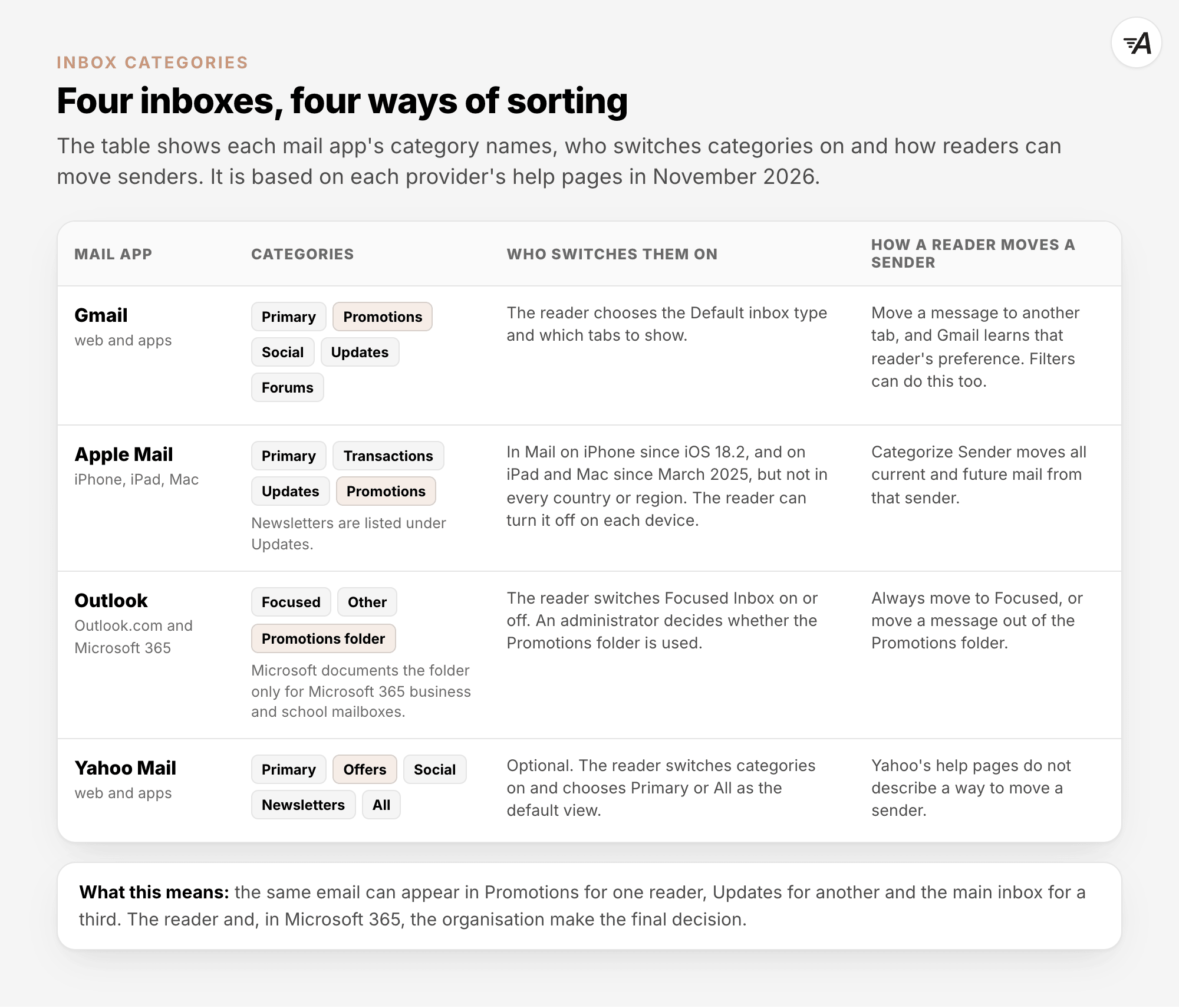
The table below compares the four mail apps.
6. What you can change as a sender
Senders can organise their email, but cannot choose a category for every reader. Google's sender guidelines cover personal Gmail accounts and aim to reduce how often messages go to spam or get blocked. They do not promise a particular tab. Google's sender guidelines
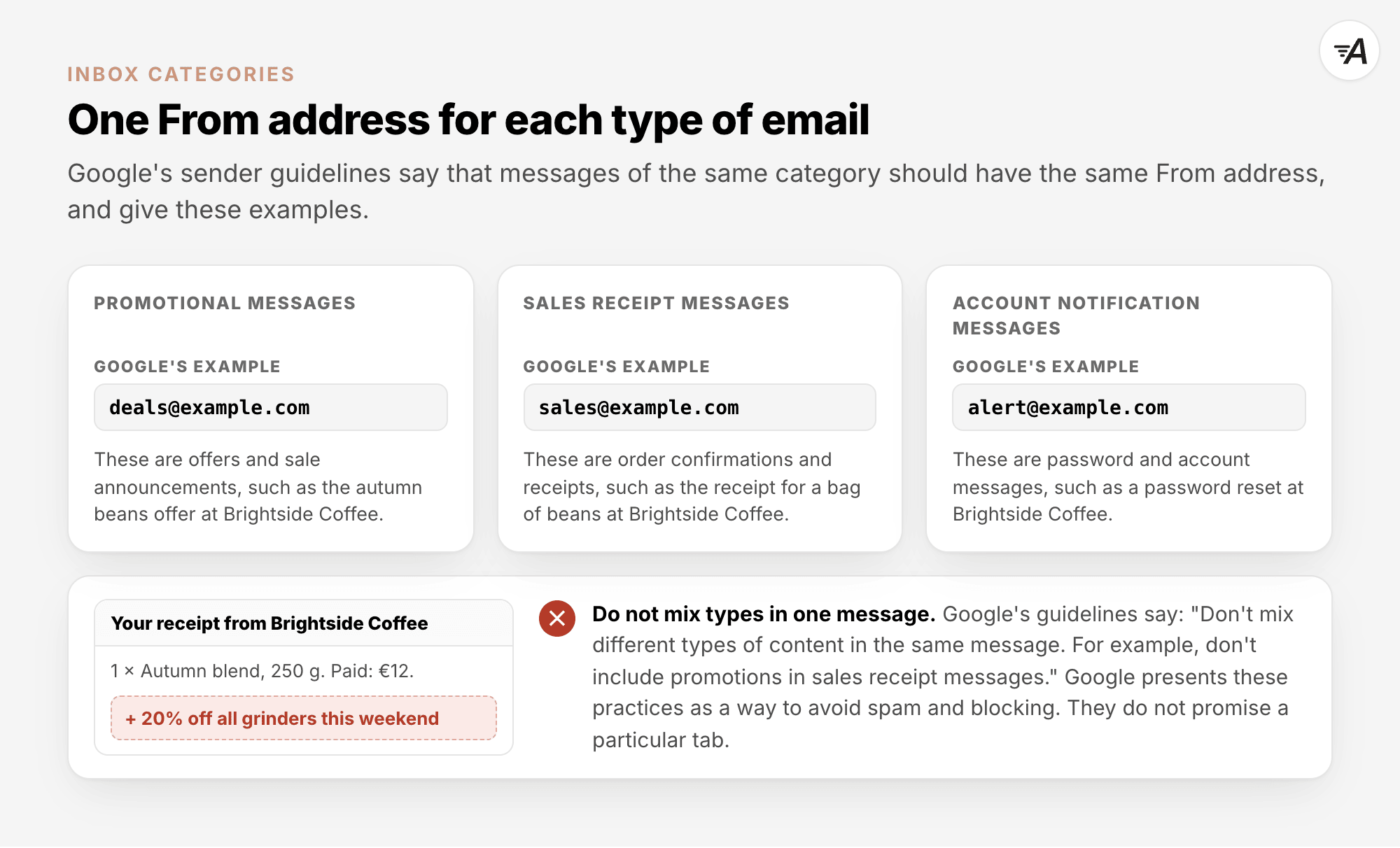
Google recommends using the same From address for messages of the same type. Its example is "Promotional messages: deals@example.com", with receipts from sales@example.com and account notifications from alert@example.com. Google's sender guidelines
Google also says: "Don't mix different types of content in the same message. For example, don't include promotions in sales receipt messages." If you need to send from multiple IP addresses, Google recommends a different IP address for each message type. Google's sender guidelines
Yahoo also recommends separating email by purpose, but says it cannot promise that email reaches the inbox. Yahoo Sender Hub, Yahoo Sender Hub FAQs
An annotation cannot move a Gmail message into Primary. The mailbox provider or the mail app controls how messages are sorted, while readers can change their own sorting where the app supports it. Organisations that receive your email also set their own rules, such as allowlists, mail flow rules and the Promotions folder setting in Microsoft 365. Google's annotations FAQ, Microsoft Learn
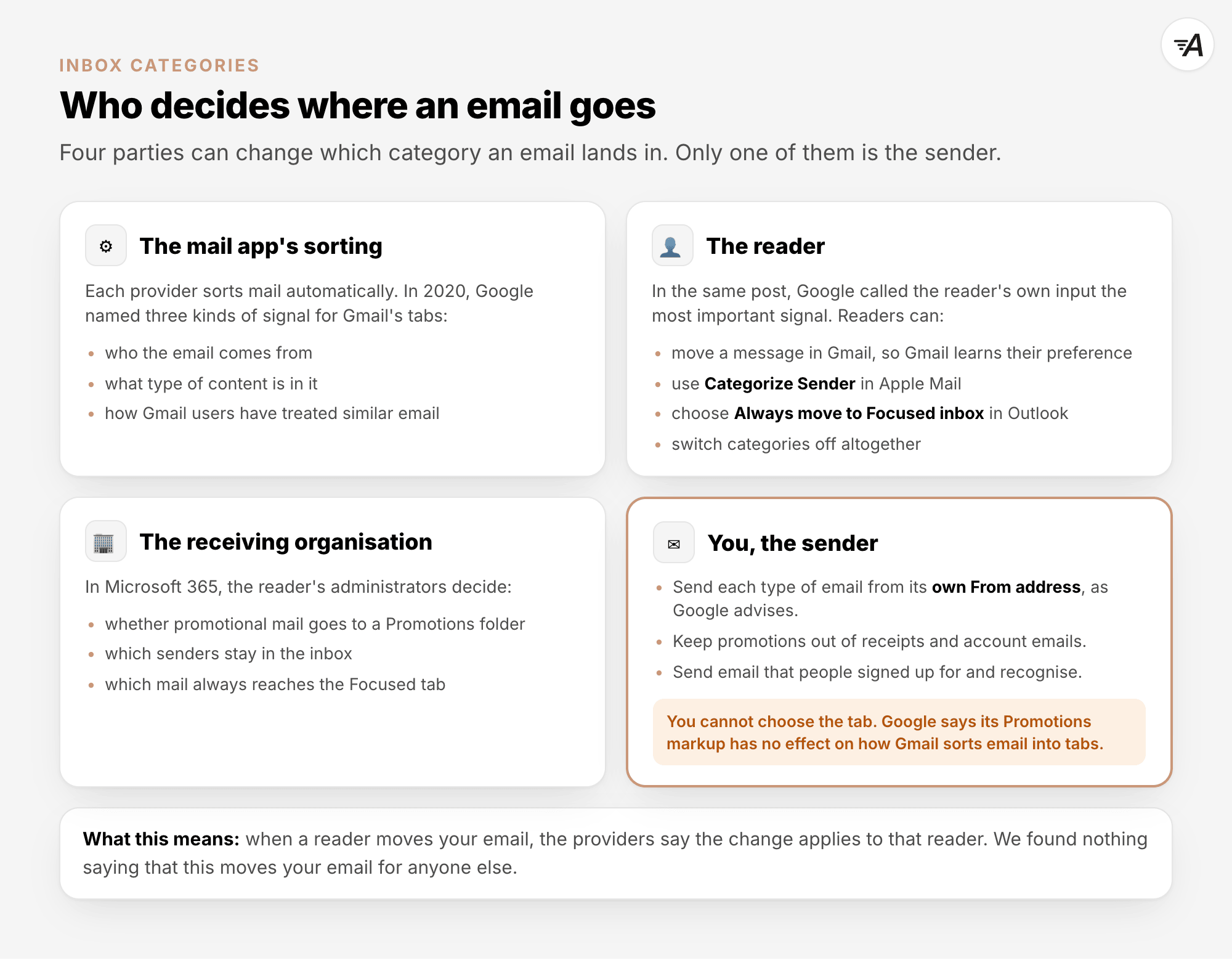
The diagram below shows who decides what.
Google's 2020 explanation lists the type of content as one signal, but we found no page from a mailbox provider saying that keywords or trigger words decide the tab. We also found none making that claim about images, links, HTML layout or the image-to-text ratio. The same applies to claims about a particular sending service, an info@ address or an unsubscribe link.
We found no figures from mailbox providers on how many people use tabs, or on open rates in Promotions. We also found no provider documentation behind figures published elsewhere.
Asking subscribers to move your email can help with their own sorting. Gmail, Apple Mail and Outlook describe controls that apply to each reader individually. Mailbox providers' documentation does not promise that placement changes for everyone when many readers move an email. Google's 2020 statement about interactions with similar content does not show this wider effect. Gmail Help, Apple's iPhone User Guide, Microsoft Support, Google, 2020
Removing unsubscribe links is not an option for avoiding Promotions. Google requires senders of more than 5,000 messages a day to Gmail accounts to support one-click unsubscribe in marketing and subscribed messages. Those messages must also include a clearly visible unsubscribe link in the body. Google's sender guidelines
We recommend sending email that people want and recognise, using one consistent From address for each message type. Keep promotions out of receipts and account emails, and treat Promotions as a normal place for promotional email, not as spam.
The diagram below shows how Brightside Coffee can use different From addresses to keep message types separate.
7. Measuring where your email lands
Google Postmaster Tools reports spam rate, reputation, authentication and delivery errors for mail sent to personal Gmail accounts. Its dashboards do not report Gmail tabs or categories. Gmail Help
Microsoft SNDS gives data by IP address for Outlook.com. Yahoo Sender Hub Insights gives overall delivery figures. Neither service reports categories.
These dashboards can help you look into delivery problems, but they do not show which category a reader saw. When you review a campaign, ask two separate questions: did the email arrive, and where was it filed?
Based on how sorting works, we think a test send shows placement only for that account. Readers' preferences differ, categories can be switched off, and Apple's Mail app on iOS sorts on the device. A result from your own account therefore cannot tell you where email goes for your whole list.
An IETF draft dated 31 October 2026 proposes a shared report format for email. Its reports could say where messages were placed, with values such as inbox or promotional. It is still a work in progress, so it is not a standard and does not mean any provider offers such reports yet. IETF draft
Clicks tell you more than opens about whether people read your email. Email Marketing Metrics Explained explains how to understand those results.
8. Your sender details and tests in AcelleMail
AcelleMail lets you set recognisable sender details and send test emails to accounts you control. These tools help you review an email, but they cannot choose its category.
In AcelleMail
In the campaign wizard, open Setup and find Basic information. Set From name. If a Sender address choice appears below it, choose Use a fixed sender address. Then choose a From address from the From email drop-down, and check Reply-to email, the address that receives replies.
You set From email for each campaign, so Brightside Coffee can use one address for promotional campaigns.
The Sender address choice appears only in some setups. The From email and Reply-to email fields sit under its first option, Use a fixed sender address, which sends every message from the address you set in From email. The other option, Use the sending server's own default address, sends each message from its sending server's default address. When a campaign uses several sending servers, that address can change from one message to the next. With a fixed address, every message in a campaign uses the same From address. To keep one From address for each type of email, use the same address in every campaign of that type.
In the screenshot below, (1) marks From name, (2) marks From email and (3) marks Reply-to email.
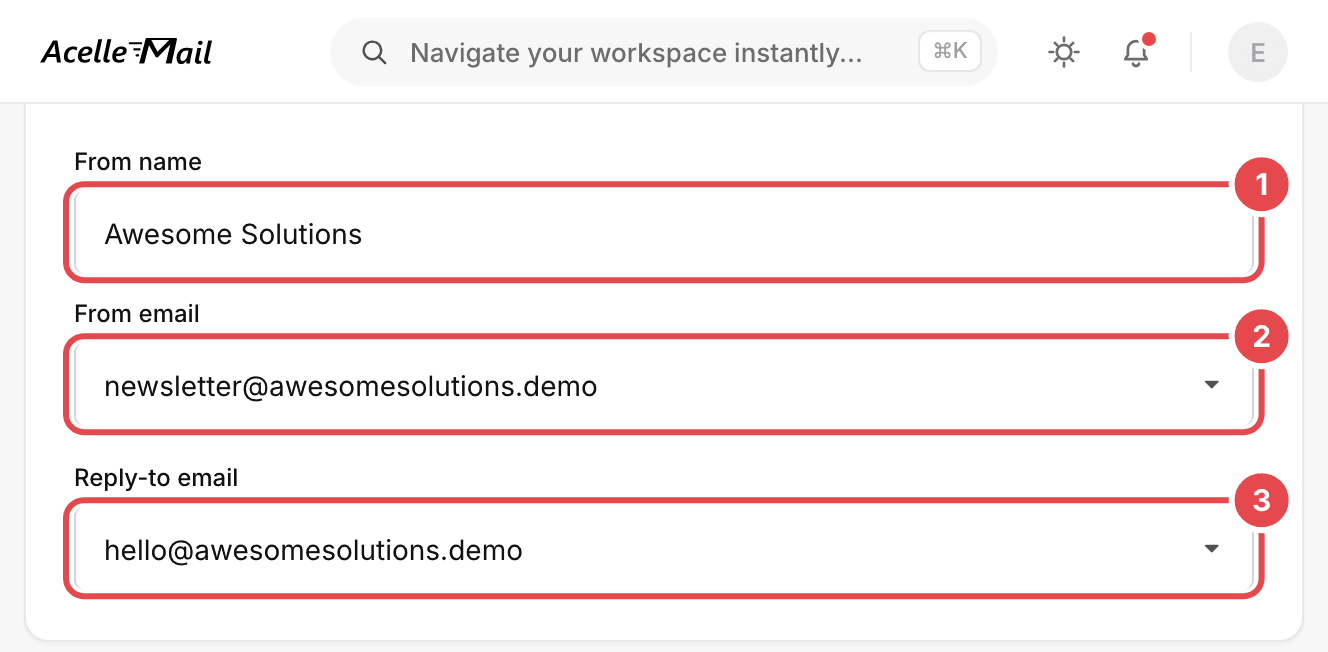
The list uses its own sender details for emails such as its subscription confirmation and welcome email. Open the list settings and review From name and From email. Check these details separately from the campaign's From address when you keep email types separate.
On Confirm, How it lands in the inbox shows a generic inbox row. It includes the From name, From address, subject and preheader, the short preview text shown after the subject. It does not show a mailbox provider's tab or category.
Use Send test email to send a test to accounts you own. Open it in Gmail, Apple Mail and Outlook, and see which tab or category it lands in.
In the screenshot below, (1) marks How it lands in the inbox and (2) marks Send test email.
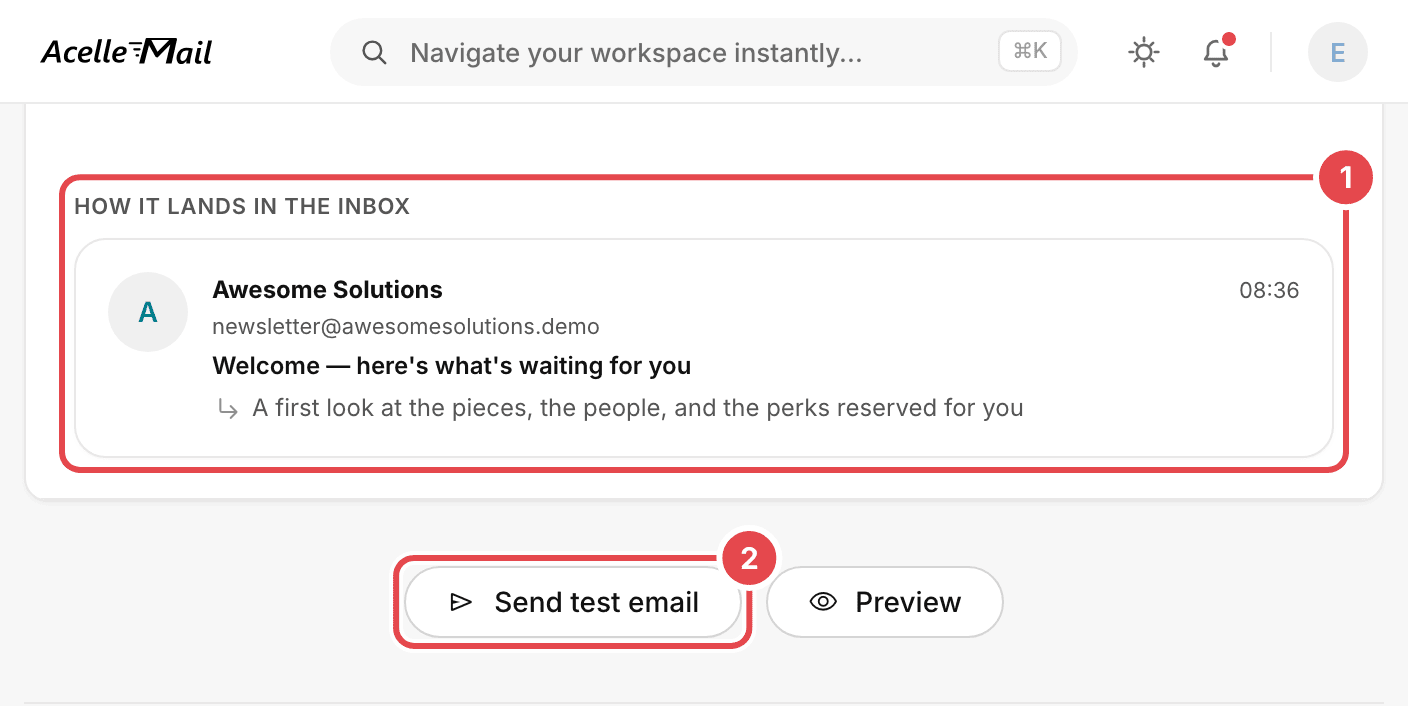
AcelleMail does not report which tab or category a message reached. Each test account has its own sorting choices, so treat the result as one example.
9. Common mistakes
| What you see | Why it is a problem | What to do |
|---|---|---|
| Your offer appears in Promotions. | You may mistake an inbox category for spam. | Check whether the message is in the inbox before looking into spam placement. |
| You keep rewriting your message to avoid suspected trigger words. | Mailbox providers do not document a list of words that determines an email's category. | Keep the message clear and its purpose consistent. |
| You add annotations to reach Primary. | Annotations do not affect how Gmail chooses a tab. | Use annotations to change how your email looks within Promotions. |
| You put offers inside receipts or confirmation emails. | Mixing different purposes in one email goes against Google's advice. | Send promotions separately from receipts and account messages. |
| One test email reaches Primary. | The choices for that account do not represent every reader's choices. | Treat the result as an example and compare it with results from other test accounts. |
| You expect Postmaster Tools to tell you which tab your email reaches. | Its dashboards do not report categories. | Use it for the delivery and reputation data it provides. |
| You ask readers to move your email to Primary so it lands there for everyone. | Mailbox providers explain how personal controls work, but do not promise a change for everyone. | Explain how an individual reader can change their own sorting. |
| You assume every Outlook account has a Promotions folder. | The folder is for Microsoft 365 business and school accounts and depends on an administrator's setting. | Check the account type and the organisation's policy. |
Summary
- Acceptance, sorting and being noticed are separate stages. Promotions is not spam. In Gmail and Apple Mail it is part of the inbox, as Offers is in Yahoo, while Outlook can move promotional mail to a separate folder. Alerts and other views may make it less visible.
- Gmail has five tabs, and readers can change their own sorting. Its AI Inbox shows information only from Primary and is in beta, limited to the US and English.
- Apple Mail has four categories and includes newsletters under Updates. Readers can turn categories off separately on each device.
- Outlook's Focused and Other tabs are separate from Microsoft 365's Promotions features. An administrator decides whether mail goes to the Promotions folder.
- Yahoo categories are optional and may not yet be offered in every language and region. Readers can choose Primary or All as their default view.
- Moving an email can affect sorting for that reader if the mailbox provider supports it. Mailbox providers do not promise that this changes where emails go for everyone.
- Use a consistent From address for each message type and keep promotions out of receipts. Gmail annotations do not change tabs.
- Dashboards do not report categories, and each test account shows only one example. Clicks can help you understand whether people respond.
- In AcelleMail, check the sender details for campaigns and lists separately. Use Send test email to view examples in your own accounts.
Terms used here are defined in the Email Marketing Glossary.
0 comments
No comments yet — be the first to share a tip or question.