
Most marketing emails use images, such as a logo, a product photo or a banner. Those images may not always appear, and a screen reader cannot see what a picture contains. Words inside an image also cannot be searched as text.
This guide explains what size to make email images and why they sometimes do not show. It also covers alt text, the words that stand in for an image, and looks at image-to-text ratios and accessibility laws. It draws on mail apps' help pages, the laws themselves and the Web Content Accessibility Guidelines (WCAG), published by the World Wide Web Consortium (W3C).
This guide covers:
- How images get into an email
- What size to make email images
- When images do not show
- Alt text that works
- Image-only emails and the "image-to-text ratio"
- Do accessibility laws cover marketing email?
- Images in AcelleMail
It ends with the most common mistakes and a one-screen summary.
1. How images get into an email
In most marketing emails, each image is a file on a web server. The email contains its web address, and the mail app downloads the file when it displays the message. This explains why a mail app can block images and why images may load after the text.
If a campaign tracks opens, the email also contains an invisible image called the tracking pixel. Email Tracking and Privacy Explained explains how it works and why blocked or preloaded images make open counts unreliable.
In AcelleMail
AcelleMail keeps the images you upload in Assets, in the Campaigns group of the menu. Its help text says: "Upload images to your Assets library and add them to your emails. Images you upload while editing a campaign email are also saved to Assets, so you can reuse them." Each file has a Copy public URL option that gives you the image's web address.
2. What size to make email images
There is no official size for email images. We found no size rule in mail apps' help pages or providers' sender guidelines. Our summary covers three practical points: the displayed width, the file type and the file size.
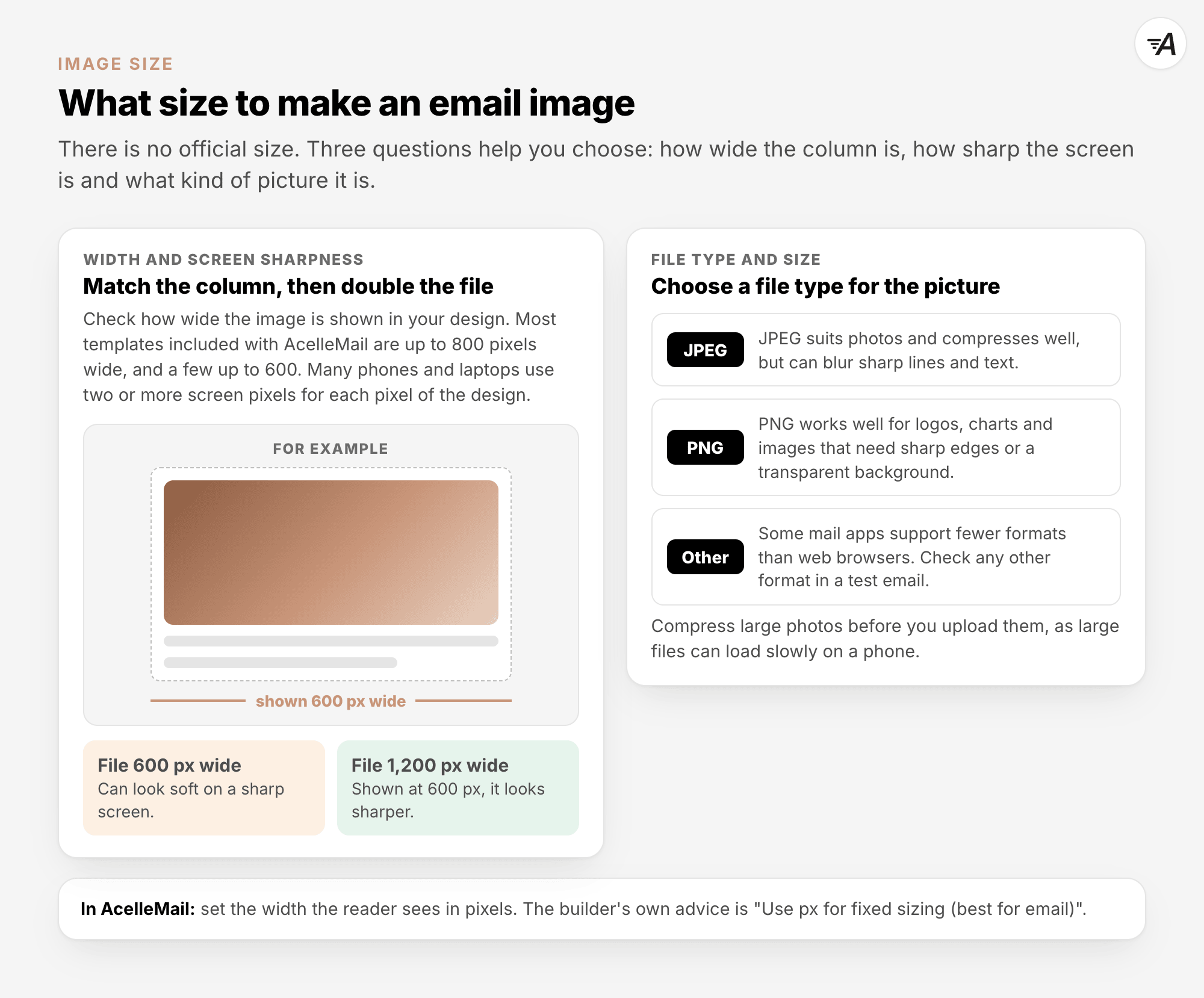
The image should fit the column where it appears. The file's width can differ from its displayed width, which helps on high-resolution screens.
On many phones and laptops, each pixel of the email's layout is drawn with more than one screen pixel. MDN, Mozilla's documentation for web developers, calls this the device pixel ratio. It says the ratio tells the browser "how many of the screen's actual pixels should be used to draw a single CSS pixel". A CSS pixel is a pixel of the layout. MDN adds that a ratio of 2 "is expected for HiDPI/Retina displays", which are high-resolution screens. MDN
With a ratio of 2, an image shown 600 pixels wide is drawn with 1,200 screen pixels across. Based on this, we think a 1,200-pixel file can look sharper than a 600-pixel file at that size.
The file type matters too. MDN describes JPEG as useful for photos, while PNG works well for showing images accurately and supporting transparency. JPEG compression can give poor results with sharp details, such as those in diagrams or charts. MDN image guide
MDN's guide covers web browsers, and some mail apps support fewer file types. If you choose another file type, check a test email in the mail apps your readers use.
File size is the amount of data a reader must download, which is different from the width in pixels. A large file takes longer to load, especially on a phone with a slow connection. We found no provider limit for image file size, but compressing photos before uploading them helps.
In AcelleMail
Most email templates included with AcelleMail are up to 800 pixels wide, and a few are up to 600 pixels wide. Check how wide each image is shown in your own design. For an image shown 600 pixels wide, for example, you could upload a file about 1,200 pixels wide. Then select the image in the builder and set its width to 600 px under IMAGE SIZE.
The builder says: "Use px for fixed sizing (best for email)".
The diagram brings these choices together for a 600-pixel column.
3. When images do not show
Mail apps handle external images differently, and readers can also change their settings.
- Gmail says: "By default, when you get an email with an image, you’ll see the image automatically." It makes an exception: "If Gmail thinks a sender or message is suspicious, you won’t see images automatically." Gmail Help
- Classic Outlook says: "Microsoft Outlook is configured by default to block automatic picture downloads from the Internet." The reader can choose Download Pictures for an email. Microsoft Support
- Outlook for Mac says: "By default, Outlook for Mac doesn't automatically download pictures or photos in email messages if the images are stored on the Internet." Microsoft Support
- For work or school accounts in Outlook on the web and the new Outlook for Windows, Microsoft's roadmap describes new image settings that are becoming available. The entry was updated on 11 November 2026 and says: "Existing default behavior will not be changed (load external content only for safe senders)." Microsoft 365 roadmap
- Outlook.com says: "Outlook.com helps protect your data by loading external images using an image proxy." This means the Outlook service fetches the images for the reader. Microsoft Support
- Yahoo Mail describes its default setting this way: "While the default setting is to show all images except for those in spam emails". Yahoo Help
- Apple Mail explains what happens when the reader turns on Mail Privacy Protection: "When this option is selected, your IP address is hidden from senders and remote content is privately downloaded in the background when you receive a message (instead of when you view it)." This means images load before the reader opens the email. Apple Mail User Guide
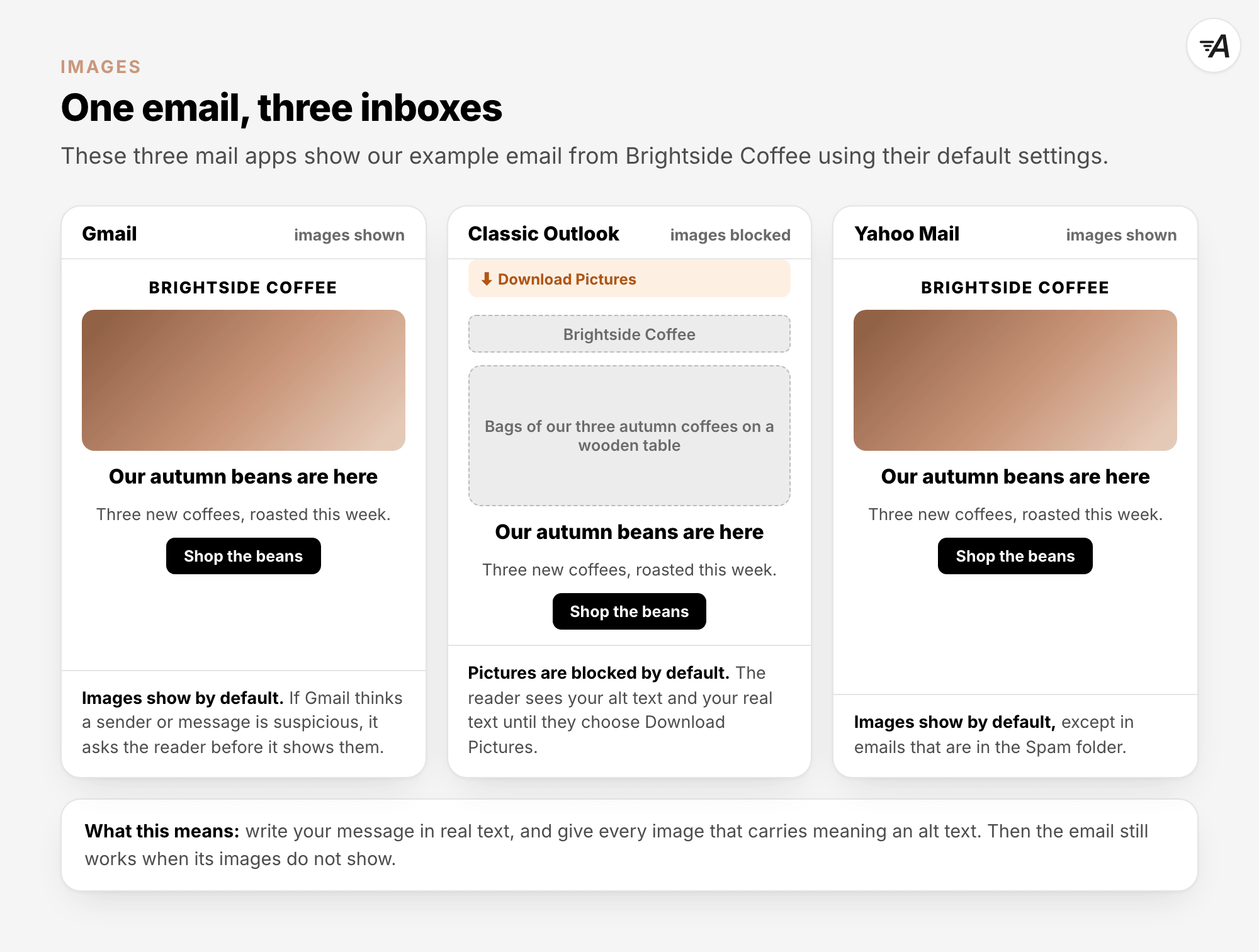
When an image is blocked, a mail app may show its alt text or an empty box. Real text means words typed into the email itself, not words shown inside a picture. An email written in real text still works with images off, because that text still appears.
Readers can also turn images off themselves. In Gmail on a computer, open Settings, then See all settings, and find the "Images" section. Choose "Ask before displaying external images" and save the change. You can use this setting to test your own email (section 7). Gmail Help
The diagram compares Gmail, classic Outlook and Yahoo Mail using Brightside Coffee, our invented shop.
4. Alt text that works
Alt text is short for alternative text. Screen readers read it aloud, and a mail app may show it when an image does not load.
Success criterion 1.1.1 in WCAG 2.2 says: "All non-text content that is presented to the user has a text alternative that serves the equivalent purpose, except for the situations listed below." WCAG 2.2
Decoration is an exception: "If non-text content is pure decoration", or "is used only for visual formatting, or is not presented to users, then it is implemented in a way that it can be ignored by assistive technology". WCAG 2.2
For email, Section508.gov says: "All images must have alt text or be marked as decorative." It also says: "If the image is a hyperlink without any text, it must have alt text." The site advises that alt text "should be limited to less than 250 characters". This is advice from the US federal site, while WCAG does not set a length limit. Section508.gov
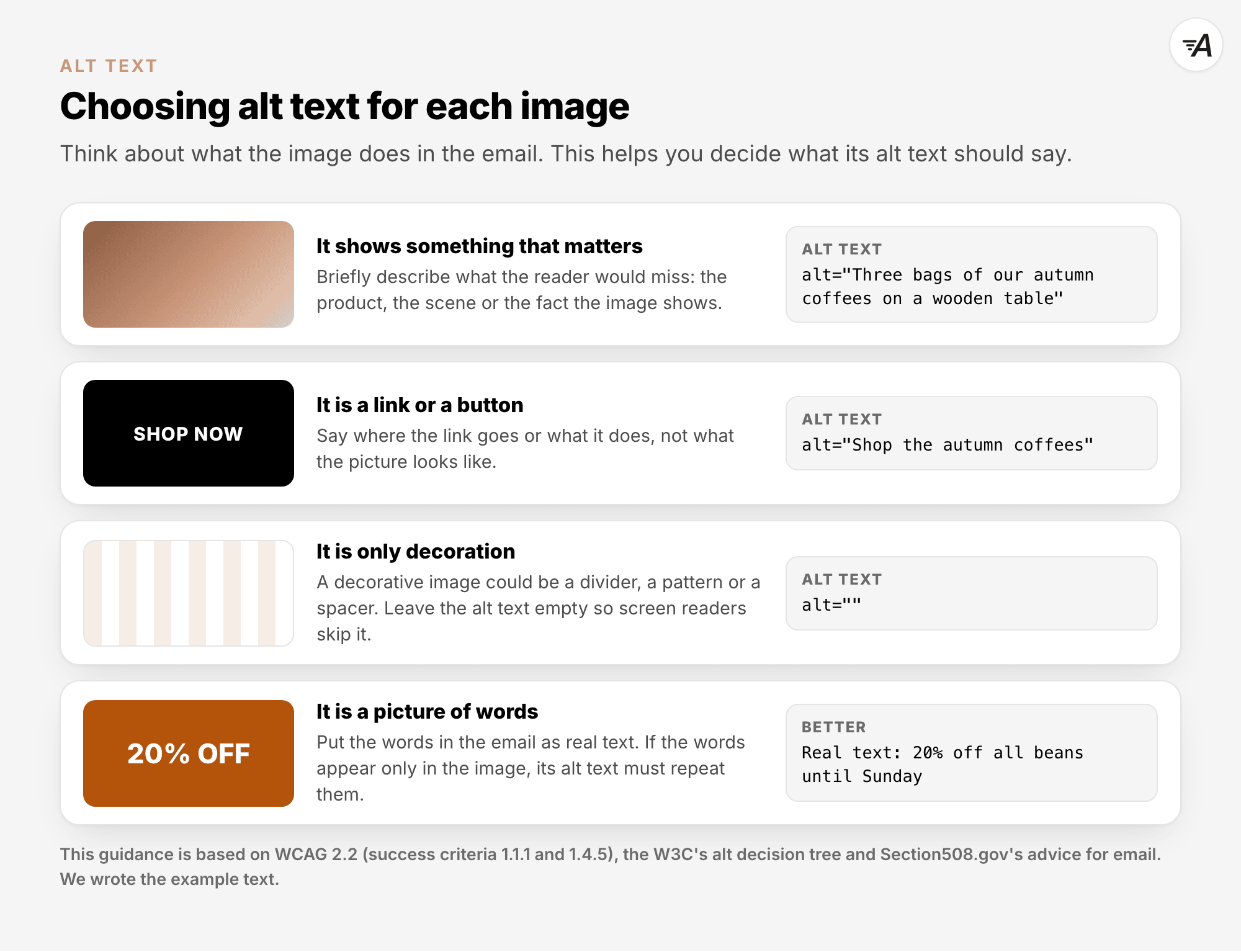
For an informative image, describe what matters to the email's message. For a linked image or button whose purpose would be unclear without the image, the W3C advises: "Use the alt attribute to communicate the destination of the link or action taken." W3C alt decision tree
The UK Government Communication Service advises: "Provide empty alt text for decorative images." It also warns: "Do not rely on auto-generated alt text." And it says: "Do not start with ‘Image of’", because a screen reader usually says first that it is reading an image. GCS accessibility standards
Pictures of words need particular care. WCAG 1.4.5 says: "If the technologies being used can achieve the visual presentation, text is used to convey information rather than images of text". Logos are an exception. WCAG 2.2
A banner saying "20% off" disappears when images are blocked, so put the offer in real text. If words appear only in an image, its alt text should repeat them.
The diagram shows these four cases: informative images, linked images, decoration and pictures of words.
In AcelleMail
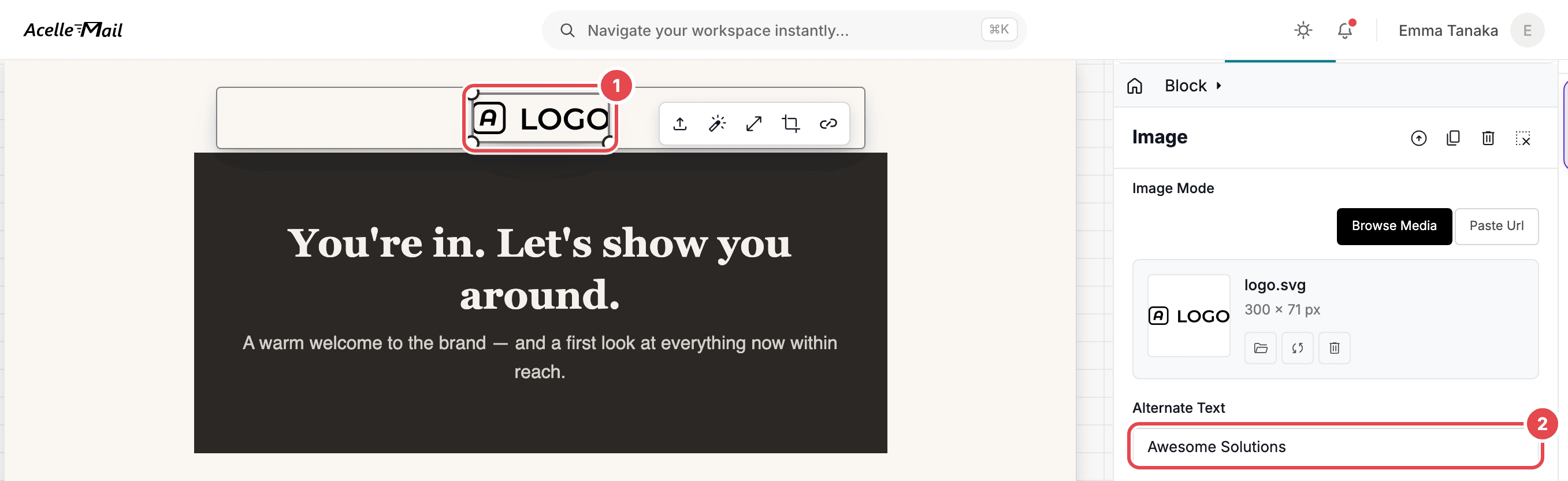
Select an image in the email builder to open its settings. Image Mode offers Browse Media or Paste Url, and the settings show the file and its size in pixels.
Enter your description in Alternate Text, where the placeholder reads Enter alternate text. If
you leave it empty, AcelleMail sends alt="", which tells screen readers to skip the image as
decoration. Every image block that carries meaning therefore needs text in this field.
Other blocks work differently. The image collage, QR code, barcode and diagram blocks have their own alt fields. A chart gets automatic alt text that names its type and number of data points, and the chart settings have no field to change it. The email also shows a real data table with the chart's numbers beneath its image. Describe the chart's main point in the email's text as well.
If your platform has the optional AI assistant and you build an email with it, check every image's alt text. An image block it adds may get the alt text "Generated image", which says nothing about the picture. That text stays when you replace the picture with your own.
The screenshot shows a demo email's logo selected (1) and its Alternate Text (2). For a logo, the alt text is usually the organisation's name. Section508.gov's own example gives an office's full name as the alt text of its logo. Below the alt text, IMAGE SIZE ("Adjust width, height and bounds.") sets the width readers see.
5. Image-only emails and the "image-to-text ratio"
Marketing advice often recommends a fixed ratio of text to images, such as 60:40 or 80:20, where the first number is the share of text. We found no such ratio in Gmail's sender guidelines or other providers' published rules.
The practical problem with an email made of one large image is what readers are left with when it does not load. The email can appear blank, and a screen reader has only the alt text to read. The inbox preview also has no real message text to use, although it may show alt text. Email Subject Lines Explained explains the preview in section 2.
We recommend keeping the main message, offer and button text in real text, with images supporting them.
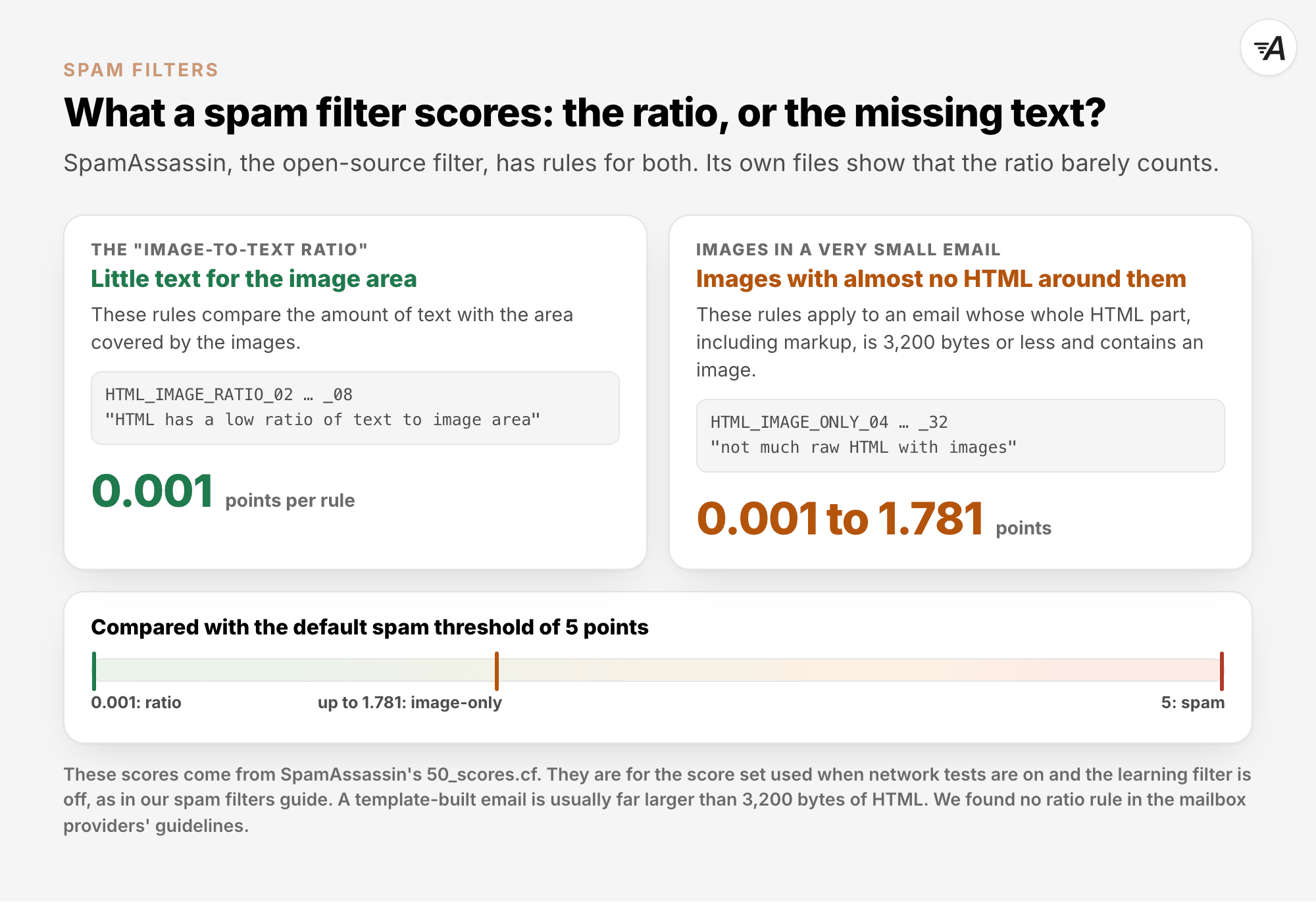
SpamAssassin, the open-source filter described in Spam Filters Explained, has several rules about images. Two groups of them matter for the ratio question.
Its ratio rules, HTML_IMAGE_RATIO_02 to _08, are described as "HTML has a low ratio of text to image
area". They score 0.001 points each. SpamAssassin adds up the points of every rule an email matches and
treats the email as spam when the total reaches its threshold. SpamAssassin rule
definitions,
SpamAssassin scores
For comparison, its configuration lists "required_score n.nn (default: 5)", meaning the default threshold is 5 points. SpamAssassin configuration reference
The image-only rules, HTML_IMAGE_ONLY_04 to _32, work differently. Their rule file describes them as
"not much raw HTML with images". They apply only when the HTML part, the formatted version of the email,
contains an image and is 3,200 bytes or less. That size counts all of the code, including the parts a
reader never sees, and 3,200 bytes is roughly 3,200 characters. SpamAssassin rule
definitions,
SpamAssassin length
check
The points depend on SpamAssassin's setup. Network tests look things up online, such as blocklists, and the learning filter learns from emails already marked as spam or not spam. With network tests on and the learning filter off, these rules add 0.001 to 1.781 points. SpamAssassin scores
Most email templates included with AcelleMail are about 5,000 to 37,000 bytes, so an email built from one is usually larger than that 3,200-byte limit. The Blank template is smaller, at about 2,600 bytes.
These rules do not support a target ratio that applies to every email.
The diagram shows how the ratio rules differ from the rules for very small HTML parts.
6. Do accessibility laws cover marketing email?
This section describes the rules in general terms and is not legal advice.
In short, none of the rules below names business marketing email, and we found no regulator guidance saying marketing newsletters are covered. Emails that are part of a covered service are a less clear case. The details for each rule follow.
The European Accessibility Act, Directive (EU) 2019/882, covers certain products and services, including e-commerce services. Article 3(30) defines these as "services provided at a distance, through websites and mobile device-based services by electronic means and at the individual request of a consumer with a view to concluding a consumer contract". The Directive does not mention email or newsletters. Directive (EU) 2019/882
Article 4(5) says: "Microenterprises providing services shall be exempt from complying with the accessibility requirements". Article 3(23) defines a microenterprise as "an enterprise which employs fewer than 10 persons and which has an annual turnover not exceeding EUR 2 million or an annual balance sheet total not exceeding EUR 2 million". Directive (EU) 2019/882
Article 30 says: "Member States shall lay down the rules on penalties". Directive (EU) 2019/882 Germany's BFSG, for example, allows fines of up to €100,000 for some breaches. BFSG section 37
For covered services, Annex I requires "providing electronic information needed in the provision of the service in a consistent and adequate way by making it perceivable, operable, understandable and robust". Directive (EU) 2019/882
It is not clear whether these requirements apply to emails that are part of a covered service, such as an online shop's order confirmations.
The technical standard behind the Act is EN 301 549. On 7 September 2026, AccessibleEU wrote that the new version, v4.1.1, "is not yet the legal reference standard". It added that "the current reference remains EN 301 549 v3.2.1 (2021), which is based on WCAG 2.1 Level AA". AccessibleEU
Ireland's National Disability Authority says the new version becomes legally binding once it is cited in the Official Journal. This "is currently expected on 16 December 2026", so the legal reference standard may change soon after November 2026. National Disability Authority
In the US, Department of Justice guidance from 18 March 2022 covers web accessibility under the ADA. It says: "The Department of Justice does not have a regulation setting out detailed standards", but adds that its "longstanding interpretation of the general nondiscrimination and effective communication provisions applies to web accessibility". DOJ web accessibility guidance
In 2024, a web rule under Title II of the ADA followed, but it covers only state and local governments. The guidance page notes that it "does not reflect requirements for state and local governments that were published in the Federal Register on April 24, 2024". The rule's compliance dates are 26 April 2027 and 26 April 2028. DOJ web accessibility guidance, DOJ Title II fact sheet
Section 508 covers federal agencies, including the emails they send. It does not reach business marketing email. Section508.gov
| Law | Who it covers | Does it name marketing email? |
|---|---|---|
| European Accessibility Act | It covers certain products and services, including e-commerce. Services provided by microenterprises are exempt. | It does not name marketing email. |
| DOJ ADA guidance | It gives guidance for businesses and governments without setting a detailed standard. | It does not name marketing email. |
| Title II web rule | It covers state and local governments. | It does not name marketing email. |
| Section 508 | It covers federal agencies, including the emails they send. | It does not cover business marketing email. |
We recommend following WCAG wherever you can. Real text, alt text, clear headings and meaningful link text help readers use an email. Accessibility rules for websites also point to these kinds of measures.
7. Images in AcelleMail
You can upload and reuse images through Assets in the Campaigns menu group. Copy public URL gives you each image's address. In the builder, review Alternate Text and IMAGE SIZE for each image.
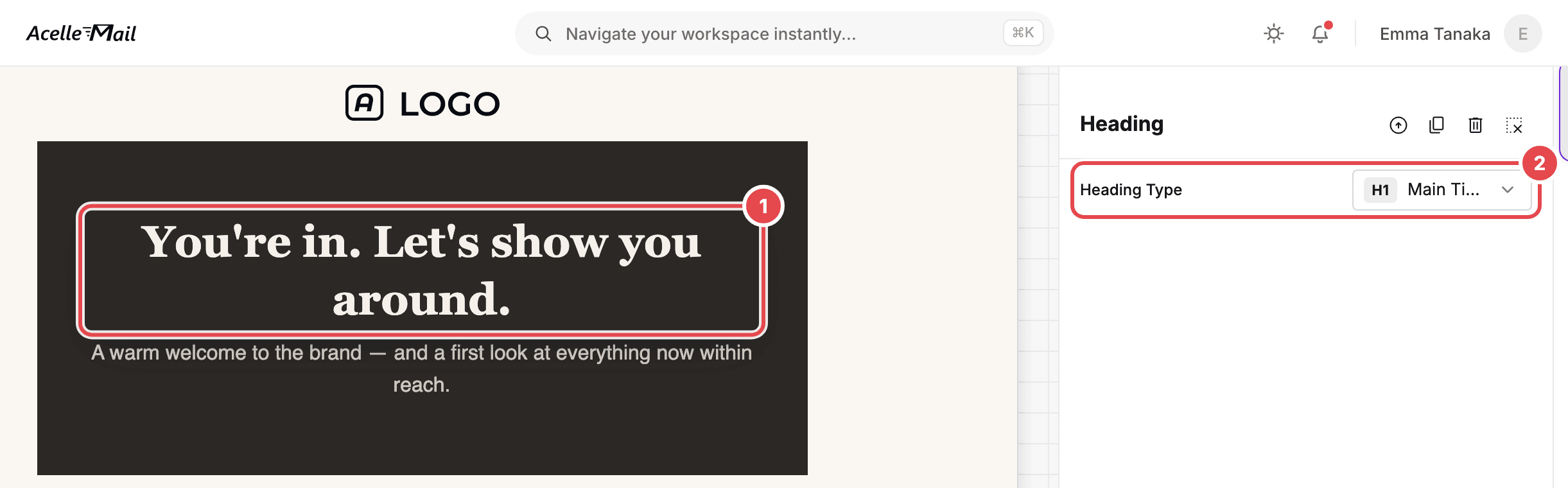
For a headline, use a Heading block instead of a picture of words. A new Heading block starts at H1. Heading Type changes its level, from H1 (Main Title) to H6 (Smallest Title). People using a screen reader can jump between headings, so the levels should match the email's structure. For example, use H1 for the main heading and H2 for the heading of each section.
AcelleMail does not check alt text, contrast or headings for you, so review these yourself. The builder
also marks every email as English with lang="en", whatever language you write, and we found no setting
to change this. The W3C explains that when a page's language is identified, "Screen readers can load the
correct pronunciation rules." An email in another language may therefore be read aloud with English
pronunciation. W3C, Language of
Page
To check blocked images, use Send test email from the campaign's Confirm step. Open the email in Gmail with "Ask before displaying external images" turned on, then read it as a contact would. Gmail Help
Check that the offer, dates and button text are still available without the images.
The screenshot shows the selected main heading (1) in a demo email, with its Heading Type (2) set to H1.
8. Common mistakes
| What you see | Why it is a problem | What to do |
|---|---|---|
| The offer, date and button appear only in an image. | Readers may miss the message when images are turned off or when they use a screen reader. | Put these details in real text and use the image to support them. |
| A 600-pixel file fills a 600-pixel column. | It can look less sharp on high-resolution screens. | Upload an image about twice as wide and set its displayed width in px. |
| A large photo has not been compressed. | It can load slowly on phones. | Compress photos, using JPEG for photos and PNG for graphics or transparency. |
| A product photo or banner has empty alt text. | AcelleMail sends it as decoration, so screen readers skip it. | Enter short alt text that explains what matters. |
| Alt text starts with "Image of..." or describes a divider. | A screen reader usually says it is an image already, and alt text on a divider only adds words. | Describe what matters and leave alt text empty for decoration. |
| A linked image's alt text only describes the picture. | The reader may not know where the link goes. | Describe the destination, such as "Shop the autumn coffees". |
| You use a 60:40 ratio for spam filters. | We found no mailbox provider rule that requires it, and SpamAssassin's ratio rules score 0.001 points. | Write the message in real text for readers. |
| You assume the European Accessibility Act requires accessible newsletters. | The Directive does not mention email. | Follow WCAG for readers and check the law for your own services. |
Summary
- Most email images are files that the mail app downloads from a web server. AcelleMail keeps uploaded images in Assets.
- There is no official image size, so match the image to the column. Consider using a file about twice the displayed width for high-resolution screens, and compress photos.
- Classic Outlook and Outlook for Mac block external images by default. Gmail normally shows them unless it thinks the sender or message is suspicious, while Yahoo Mail normally shows them except in spam.
- Meaningful images need alt text. An image used as a link without any text needs alt text that says where the link goes or what it does. Decorative images should have empty alt text.
- The main message, offer and button text should appear as real text. Words shown as images can disappear when images are blocked.
- We found no provider rule that requires an image-to-text ratio. SpamAssassin's ratio rules score 0.001 points, while its image-only rules apply only to very small HTML parts.
- The European Accessibility Act does not name email, and penalties differ by country. The US rules discussed here do not set detailed standards for business marketing email.
- In AcelleMail, review Alternate Text, use Heading blocks and test with images turned off. Check that readers can still understand the offer and use the call to action.
Terms used here are defined in the Email Marketing Glossary.
0 comments
No comments yet — be the first to share a tip or question.