AcelleMail is a self-hosted email marketing application written in PHP and Laravel. It manages contacts, campaigns, automation, sending queues, and reporting, while the actual email delivery is handled by a separate sending service.
Amazon SES is one of the services that can be used for email delivery. AcelleMail supports both the Amazon SES API and SMTP. This guide focuses on the SES API because it also allows AcelleMail to manage sending identities and configure bounce and complaint notifications.
The setup has three main parts:
- Create an AWS IAM user and access key.
- Add Amazon SES as a sending server in AcelleMail.
- Configure the sending domains and SES settings.
Once the sending server is connected, AcelleMail can also configure the SES resources it needs for bounce and complaint handling.
1. Create an AWS IAM user#
AcelleMail needs AWS credentials to connect to Amazon SES.
It is better to create a dedicated IAM user for AcelleMail instead of using the AWS root account credentials. A dedicated user can be disabled or have its access keys rotated without affecting other AWS services.
In the AWS console, open IAM.
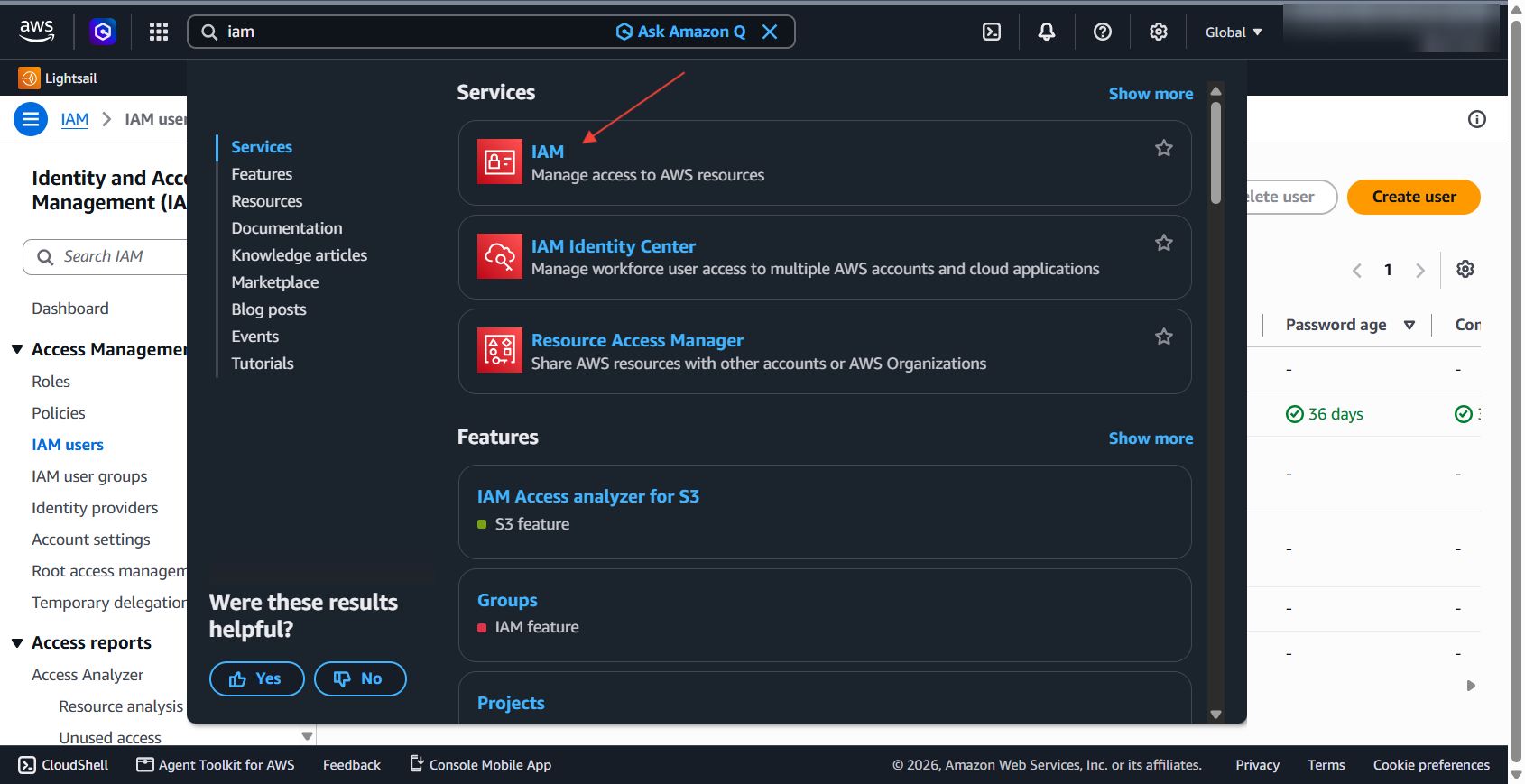
Go to IAM → Users and click Create user.
You can use a name such as:
acellemail-ses
The user does not need console access because AcelleMail will use its access key to access AWS.
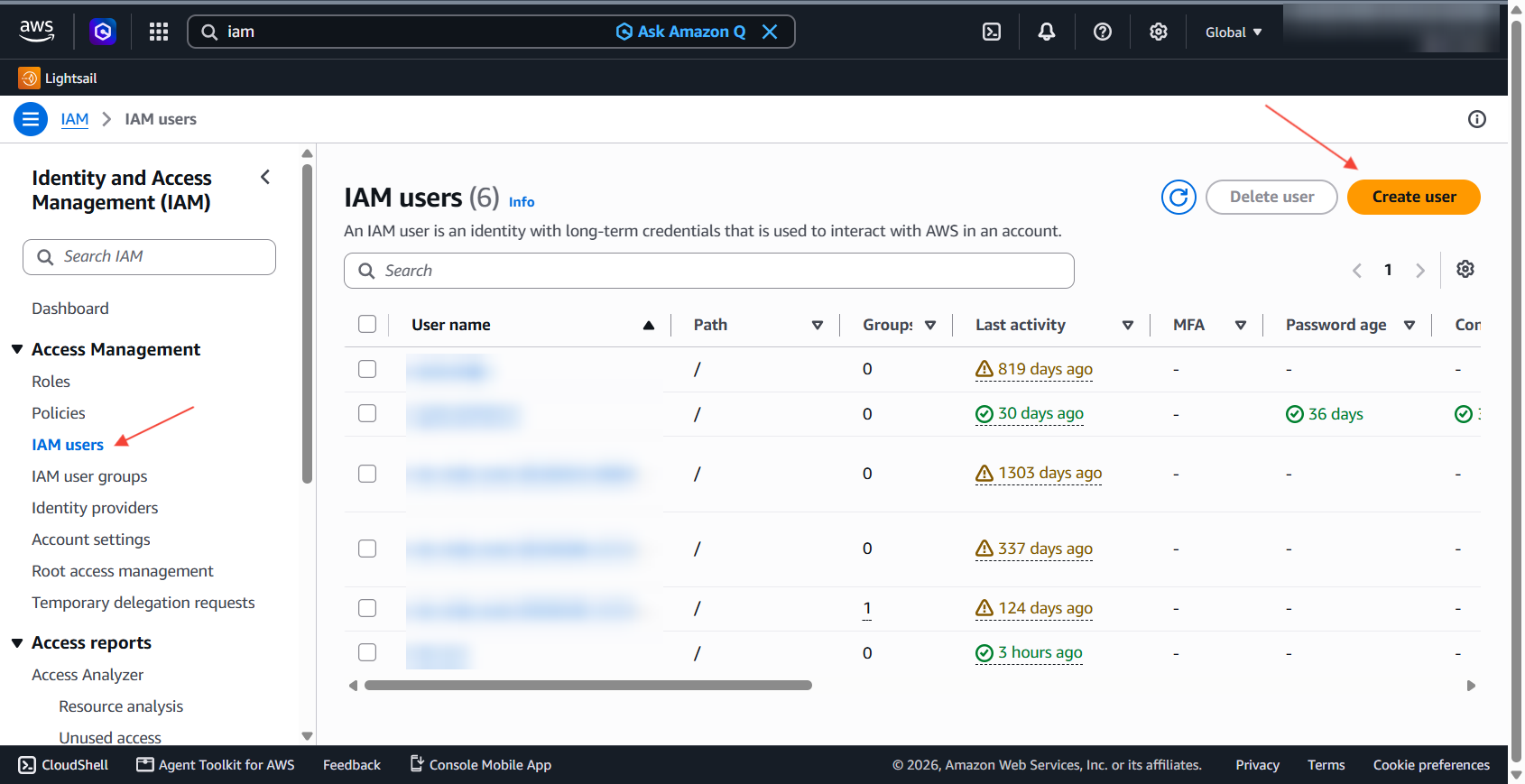
Attach the required permissions#
On the permissions step, choose Attach policies directly.
Attach these three AWS managed policies:
| Policy |
Used by AcelleMail for |
AmazonSESFullAccess |
Sending email and managing SES identities |
AmazonSNSFullAccess |
Creating and configuring the SNS resources used for bounce and complaint notifications |
IAMReadOnlyAccess |
Checking the AWS credentials and permissions when you use Test Connection |
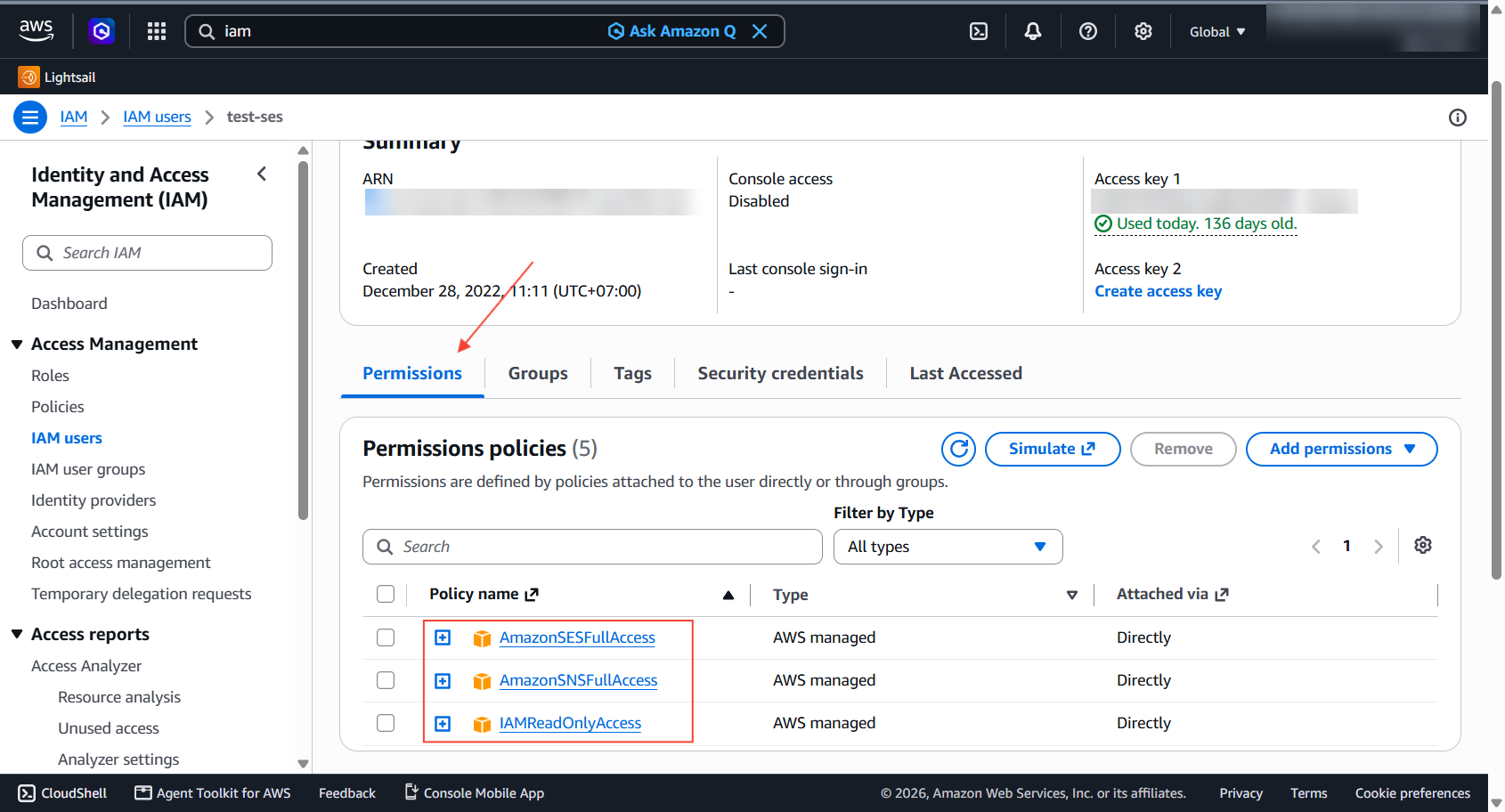
These policies provide broader permissions than a custom least-privilege policy. If the AWS account is dedicated to AcelleMail, this can be a practical setup. If the account also contains other production resources, consider creating a more restricted IAM policy instead.
Create an access key#
Open the IAM user's Access keys section and click Create access key.
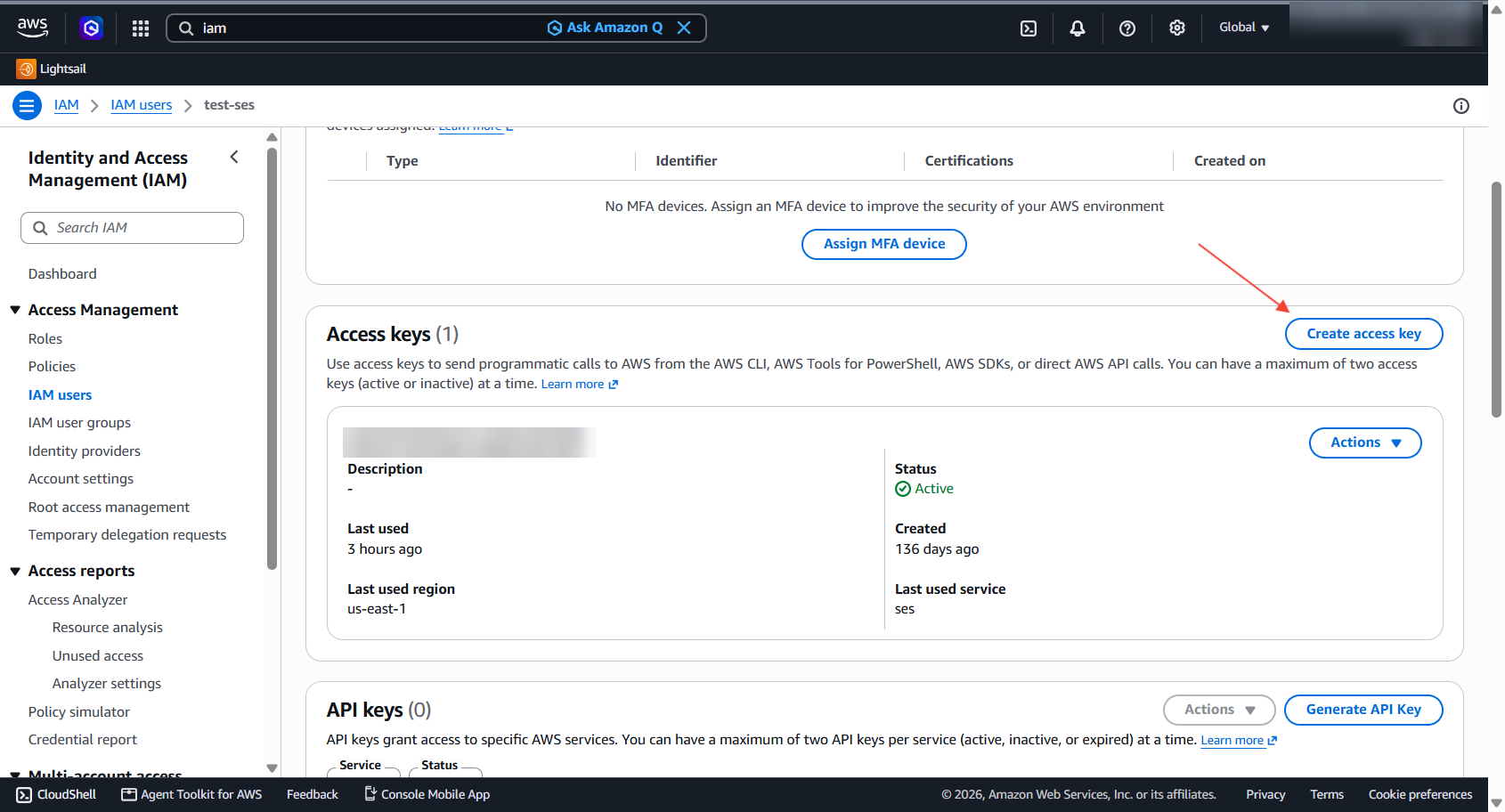
When AWS asks what the key will be used for, choose Third-party service.
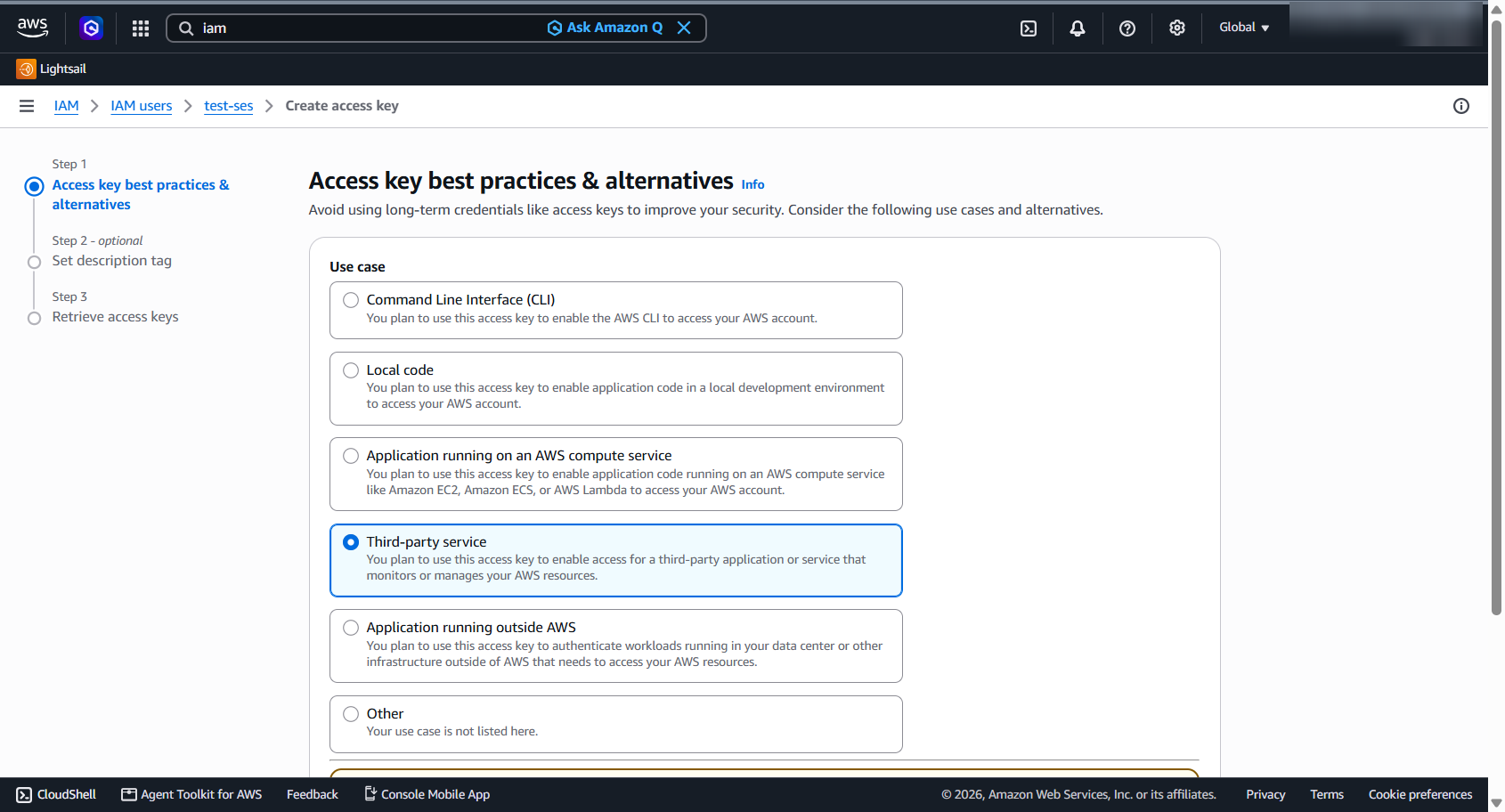
AWS will then show the Access key and Secret access key.
Save both values. AWS only shows the secret access key when it is created. If you lose it later, create a new key and deactivate the old one.
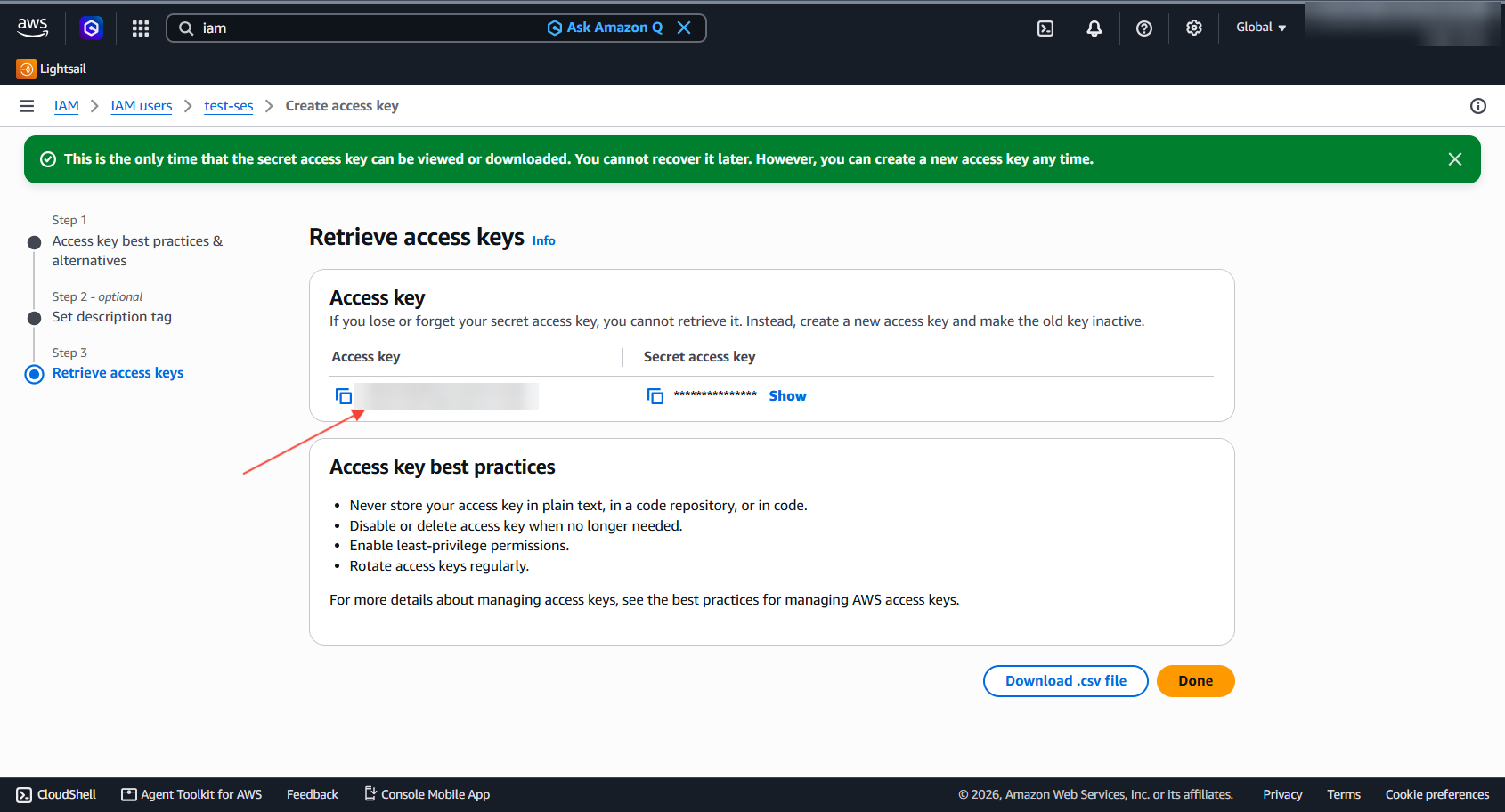
AcelleMail stores the AWS credentials in its database because it needs to access SES without user interaction. The AWS secret access key is encrypted at rest.
You should still use a dedicated IAM user, limit its permissions where practical, and rotate its access keys periodically.
2. Add Amazon SES to AcelleMail#
Once you have the AWS access key, add it to AcelleMail.
Log in to AcelleMail as an administrator and open:
Sending → Sending Servers
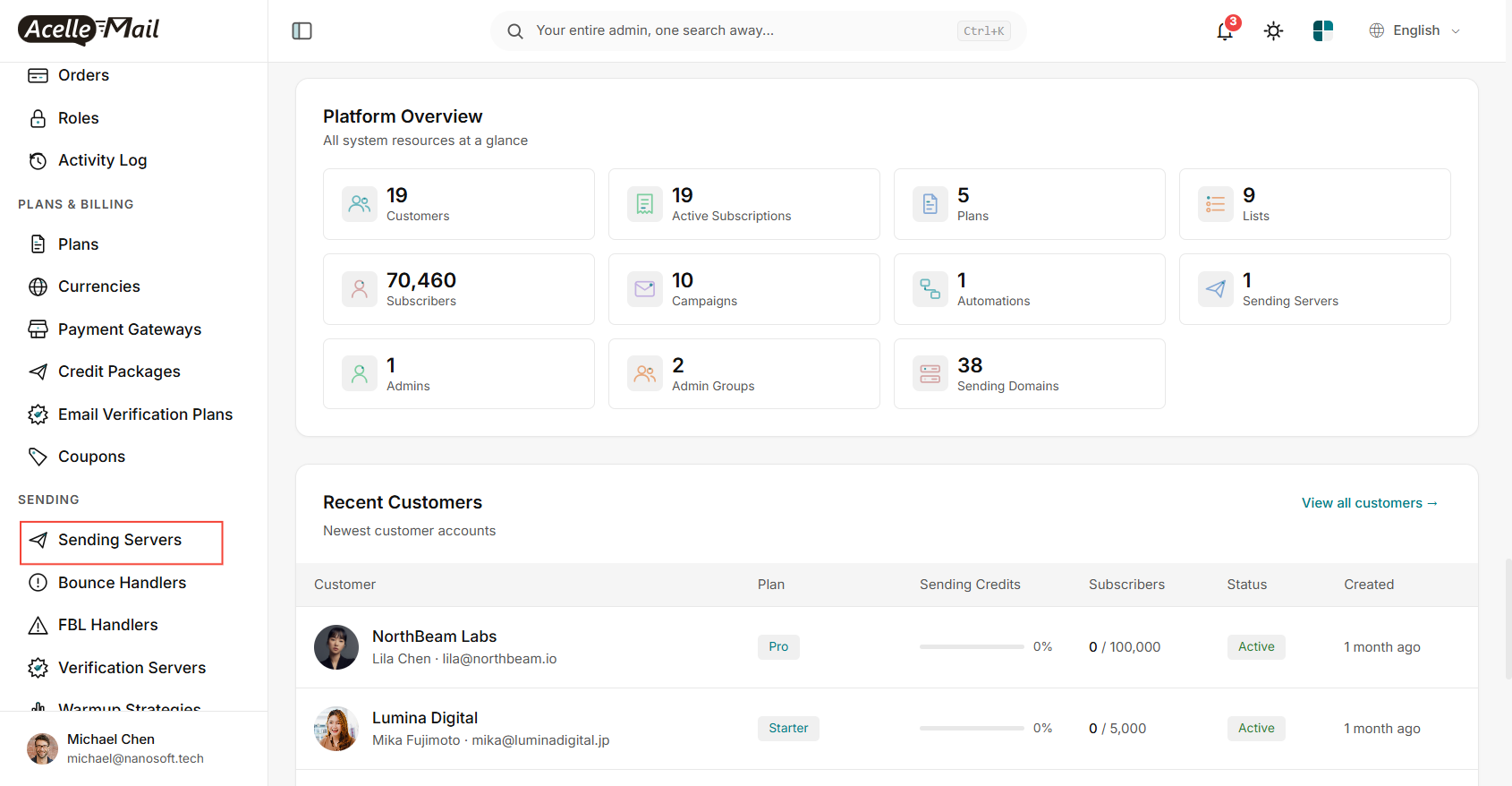
Click Add Server and select:
Amazon Web Service API
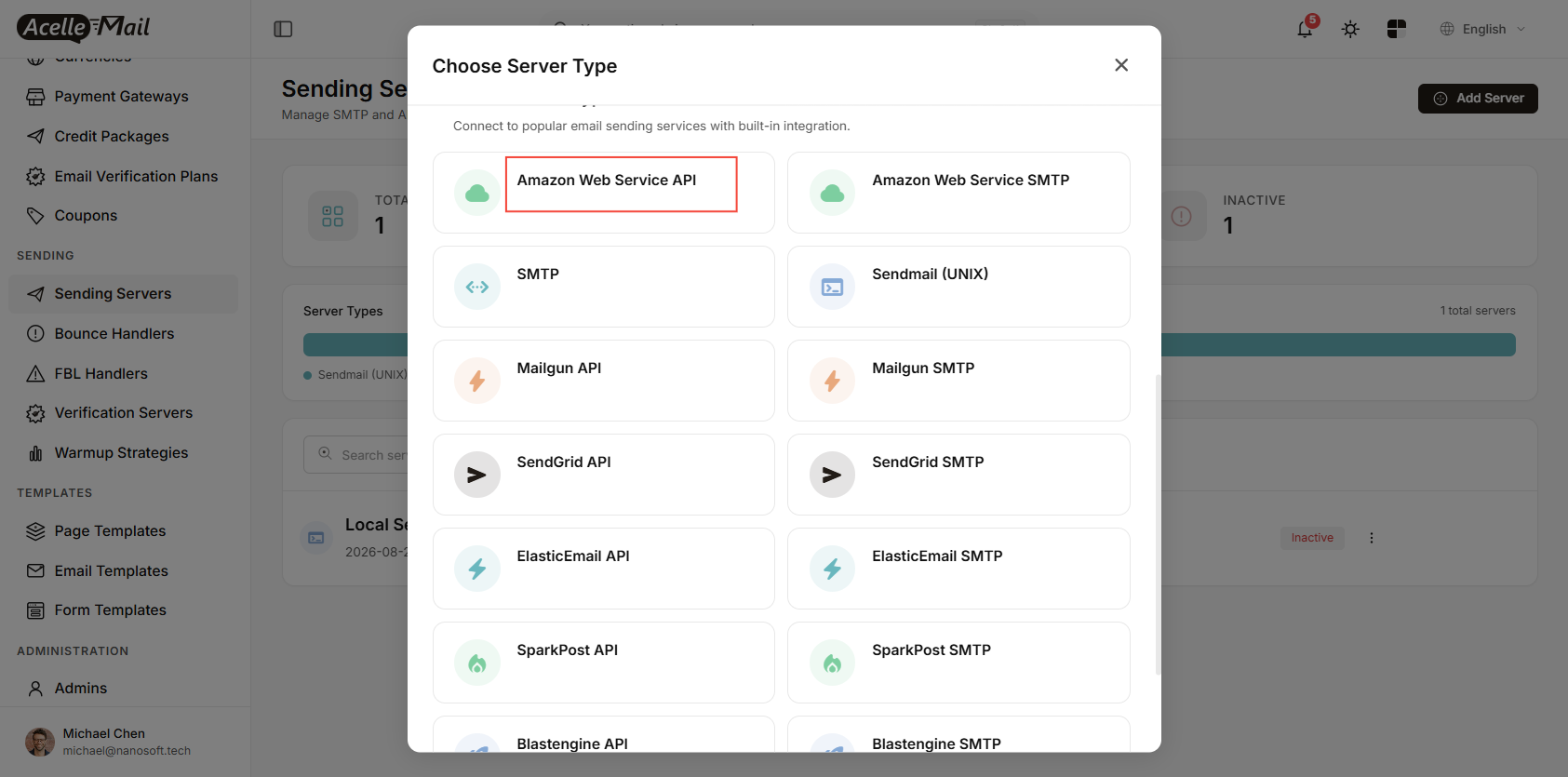
AcelleMail also supports Amazon Web Service SMTP. The SMTP option requires SES SMTP credentials, while the API driver uses the AWS access key directly.
For this setup, we recommend the Amazon Web Service API driver.
Under Connection details, enter:
- AWS Access Key ID
- AWS Secret Key
- AWS Region
The region is important because Amazon SES identities and quotas are regional.
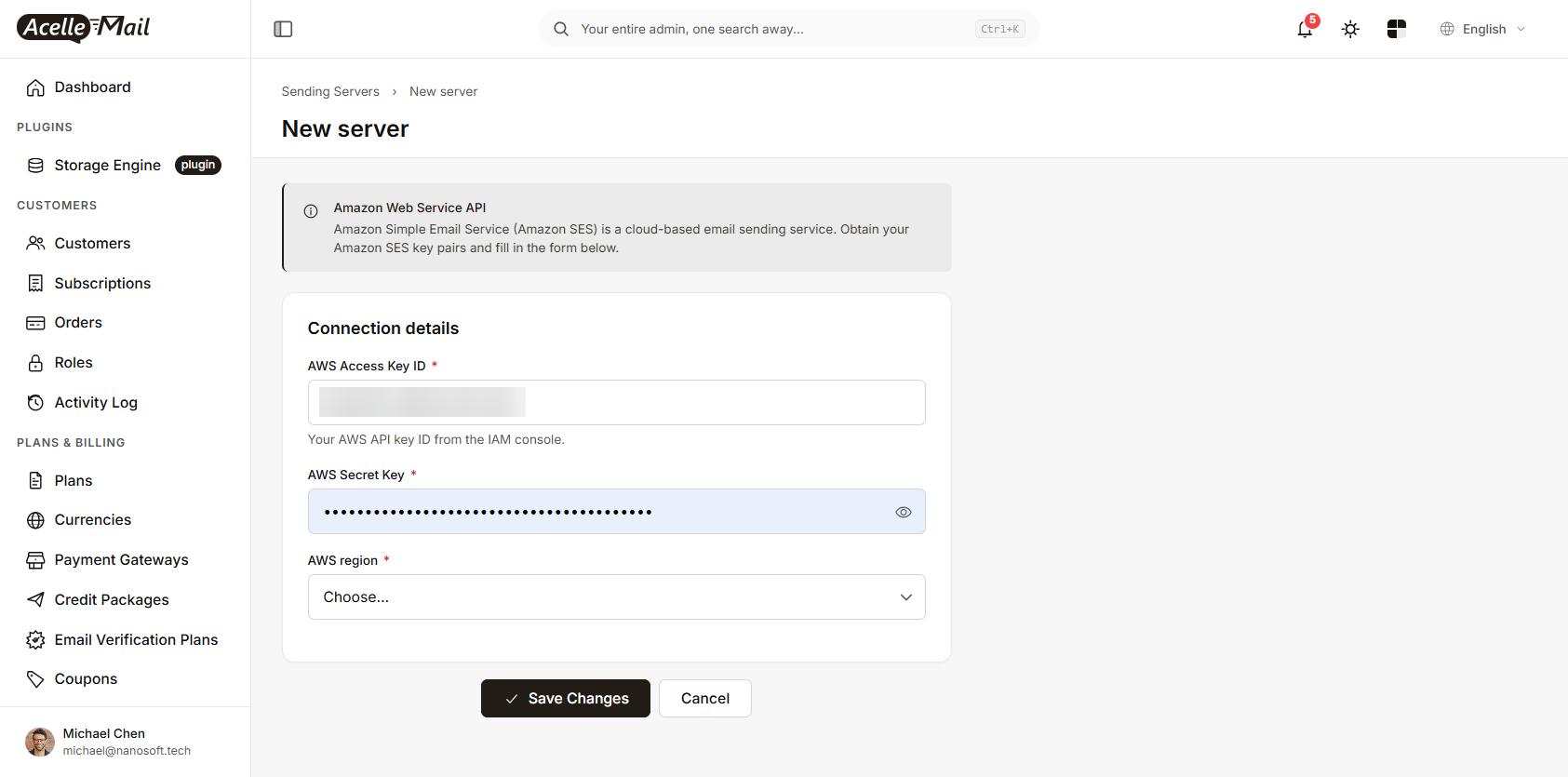
Click Save Changes.
Test the connection#
After saving the server, AcelleMail provides two useful tests.
Test Connection checks the AWS credentials and the permissions required by AcelleMail.
Send Test Email sends an actual email through Amazon SES.
Use Test Connection first. If it reports a permission problem, fix the IAM permissions before testing email delivery.
If the SES account is still in the sandbox, the test recipient must be a verified email address.
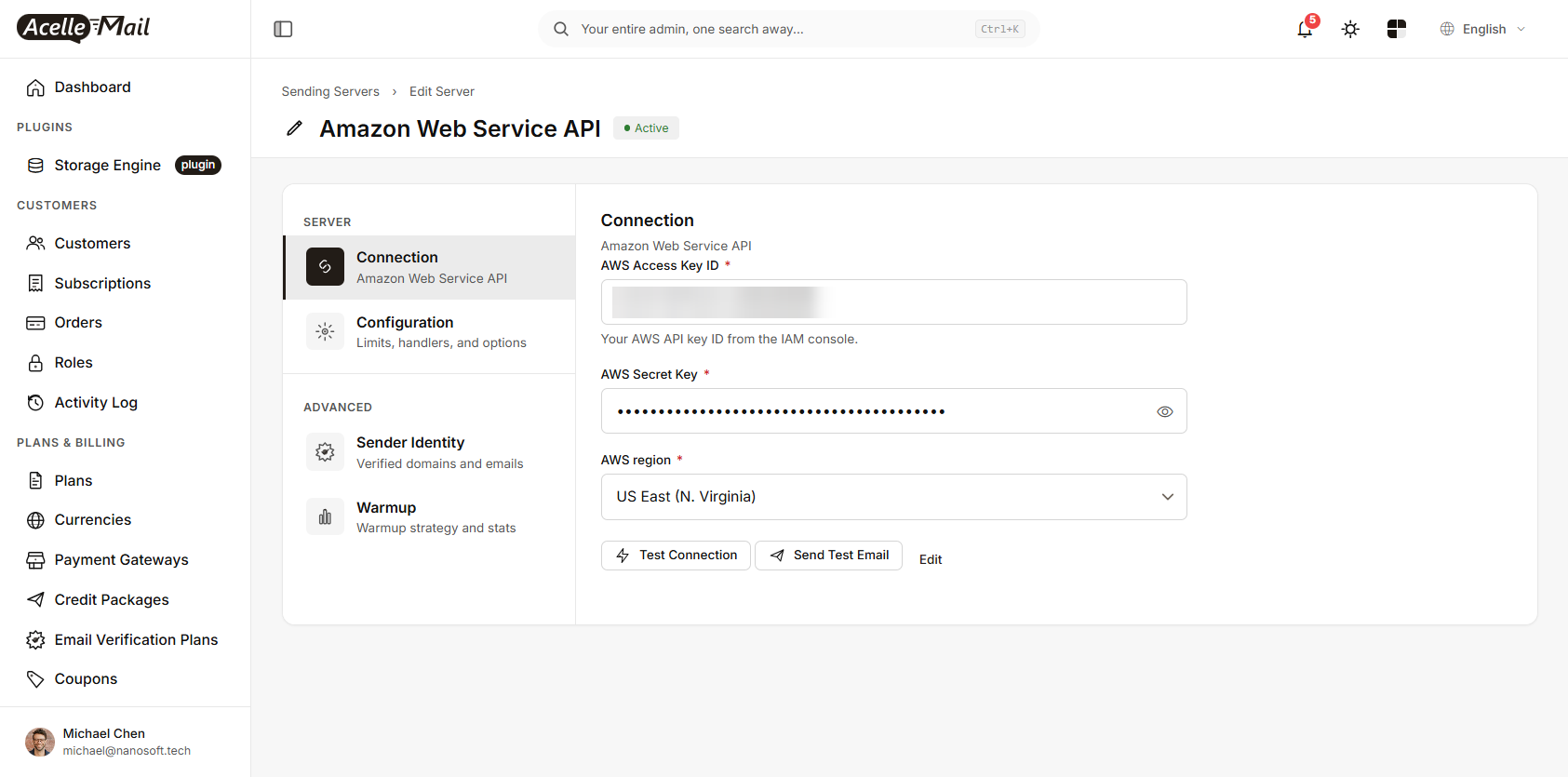
If you are running AcelleMail with multiple users or plans, also make sure the sending server is assigned to the appropriate plan. A correctly configured sending server will not send anything if no plan or user is allowed to use it.
3. Bounce and complaint notifications#
AcelleMail uses Amazon SNS to receive bounce and complaint notifications from SES.
When the SES sending server is connected, AcelleMail creates the required SNS topic and subscription automatically.
This allows AcelleMail to receive notifications from SES and associate them with the corresponding contacts. Contacts affected by hard bounces or complaints can then be excluded from later campaigns.
There is one important requirement: your AcelleMail installation must be publicly accessible.
SNS needs to send notifications to an endpoint on your AcelleMail installation. A localhost address, private IP address, or VPN-only hostname cannot receive these notifications from AWS.
Make sure APP_URL points to the public URL of your AcelleMail installation before enabling the SES server.
If this is not configured correctly, email sending may still work, but bounce and complaint notifications will not be processed.
4. Share verified sender identities#
Every email sent through SES must use a verified sender identity.
If you have already verified domains in Amazon SES, you can manage them from the AcelleMail sending server:
Advanced → Sender Identity
The list shows the SES identities available in the selected region.
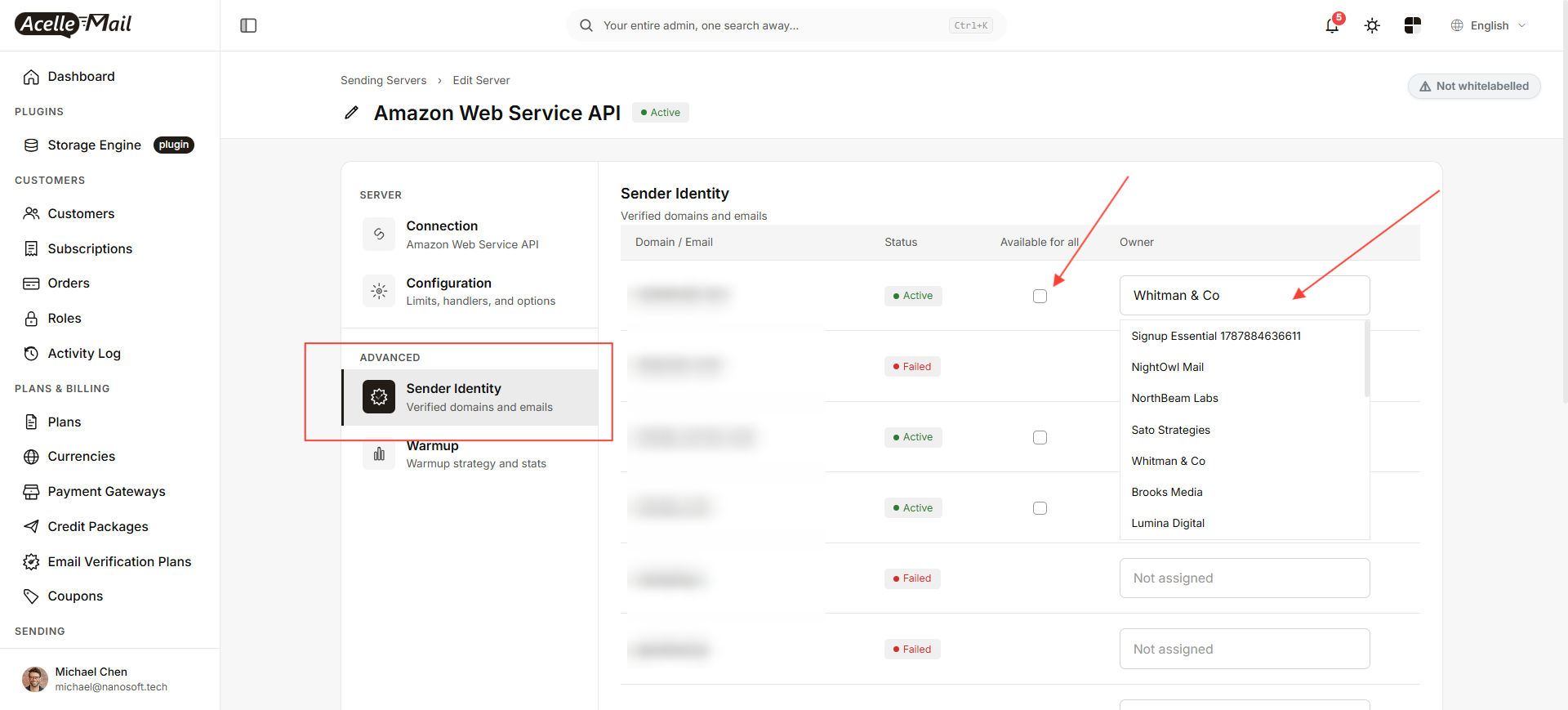
You can make a verified domain available in two ways.
Available for all#
Enable Available for all if all users on the AcelleMail installation should be able to send from that domain.
Assign to a user#
Alternatively, set an Owner for the identity. The selected customer will then be able to use that domain.
Only identities with an Active status can be used for sending.
If an identity is marked Failed, the problem needs to be fixed in Amazon SES or DNS before it can be used.
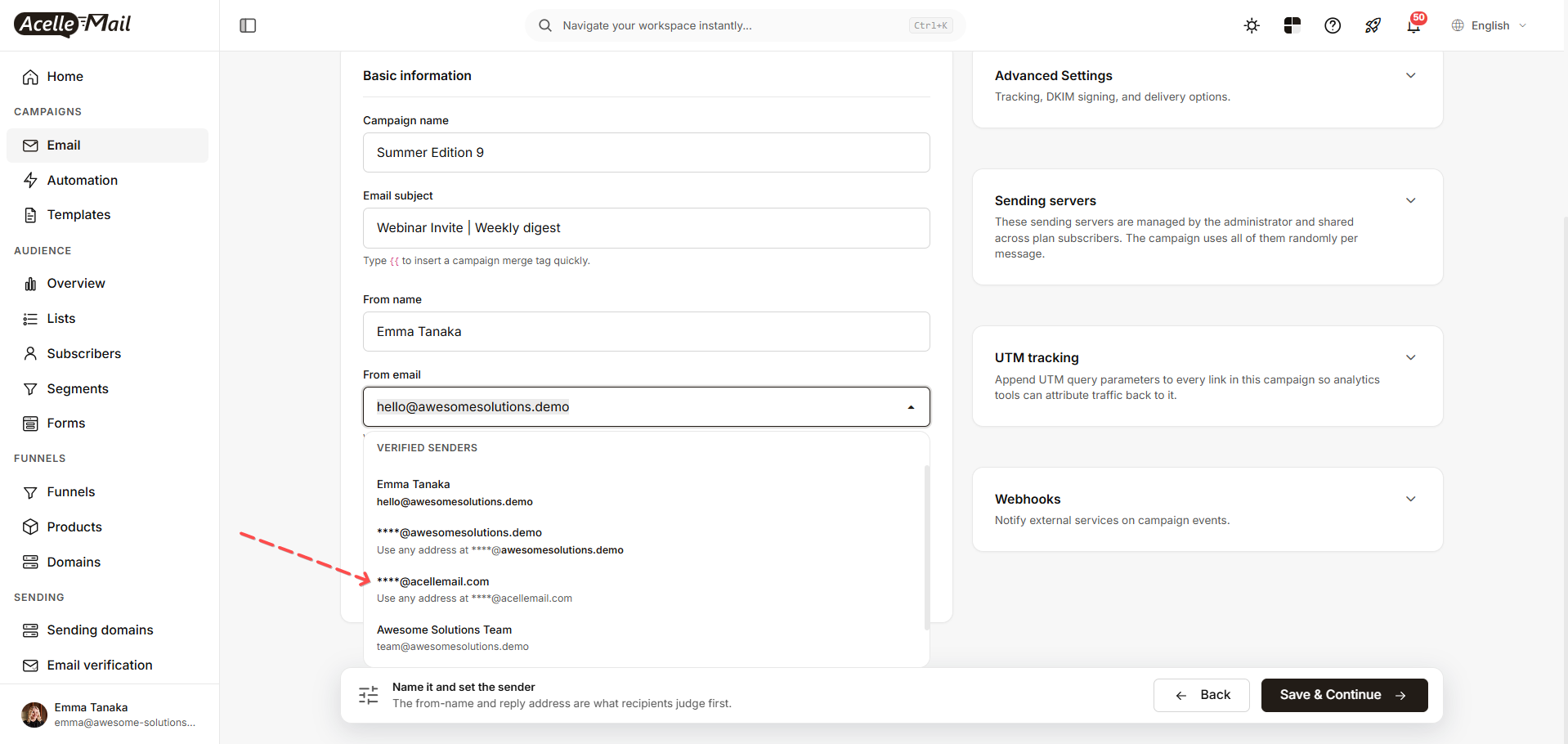
Once a domain is available to a user, it appears in the campaign's From email field under Verified senders.
5. Add customer sending domains#
In a multi-user AcelleMail installation, customers will usually want to send from their own domains.
A customer can add a domain from:
Sending domains → Add domain
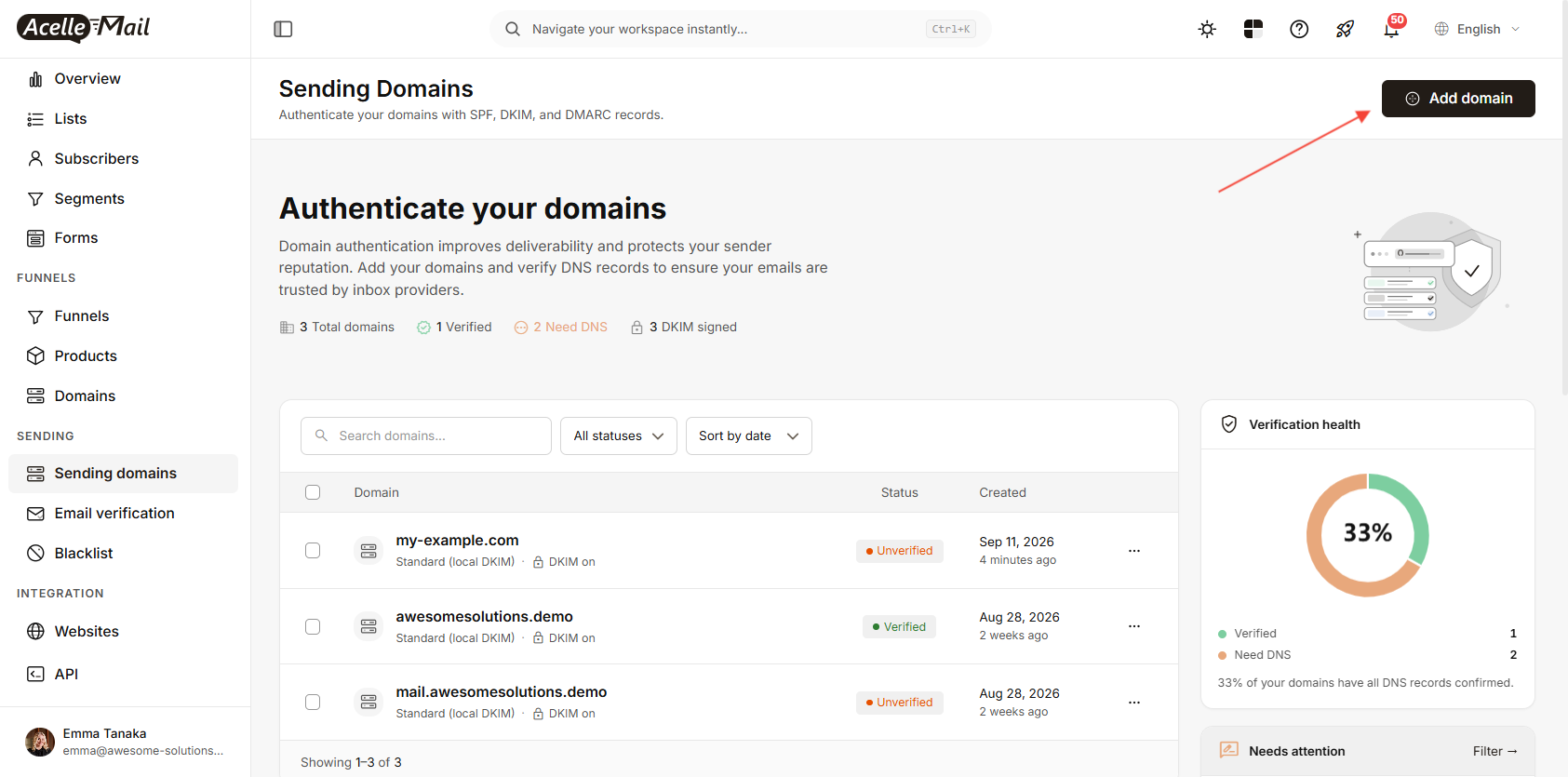
When the customer's account uses the Amazon SES sending server, AcelleMail registers the domain with SES and displays the DNS records that need to be added.
The domain page shows a Synced · Amazon SES status and the required records.
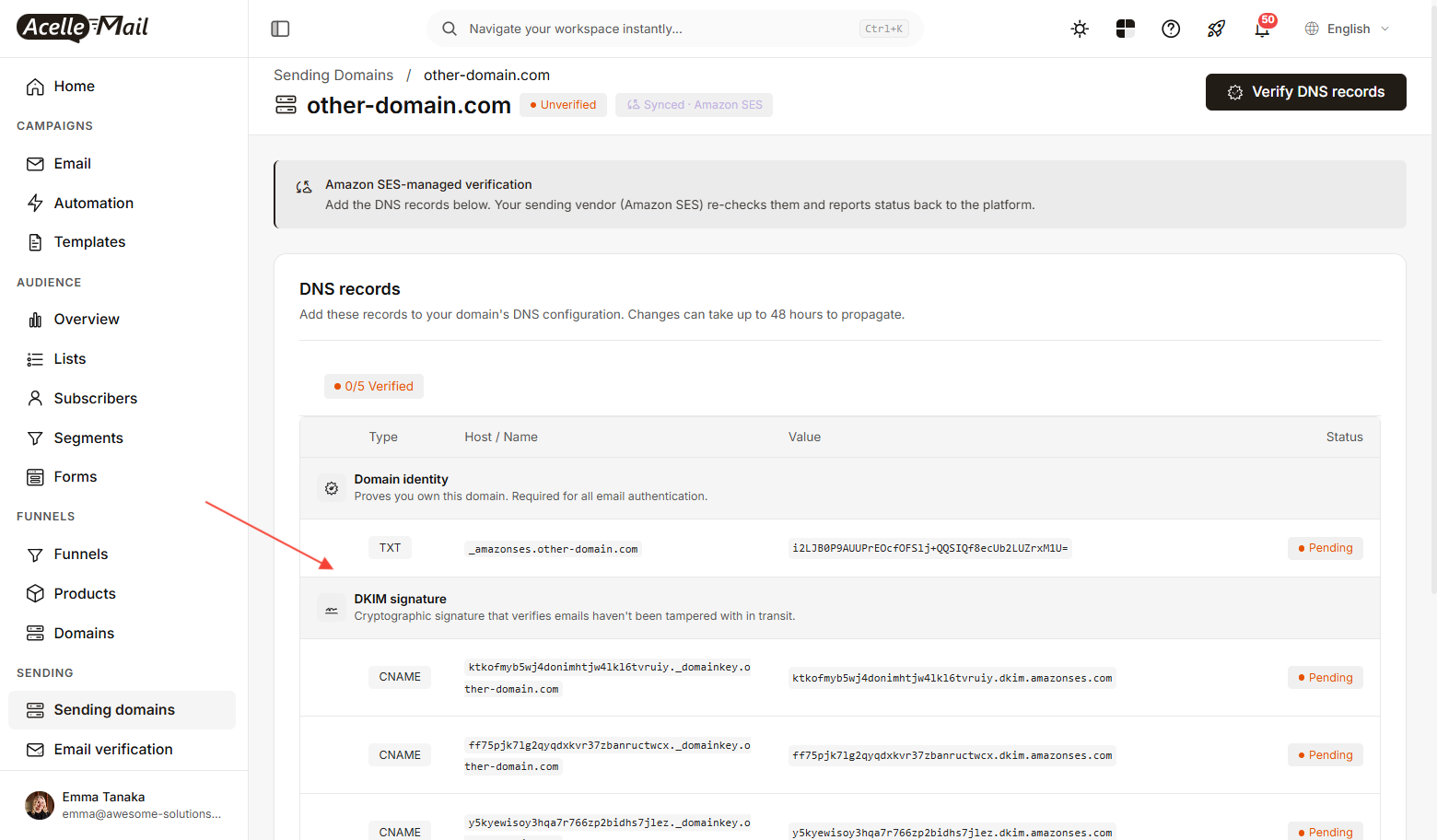
The records normally include:
- Domain identity — a TXT record at
_amazonses.theirdomain.com
- DKIM — three CNAME records ending in
.dkim.amazonses.com
- SPF — a TXT record containing
v=spf1 include:amazonses.com ~all
After publishing the records, click Verify DNS records in AcelleMail.
DNS changes can take some time to propagate, so the verification can be run again later.
Two common DNS problems#
Do not create multiple SPF records#
A domain should have one SPF record.
If the domain already has an SPF record for Google Workspace or another email service, add the Amazon SES include to the existing record instead of creating a second SPF record.
For example:
v=spf1 include:google.com include:amazonses.com ~all
Multiple SPF records can result in a permerror and cause SPF validation to fail.
Check how your DNS provider handles record names#
Some DNS providers automatically append the domain name to the host field.
For example, entering:
_amazonses.theirdomain.com
may result in:
_amazonses.theirdomain.com.theirdomain.com
If the SES identity remains in Pending, check the actual DNS record rather than relying only on what is shown in the DNS control panel.
You can check the TXT record with:
dig +short TXT _amazonses.theirdomain.com
And a DKIM record with:
dig +short CNAME <selector>._domainkey.theirdomain.com
6. SES sandbox, quotas and regions#
There are three Amazon SES settings you should check before sending a real campaign.
SES sandbox#
New SES accounts start in the sandbox, and the restriction applies per region.
In the sandbox:
- recipients generally need to be verified
- the sending limit is 200 messages per 24 hours
- the sending rate is 1 message per second
To request production access, open the SES Account dashboard and choose Request production access.
The review is asynchronous, so it is worth requesting production access while you are configuring your domains and AcelleMail.
Sending quotas#
Production access does not mean that every AWS account has the same sending quota.
SES sets sending quotas per account and region. Check the current quota in the AWS Account dashboard and use that value when configuring sending limits in AcelleMail.
Do not assume that a commonly quoted quota such as 50,000 emails per day applies to your account.
AWS regions#
SES identities and sending quotas are regional.
For example, if you verified a domain in:
us-east-1
but configured AcelleMail to use:
eu-west-1
the verified identity will not appear in the AcelleMail server's Sender Identity list.
Make sure the region used by AcelleMail is the same region where your SES identities are configured.
7. Common problems#
| What you see |
What it usually means |
Action ses:... is not allowed / sns:... |
The IAM user is missing a required permission |
The security token included in the request is invalid |
The access key is incorrect, truncated, or deactivated |
Email address is not verified |
The SES account is still in the sandbox for that region |
AWS SNS will not be able to reach it… |
APP_URL is not publicly accessible |
| Sender Identity list is empty |
The AcelleMail server region does not match the SES region |
Customer domain remains Pending |
The DNS record may have been entered incorrectly or DNS has not propagated |
This domain is already registered on the system sending server… |
The domain was already registered in SES and needs to be assigned through Sender Identity |
Summary#
To connect AcelleMail to Amazon SES:
- Create a dedicated AWS IAM user.
- Give it the permissions required by AcelleMail.
- Create an AWS access key.
- Add the credentials to an Amazon Web Service API sending server in AcelleMail.
- Use Test Connection before sending a campaign.
- Make sure
APP_URL is publicly accessible so SNS can deliver bounce and complaint notifications.
- Verify your sending domains and publish the required DNS records.
- Keep the SES region consistent between AWS and AcelleMail.
- Check your actual SES sending quota before configuring sending limits.
