When you click Send, your email marketing platform prepares an email for each contact. In most setups,
it does not deliver the emails itself. Instead, it hands each email to a sending server, which passes it
on to the mail server of the recipient's mailbox provider, such as Gmail or Outlook.com.
This hand-off uses SMTP, the Simple Mail Transfer Protocol. Mail servers have used it for decades, and
many sending services also accept email through their own web API.
Understanding this process helps explain several things you may see in practice. An email can be counted
as delivered and still bounce a day later. Some emails are retried for days. Gmail and Microsoft 365
mailboxes have daily limits, so they are usually not a good fit for newsletters. When you add a sending
server in AcelleMail, you can choose between several ways to connect. Each option has its own strengths.
This guide covers:
- What happens after you click Send
- SMTP: the conversation between mail servers
- Three kinds of answer: accepted, try again later, refused
- Retries, bounces and complaints
- Two ways to connect: SMTP or an API
- Who runs the sending server: three options
- Sending limits
- Setting up a sending server in AcelleMail
It ends with the most common mistakes and a one-screen summary.
1. What happens after you click Send#
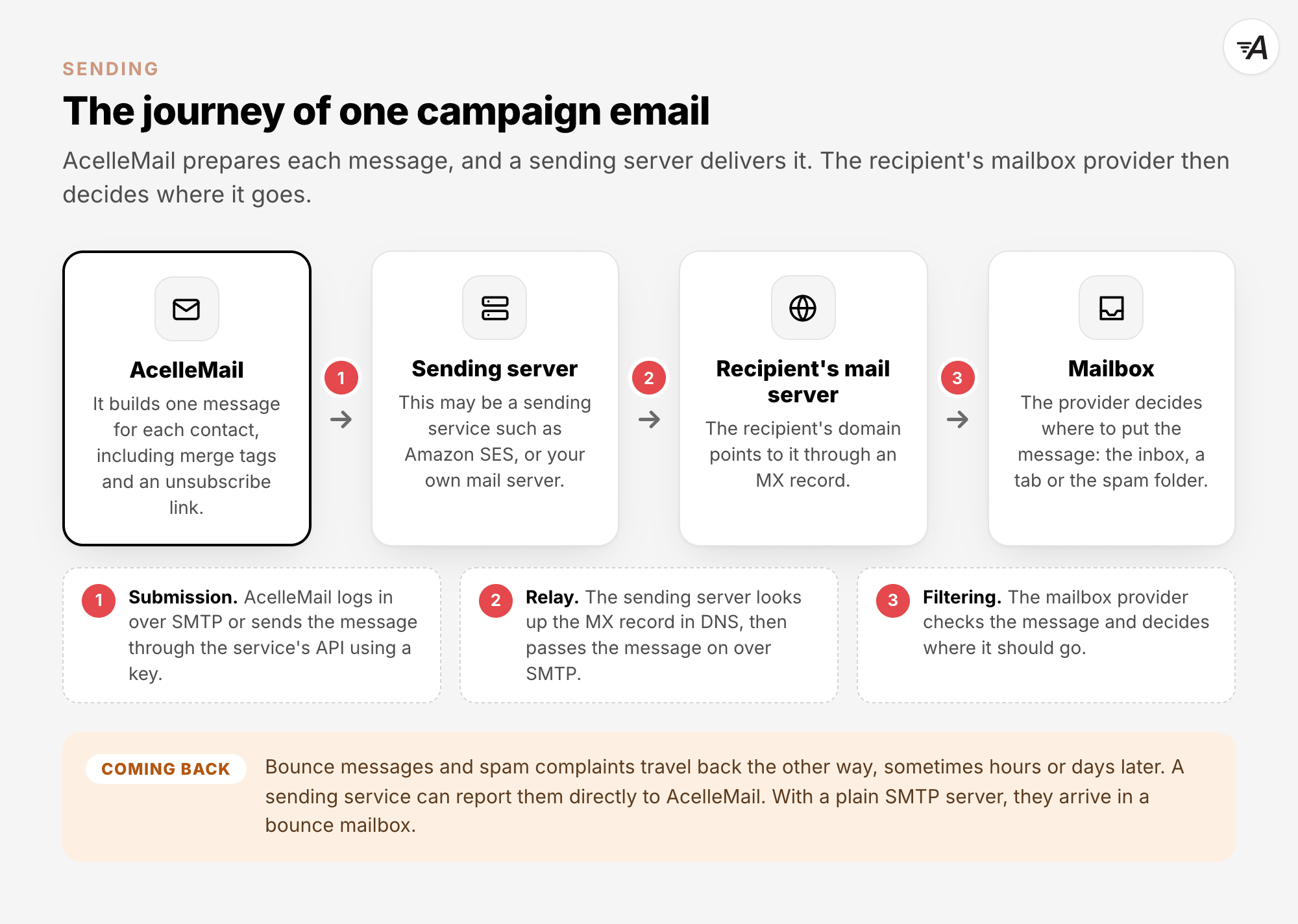
AcelleMail builds one message for each contact. It fills in the merge tags and the unsubscribe link,
then adds any tracking you have switched on. It then hands the message to a sending server. From there,
the email goes through four steps.
- Submission. AcelleMail passes the message to the sending server. Over SMTP, this normally happens
on port 587, after AcelleMail logs in with a username and password. The standard for this step, RFC
6409, says: "Port 587 is reserved for email message
submission as specified in this document." Some sending services can also accept the message through
an API instead (section 5).
- Finding the recipient's server. The sending server looks up the recipient's domain in DNS to find
its mail server. An MX record is a DNS record that names the mail servers for a domain. The SMTP
standard, RFC 5321, says: "The lookup first attempts to
locate an MX record associated with the name."
- Relay. The sending server connects to that mail server over SMTP and passes the message on. An
email may pass through more than one server on the way.
- The mailbox provider's decision. The recipient's provider accepts or refuses the email. If it
accepts the email, it then decides where to put it, such as the inbox, a tab or the spam folder. The
articles Email Deliverability Explained and Spam
Filters Explained explain this second decision.
Reading email is a different job. Mail apps use SMTP to send email, but they fetch messages from a
mailbox with IMAP or POP. AcelleMail uses IMAP or POP for one task: reading bounce messages and
complaint reports from a mailbox (section 8).
2. SMTP: the conversation between mail servers#
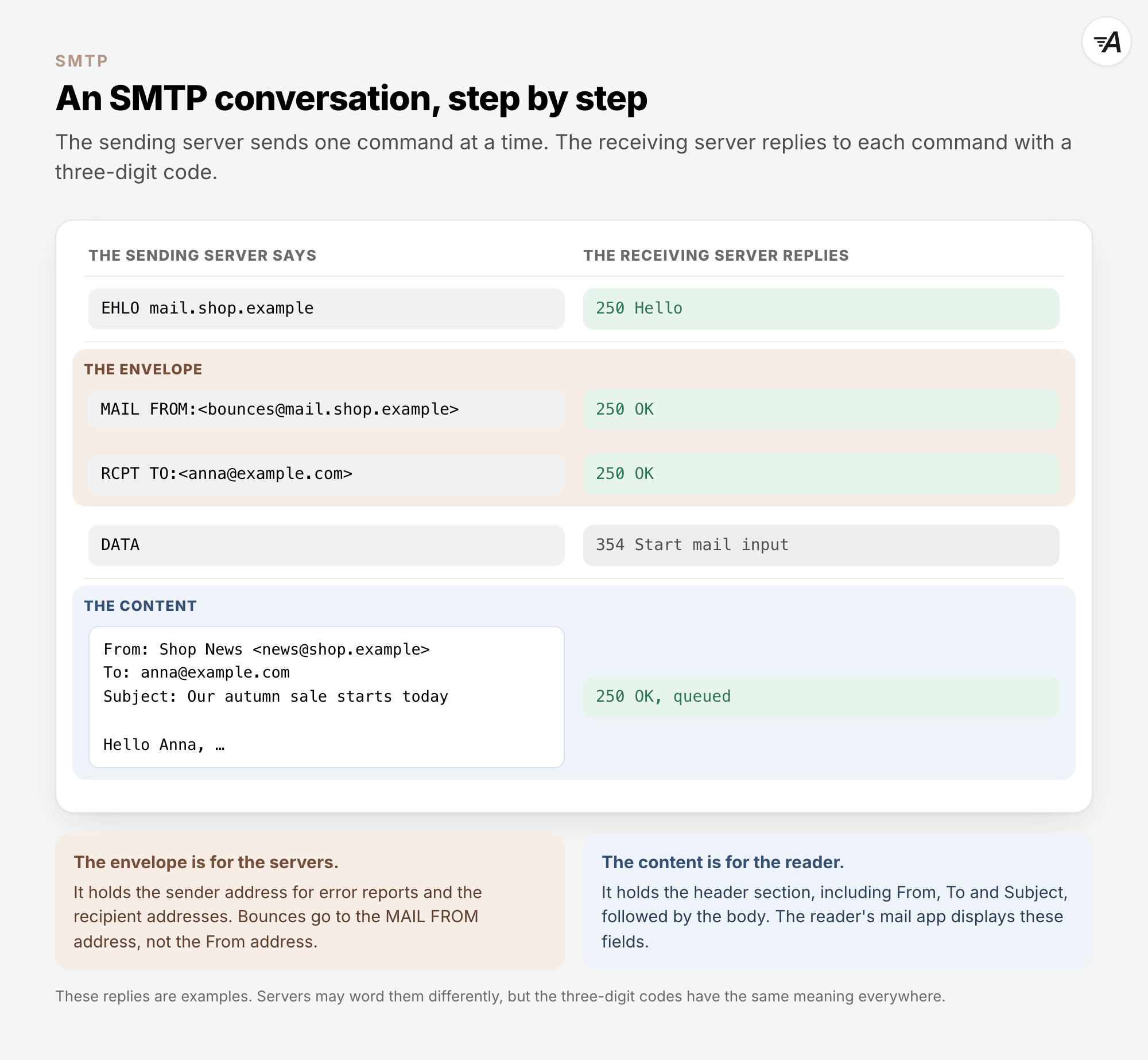
SMTP works like a short conversation. The sending server connects to the receiving server and greets it
with the EHLO command. It names the sender address with MAIL FROM and each recipient with RCPT TO. After
the DATA command, it sends the message itself. The receiving server replies to each step with a
three-digit reply code.
RFC 5321 describes what passes between the servers: "SMTP
transports a mail object. A mail object contains an envelope and content."
- The envelope is for the servers. It holds the sender address where error reports go, called the
envelope sender, as well as the recipient addresses.
- The content is for the reader. It holds the header section, with fields such as From, To, Subject
and Date, followed by the body of the email.
The envelope sender and the From address can differ. The reader may see [email protected] in the From
field, while the envelope sender is a bounce address at your sending service. Bounces go to the envelope
sender, not to the From address. When the email reaches its final server, that server writes the
envelope sender into a Return-Path header at the top of the message. Return-Path vs
Envelope-Sender explains what each one does in
AcelleMail.
3. Three kinds of answer: accepted, try again later, refused#
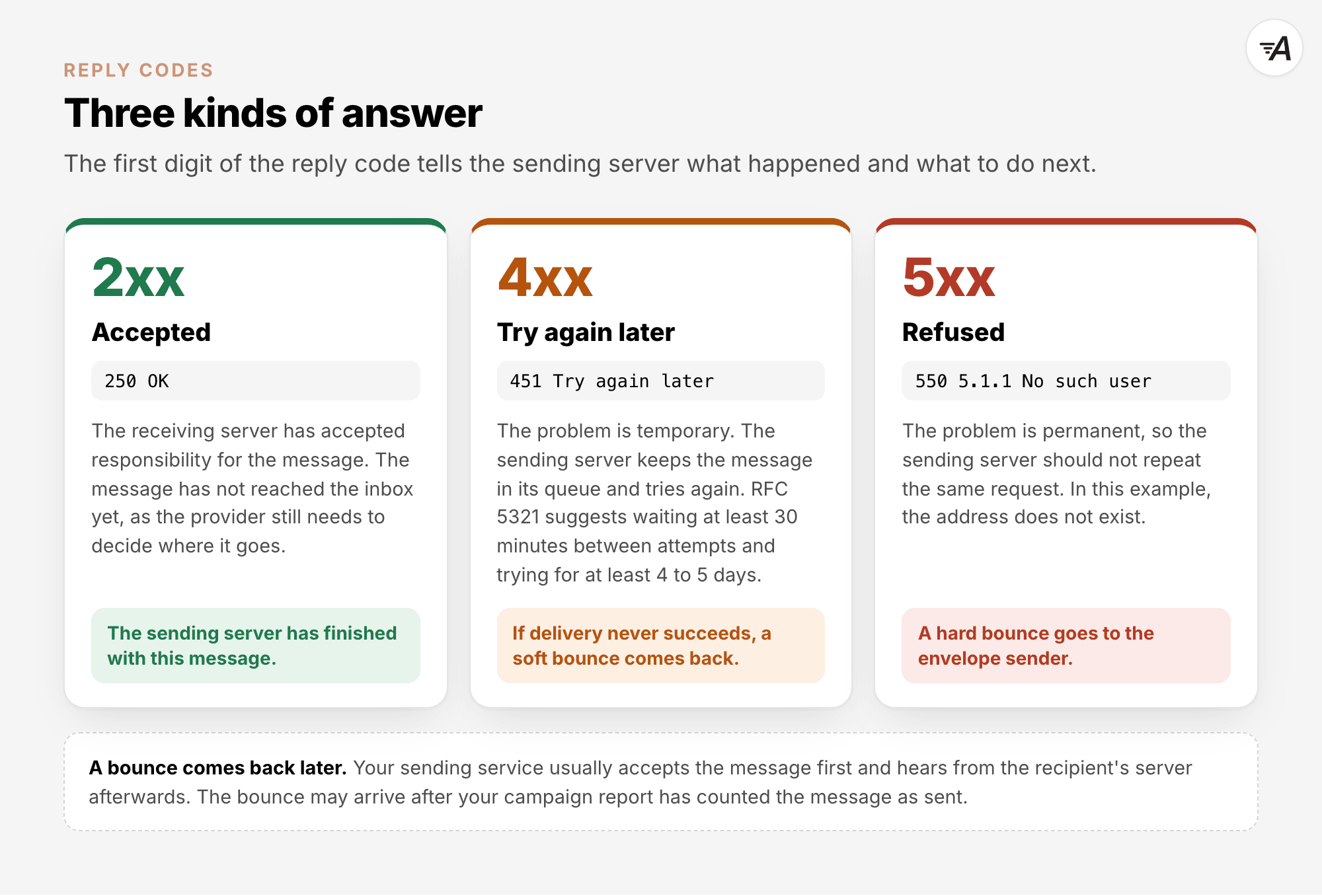
The first digit of a reply code tells the sending server what happened and what to do next.
| First digit |
Meaning |
What RFC 5321 says |
| 2 |
Accepted |
"The requested action has been successfully completed." |
| 4 |
Try again later |
"However, the error condition is temporary, and the action may be requested again." |
| 5 |
Refused |
"The SMTP client SHOULD NOT repeat the exact request (in the same sequence)." |
Many servers add an enhanced status code after the reply code, such as 5.1.1. These codes come from RFC
3463, and their first digit means the same thing. The standard
calls 4.X.X a "Persistent Transient Failure" and 5.X.X a "Permanent Failure". For example, the code
5.1.1 stands for "Bad destination mailbox address". RFC 3463 explains: "The mailbox specified in the
address does not exist."
Accepted does not mean delivered to the inbox. A 250 reply means that the receiving server has taken
responsibility for the message. When your sending service accepts an email from AcelleMail, it takes
over the job of delivering it. The recipient may not have received the email yet, and the mailbox
provider still has to decide where to put it.
Mailbox providers also use these replies to enforce their own rules. Google's sender guidelines
FAQ says: "Starting November 2025, Gmail is ramping
up its enforcement on non-compliant traffic. Messages that fail to meet the email sender requirements
will experience disruptions, including temporary and permanent rejections."
4. Retries, bounces and complaints#
After a temporary reply, the sending server keeps the message in its queue and tries again later. RFC
5321 says that "the retry interval SHOULD be at least 30
minutes" and that "the give-up time generally needs to be at least 4-5 days." Each sending service
chooses its own schedule. For example, Amazon
SES says: "SES retries the
email for an extended period of time."
A message bounces when the receiving server refuses it permanently. It also bounces when the sending
server gives up after retrying a temporary failure. A bounce is a delivery status notification, a
standard report message described in RFC 3464. The report goes
back to the envelope sender. A hard bounce is a permanent failure, usually with a status code that
starts with 5. A soft bounce is a temporary failure, usually with a code that starts with 4. Hard
Bounce vs Soft Bounce explains how to read these reports
in AcelleMail.
A bounce can arrive minutes or days after your sending service accepts the message. A complaint may
arrive even later. This happens when a recipient marks the email as spam and the mailbox provider
reports it back through a feedback loop. The article Feedback Loops
(FBL) explains how this works.
How this information reaches your platform depends on the way you connect:
- A sending service can tell the platform directly. Amazon SES says: "In order to send email using
Amazon SES, you must have a system in place for managing bounces and complaints." It can send a
notification email, notify an Amazon SNS topic or publish sending events, as its notification
guide
explains.
- A plain SMTP server does not report later bounces to the platform. Its bounce messages arrive by
email in the envelope sender's mailbox, so something has to read that mailbox.
Section 8 shows how AcelleMail handles both cases.
5. Two ways to connect: SMTP or an API#
Most sending services offer two ways to connect. The service and the delivery stay the same. What
changes is how the platform hands the message over, and often how bounces and complaints come back.
With an SMTP connection, the platform logs in to the service's SMTP server with a username and password.
It usually connects on port 587. The connection starts unencrypted and then switches to encryption with
a command called STARTTLS. The alternative is port 465, where the connection is encrypted from the
start. RFC 8314 recommends encryption from the start for this
step. It calls this Implicit TLS. For example, Amazon SES accepts STARTTLS on ports 25, 587 and 2587. It
also supports encryption from the start, which it calls TLS Wrapper, on ports 465 and 2465.
The SMTP login is often different from your account login. Amazon
SES says: "Your SMTP password is
different from your AWS secret access key." SendGrid uses the word apikey as the SMTP username and an
API key as the password.
With an API connection, the platform sends each message to the service as a web request. It signs the
request with an access key or an API key. This method does not use the SMTP ports.
|
SMTP connection |
API connection |
| What you enter |
The SMTP host, port, encryption, username and password |
The service's access key or API key, and for Amazon SES the region |
| Works with |
Almost any mail server or sending service |
Only the service the API belongs to |
| Bounces and complaints |
Arrive by email, unless the service also reports them another way |
The service can report them back to the platform |
| Blocked ports |
Some hosting companies block SMTP ports (section 6) |
Not affected by blocked SMTP ports |
6. Who runs the sending server: three options#
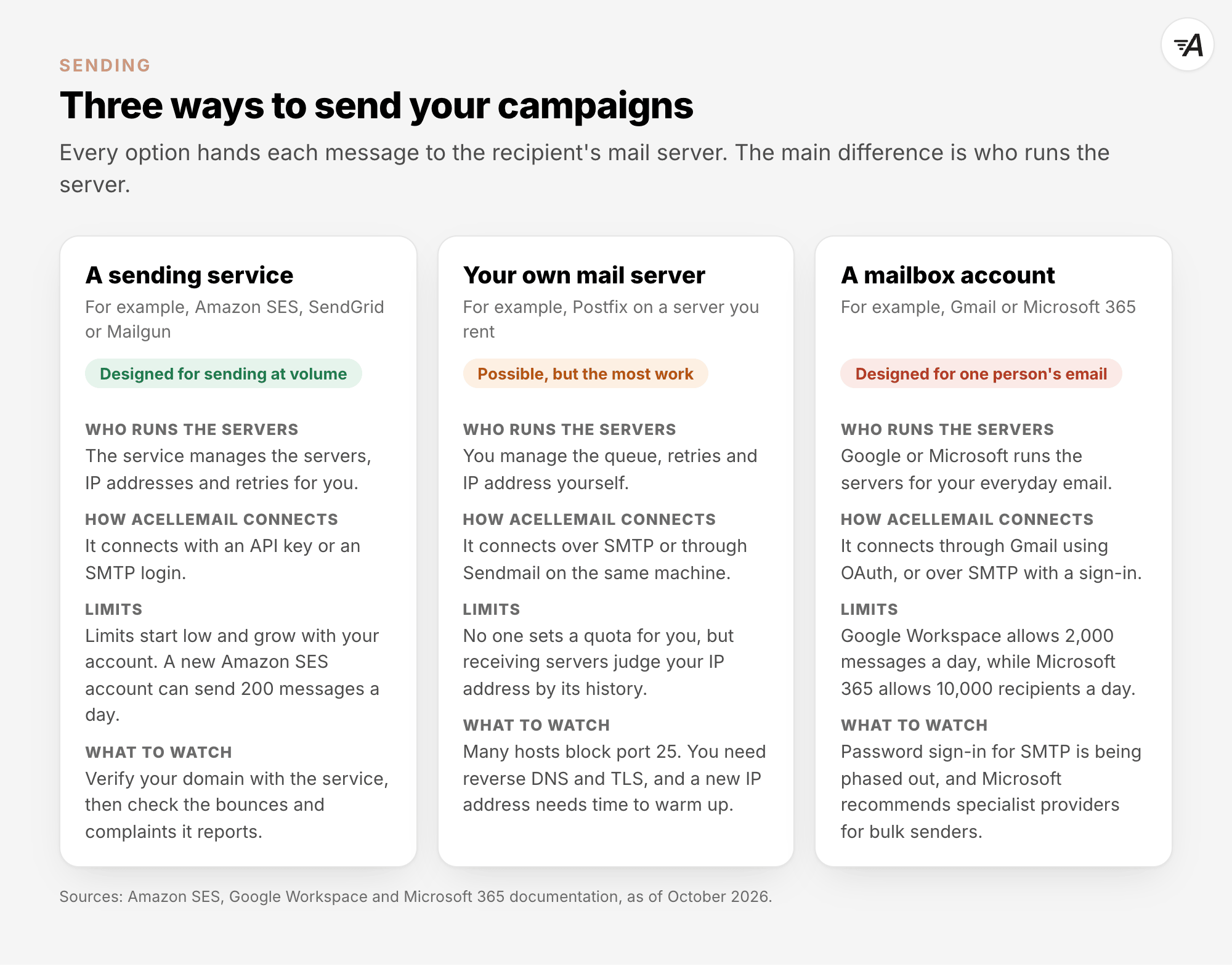
Every option does the same job. It hands each message to the recipient's mail server. The main
difference is who runs the server that does this.
A sending service#
Services such as Amazon SES, SendGrid, Mailgun, SparkPost and Elastic Email run the sending servers and
manage the IP addresses and retries for you. You verify your domain with the service and connect with an
API key or an SMTP login. The limits start low and grow with your account (section 7). For most senders,
this is the simplest option.
Your own mail server#
You can also run a mail server yourself, for example Postfix on a server you rent. You then manage the
queue, retries and IP address yourself. Several things can make this difficult.
- Many hosting companies block outgoing SMTP. Amazon
EC2 says: "By default,
Amazon EC2 allows outbound traffic over port 25 only to private IPv4 addresses." It adds: "You can
request that this restriction be removed." Google
Cloud says: "Due to the risk of abuse,
connections to destination TCP Port 25 are blocked when the destination is external to your VPC
network." Microsoft
Azure
says: "We recommend you use authenticated SMTP relay services to send email from Azure VMs or from
Azure App Service."
- Some hosts also block the ports used to reach a sending service.
DigitalOcean says: "SMTP ports 25, 465,
and 587 are blocked on Droplets to prevent spam and other abuses on our platform." If AcelleMail runs
on a DigitalOcean server, this also blocks SMTP connections to a sending service. Use an API
connection instead.
- Gmail expects reverse DNS and encryption. Google's email sender
guidelines ask every sender to "Ensure that sending
domains or IPs have valid forward and reverse DNS records, also referred to as PTR records." They also
say: "Use a TLS connection for transmitting email."
- Home and office connections are a poor place to send from.
Spamhaus lists these address ranges in its
Policy Blocklist: "The PBL detects end-user IP address ranges which should not be attempting to
directly deliver unauthenticated SMTP email to any Internet mail server."
- A new IP address has no history. Mailbox providers judge a sender by its reputation, explained in
Sender Reputation Explained. A new IP address needs a slow
warm-up, explained in IP Warmup Schedule
and Dedicated vs Shared Sending IP.
A mailbox account#
Gmail, Google Workspace and Microsoft 365 are designed for individual mailboxes. Their limits reflect
that.
- Google Workspace allows 2,000 messages a day per user account, or 500 for trial accounts,
according to Gmail sending limits in Google
Workspace. A personal Gmail account can reach its
limit after more than 500 emails in a day, as Gmail sending
limits explains.
- Microsoft 365 (Exchange Online) allows 10,000 recipients a day per mailbox and 30 messages a
minute.
Microsoft
also says: "Exchange Online customers who need to send legitimate bulk commercial email (for example,
customer newsletters) should use third-party providers that specialize in these services."
- Password sign-in is being phased out. Google
says: "Starting March 14, 2025, you and your users must use OAuth with third-party apps to access
Gmail, Google Calendar, and Google Contacts." On 27 January 2026, Microsoft
announced
that at the end of December 2026, SMTP AUTH with Basic Authentication, which means signing in with a
password, will be switched off by default for existing Microsoft 365 organisations. Administrators
will still be able to switch it back on. Microsoft will announce the final removal date in the second
half of 2027.
- One limit that is often quoted does not apply. Microsoft had announced a limit of 2,000 external
recipients a day for Exchange Online mailboxes. Its update of 6 January
2026
says: "The implementation of this limit has now been CANCELLED and will not go into effect."
7. Sending limits#
Every way of sending has limits. These limits come from two sides.
Your sending service sets limits. Amazon SES has two limits. The sending quota is the most emails you
can send in a rolling 24-hour period. The maximum send rate is the number of emails it accepts per
second. Each AWS Region has its own quotas. A new SES account starts in a sandbox. In the sandbox, it
can send only to verified addresses and domains, or to the SES mailbox simulator. It can send at most
200 messages per 24-hour period and 1 message per second. The account stays in the sandbox until you
request production access.
Mailbox accounts have the limits described in section 6.
The receiving side also sets limits. Google says: "To
protect users from spam, there are limits on the number of messages you can deliver within a certain
timeframe." A mailbox provider may reply "try again later" when a sender sends too much too quickly. The
sending server then retries the message.
Both sides can affect how quickly you should send. In AcelleMail, each server has its own Sending
limit, which you set to stay within these limits (section 8). The article Sending Throttling
Strategies suggests limits for different situations.
8. Setting up a sending server in AcelleMail#
Open Sending → Sending servers and click Add server. This menu appears when your plan lets you
add your own servers. If you run AcelleMail yourself, you can manage the shared servers in the admin
area under Sending Servers. The same area also contains the mailboxes for bounces and complaints
(Bounce Handlers and FBL Handlers).
Choose how to connect#
The Choose a server type page lists every connection that AcelleMail offers.
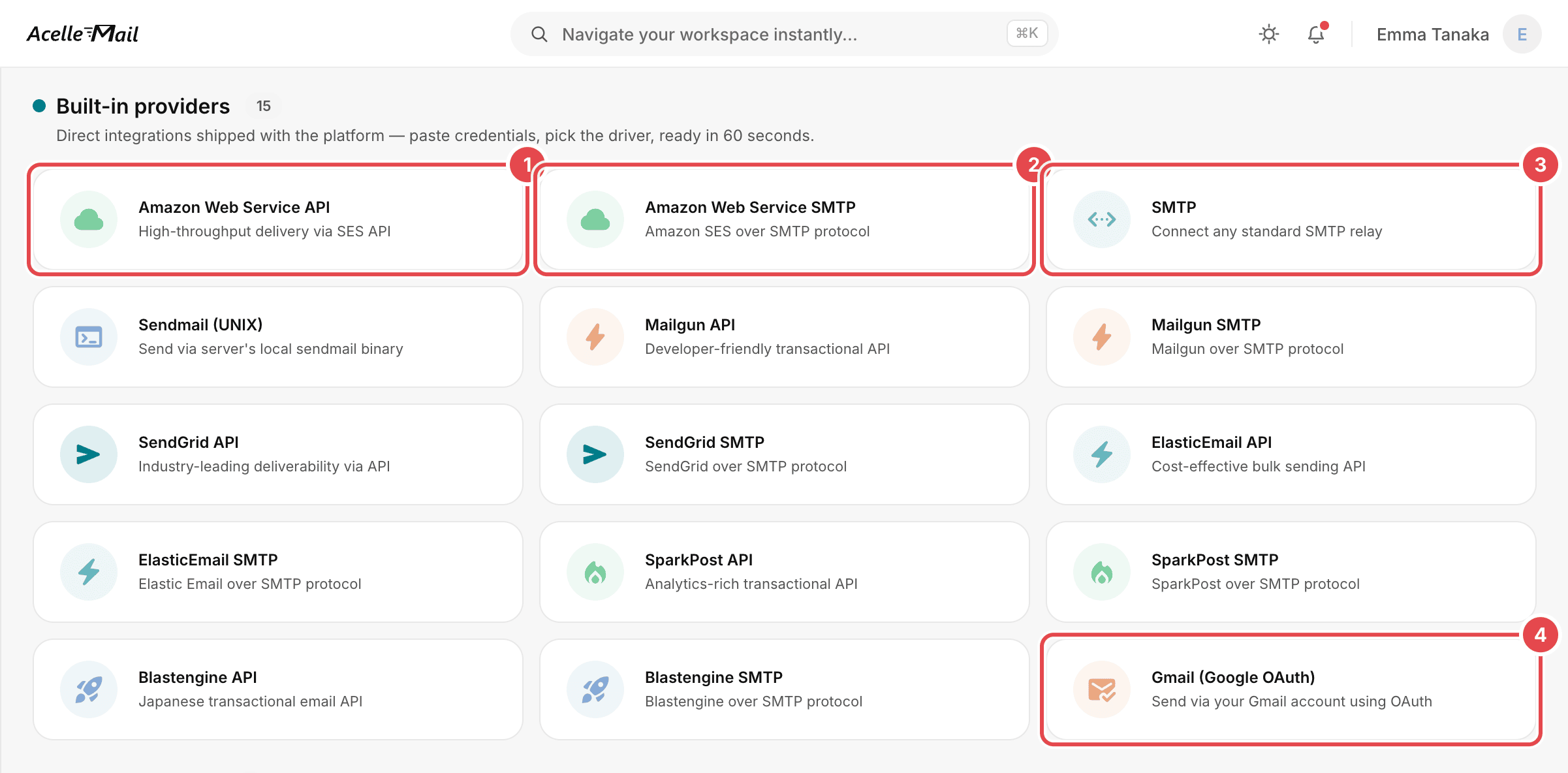
- Amazon Web Service API connects to Amazon SES through its API, using an access key.
- Amazon Web Service SMTP connects to the same service over SMTP. Mailgun, SendGrid, Elastic Email,
SparkPost and Blastengine are also listed twice, once for each way to connect.
- SMTP connects to any standard SMTP server or relay.
- Gmail (Google OAuth) sends through a Gmail account and uses OAuth to sign in, as Google has
required since 14 March 2025. Gmail's own sending limits still apply.
Sendmail (UNIX) sends through a mail server running on the same machine as AcelleMail.
Enter the connection details and test them#
For an SMTP server, the Connection settings card holds the details provided by your sending service.
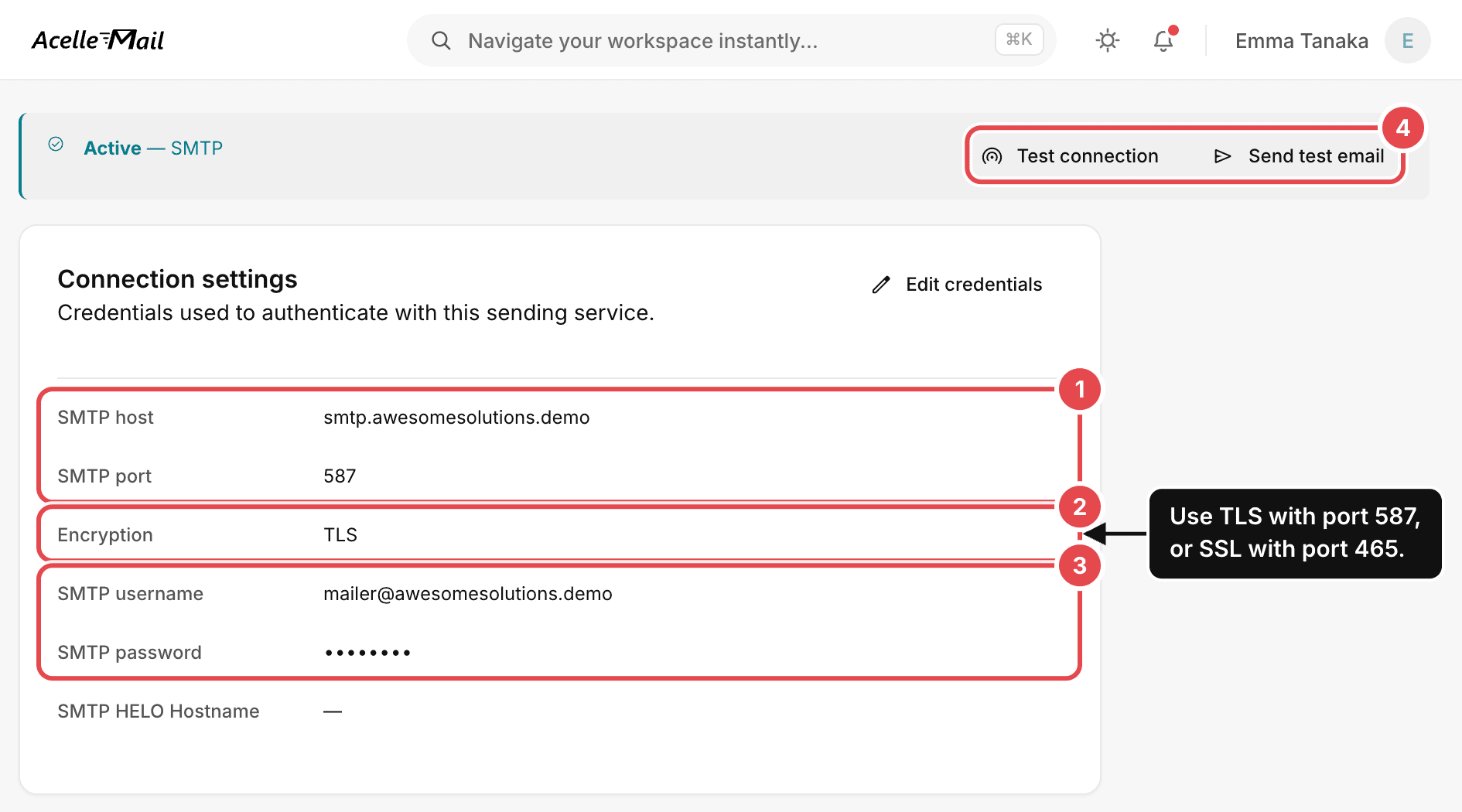
- SMTP host and SMTP port: enter the server name and port provided by your sending service.
- Encryption: use TLS with port 587, where the connection is upgraded with STARTTLS, or SSL
with port 465, where the connection is encrypted from the start.
- SMTP username and SMTP password: enter the SMTP login provided by your sending service. This
is often different from your account password.
- Test connection and Send test email: check the server before using it in a campaign.
An API connection asks for keys instead. For Amazon SES, enter the AWS access key ID, the AWS
secret access key and the AWS region. You do not need a host or port.
Bounces, complaints and the sending limit#
The Configuration card controls what happens when you send emails.
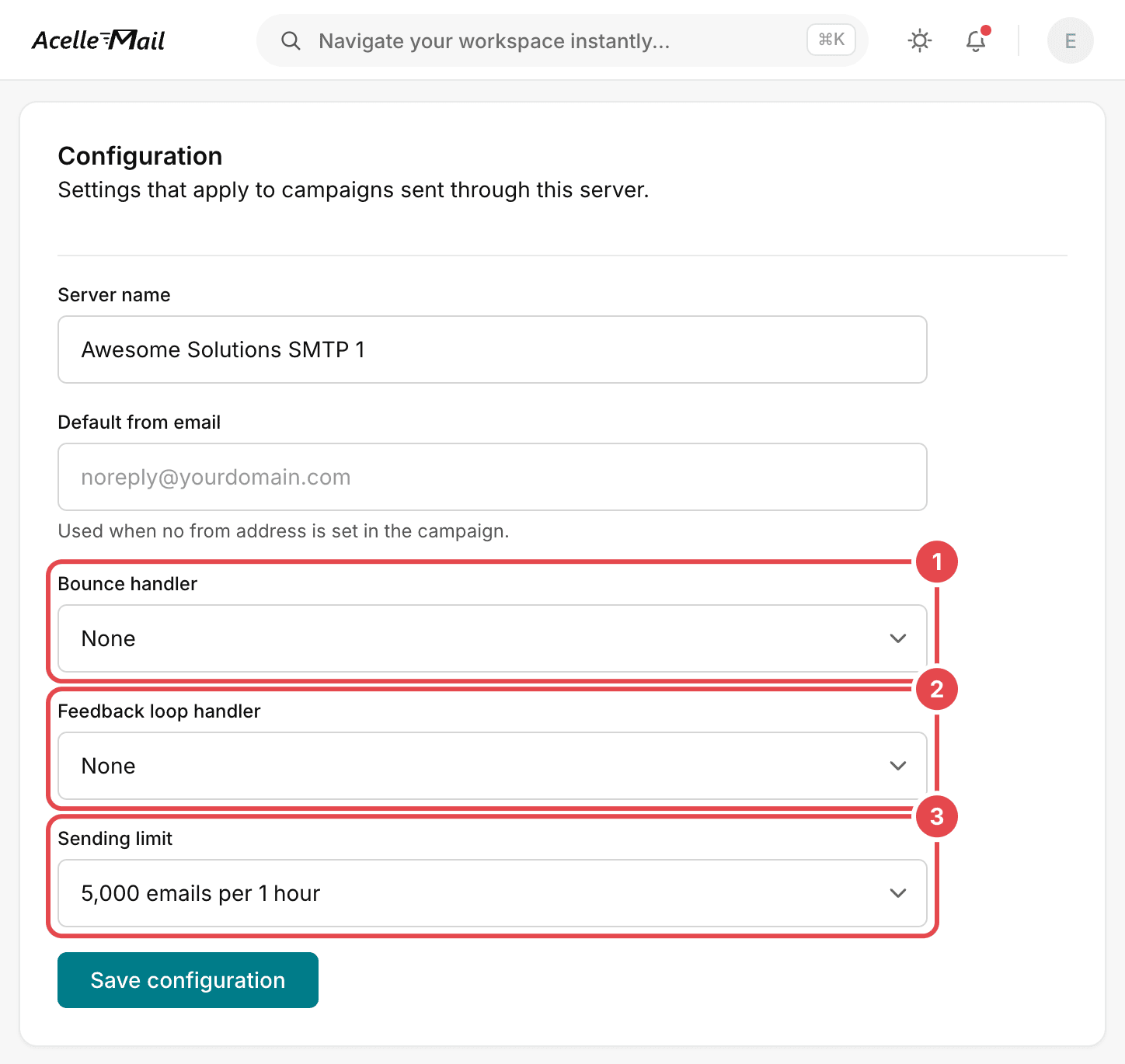
- Bounce handler: this is the mailbox AcelleMail reads bounce messages from. It is an IMAP or POP3
mailbox that the administrator adds under Bounce Handlers.
- Feedback loop handler: this is the mailbox for complaint reports. It works in the same way.
- Sending limit: this is the most this server may send, such as 5,000 emails per 1 hour, or a
Custom limit.
Whether you need the first two settings depends on the connection:
- The API connections of Mailgun, SendGrid, SparkPost and Elastic Email set up the service's webhooks
before sending. A webhook is a web address that the service calls to report an event, so the service
then reports bounces and complaints to AcelleMail automatically. Their SMTP connections do not do
this. Blastengine's API connection can receive these reports too, but it does not set up the webhook
itself.
- Amazon SES reports bounces and complaints through Amazon SNS for both its API and SMTP connections.
- For any other SMTP server, and for Sendmail, choose a Bounce handler and a Feedback loop
handler. Without these settings, AcelleMail never sees those bounces and complaints.
AcelleMail counts a bounce with a status code that starts with 5 as a hard bounce and adds the address
to the Blacklist. It records other bounces as soft bounces, and the contact's status does not
change. AcelleMail does not resend soft-bounced messages because retrying is the sending server's job.
The Sending limit keeps AcelleMail within your service's quota. AcelleMail counts the messages each
server sends. When a server reaches its limit, AcelleMail tries another server in the campaign's pool.
If every server reaches its limit, the campaign waits and continues later. Set the limit to match what
your sending service allows.
The campaign report follows the same split as section 3. On a sent campaign's Insights tab, the
Delivery mix shows Delivered and Failed. Hold the pointer over each one to see what it
means:
- Delivered: "The sending server accepted these messages without an error. Bounces reported
afterwards are listed separately in the bounce log."
- Failed: "The sending server rejected these messages. Each row shows the error it returned, such as
an unknown domain or a 550 response."
What happens after a failure depends on Skip failed messages, under Advanced Settings on the
campaign's Setup step: "Continue sending the campaign when an individual delivery fails. With this
off, the first hard error halts the whole run so you can investigate before retrying."
More than one server#
The Sending servers card on the same Setup step shows which servers a campaign uses: "By default
this campaign uses all sending servers available to your subscription, picked randomly per message." To
choose servers for one campaign, turn off Use all servers randomly. Multiple Sending Servers in
AcelleMail explains how to combine servers and set
their weights.
9. Common mistakes#
| What you see |
Why it is a problem |
What to do |
| You send a newsletter through your Gmail or Microsoft 365 mailbox. |
Mailbox accounts have daily limits: 2,000 messages a day in Google Workspace and 10,000 recipients a day in Exchange Online. Microsoft tells bulk senders to use a specialist provider. |
Connect a sending service. |
| A campaign shows messages as Delivered, and bounces appear a day later. |
Delivered means that the sending server accepted the messages. Delivery to the recipient happens afterwards, and failures come back as bounces. |
Check the bounce log after each campaign as well as the Delivered figure. |
| AcelleMail on a DigitalOcean server cannot connect to the sending service on port 587. |
DigitalOcean blocks ports 25, 465 and 587 on Droplets. |
Use the service's API connection. |
| You run your own mail server, and Gmail refuses or junks the mail. |
Gmail expects valid reverse DNS and TLS. A new IP address has no reputation, and many hosts block port 25. |
Use a sending service, or set up reverse DNS and TLS and warm the IP address up slowly. |
| A server connected over SMTP never shows any bounces. |
A plain SMTP server does not report bounces to AcelleMail, so they go to a mailbox that AcelleMail does not read. |
Choose a Bounce handler and a Feedback loop handler for the server. |
| You connected a Microsoft 365 mailbox as an SMTP server with its password. |
Microsoft will switch off password sign-in for SMTP by default at the end of December 2026. |
Move that sending to a sending service before then. |
| Test emails work, but a campaign fails after you connect a new Amazon SES account. |
A new account is in the sandbox: 200 messages a day, 1 a second and verified recipients only. |
Request production access. |
| The sending service starts refusing messages after a large send. |
AcelleMail sent faster than the service's quota allows. |
Set the server's Sending limit to the service's quota. |
Summary#
- AcelleMail prepares each email, and a sending server delivers it. AcelleMail hands the email over
using SMTP or the service's API. The next hand-off uses SMTP, after an MX lookup.
- SMTP carries an envelope for the servers and content for the reader. Bounces go to the envelope
sender.
- A reply code that starts with 2 means accepted, 4 means try again later, and 5 means refused.
Accepted does not mean that the email has reached the inbox.
- Sending servers retry temporary failures, often for days. Permanent failures come back as bounces,
and complaints arrive later still.
- SMTP and API connections lead to the same service. API connections can report bounces back
automatically, while a plain SMTP server needs a bounce mailbox.
- There are three ways to send: a sending service, your own mail server or a mailbox account. Mailbox
accounts have small daily limits, and password sign-in for SMTP is being phased out.
- Every sending path has limits. Set each server's Sending limit to match what the service allows.
- In AcelleMail, open Sending → Sending servers, choose how to connect, test the server, and set
the bounce handling and the sending limit.
Terms used here are defined in the Email Marketing Glossary.
