

An email header is the block of lines above the body in the raw message. Your mail app usually shows only a few lines, including From, To, Subject and Date. Servers and mail apps read the other lines to handle the message.
For marketers, these lines can help explain why a campaign reached the spam folder. They also show which servers handled it, whether authentication passed, and whether the mail app could offer an unsubscribe button.
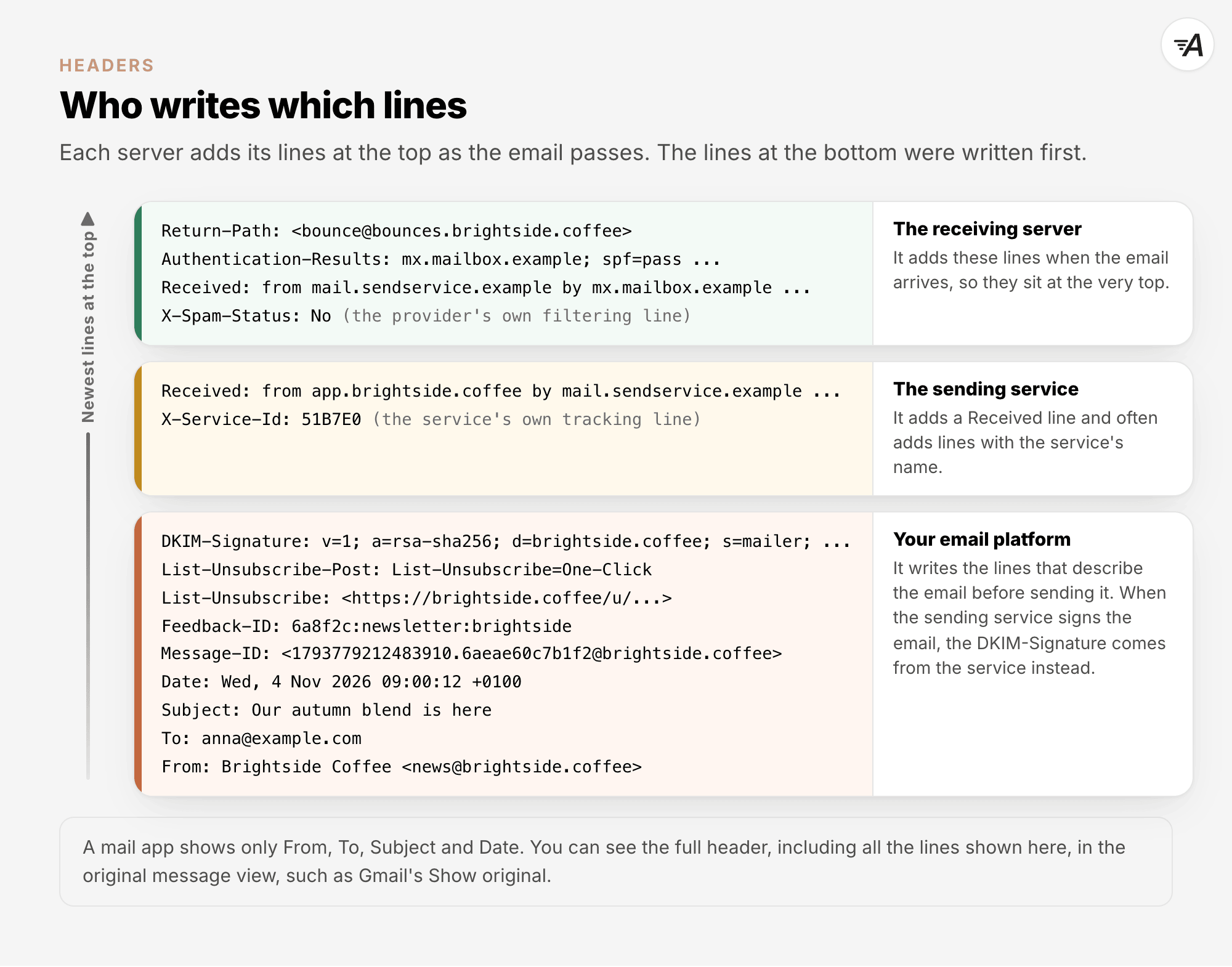
The lines in a header come from different systems. Your email platform describes the message, and your sending service adds its information. Receiving servers record what happened next. Knowing who wrote each line helps you understand which information you can trust.
This guide covers:
- What a header is, and how to open one
- The envelope and the header: two sender addresses
- The lines that describe the message
- Trace lines: following the route
- Authentication lines
- List, bulk and feedback lines
- Expires: an end date for time-limited offers
- Headers in AcelleMail
It ends with the most common mistakes and a one-screen summary.
1. What a header is, and how to open one
A message starts with header fields. If it has a body, an empty line separates the header fields from the body. Each field has a name, a colon and a value. As RFC 5322 explains, "Header fields are lines beginning with a field name, followed by a colon".
To see the full header of an email, follow the steps for your mail app:
- In the browser version of Gmail, open the email and click More next to Reply, then click Show original. The header opens in a new window, where you can click Copy to clipboard to copy it.
- In Yahoo Mail, click More, then View Raw Message.
- In Apple Mail, choose View, Message, then All Headers.
- In new Outlook, Outlook on the web or Outlook.com, choose More actions, then View > View message details.
- In classic Outlook, double-click the email to open it in its own window, then choose File > Properties and find the Internet headers box.
These steps come from Google’s header guide and Microsoft’s Outlook guide.
For a clearer view, paste the header into Google’s Admin Toolbox Messageheader or Microsoft’s Message Header Analyzer. Gmail’s Show original page also shows the creation time, which can help you check for delays.
A long field can continue over several lines, and each extra line starts with a space or tab. This is called folding, and software joins the lines before reading the field. Each line must have no more than 998 characters and should usually have no more than 78.
The lines come from different places:
- Your email platform writes message details such as
From,SubjectandMessage-ID. It also writes MIME fields, which describe the body’s format, and unsubscribe headers. - The sending server or sending service adds its own information, which can include a
Receivedline. TheDKIM-Signaturecan come from your email platform or from the sending service. - Receiving servers add trace lines and authentication results. At final delivery, the receiving server
adds
Return-Path.
New lines are added at the top, so the newest information usually appears above older information.
Receiving servers also add filtering headers of their own. Microsoft’s X-Forefront-Antispam-Report and
X-Microsoft-Antispam, for example, can contain the spam confidence level (SCL) and the bulk complaint
level (BCL). Microsoft’s header
documentation explains
those fields, and it notes that in Microsoft 365 other values in the same header show how the message
was filtered.
The diagram shows which systems write the different header lines.
2. The envelope and the header: two sender addresses
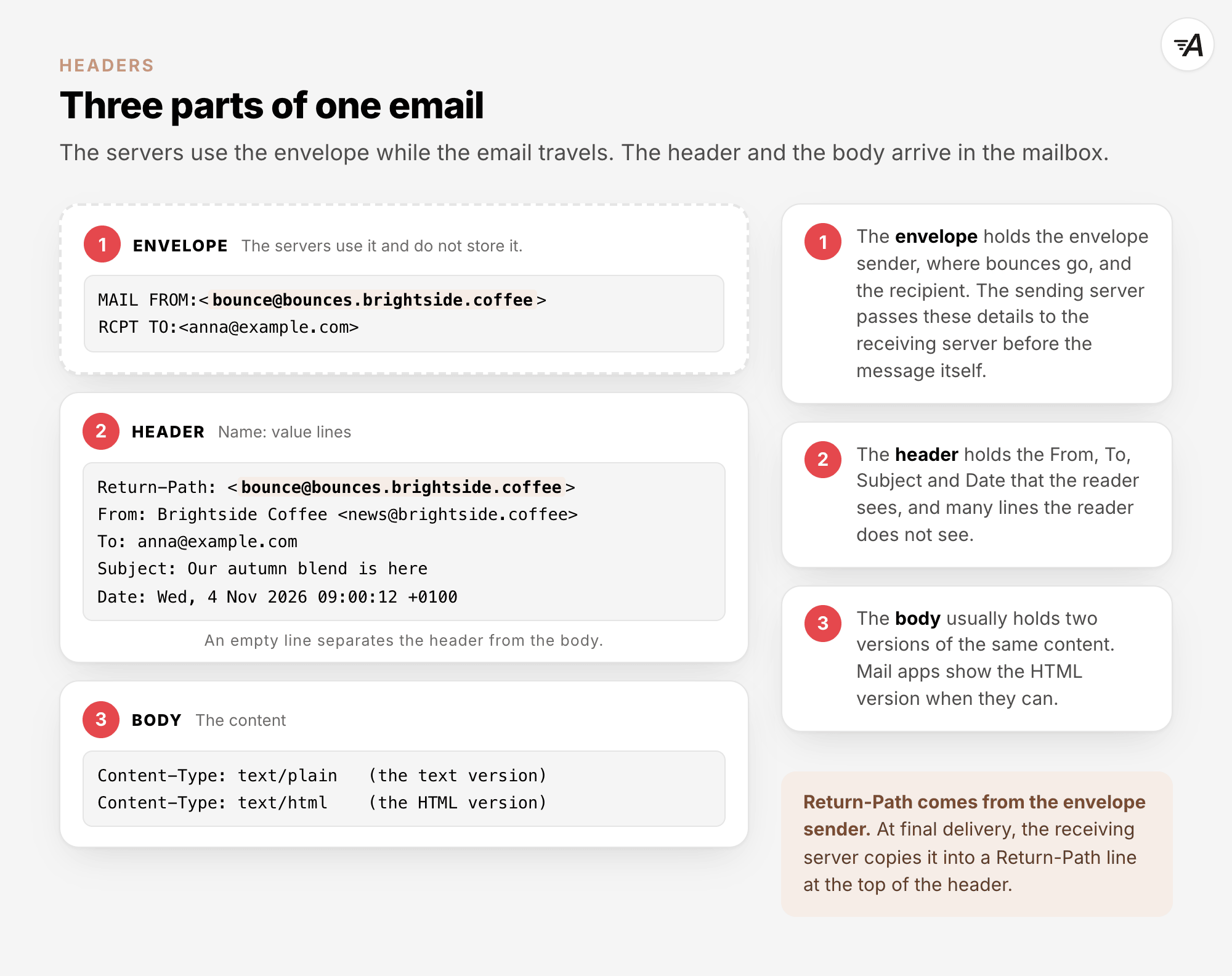
SMTP carries a message inside an envelope with the addresses used for delivery. MAIL FROM gives the
envelope sender address, where bounces go, and RCPT TO gives the recipient address.
The header contains the From address and To address that the reader sees. These addresses can differ
from the envelope addresses. Microsoft calls the envelope sender 5321.MailFrom and the visible From
address 5322.From.
The envelope is not part of the stored message. At final delivery, the receiving server copies the
envelope sender address into Return-Path. RFC 5321 says that
"it inserts a return-path line at the beginning of the mail data".
This means the receiving server writes the Return-Path you see, using the address given in MAIL FROM. That address may belong to a special bounce mailbox rather than the sender’s normal mailbox.
Bcc recipients belong to the envelope and usually do not appear in the header that other recipients see.
Authentication checks show which domains take responsibility for a message. SPF checks the envelope sender’s domain. DKIM checks a signature that a domain adds to the message. DMARC checks the From domain and whether it matches a domain that passed SPF or DKIM. Email Authentication Explained shows how those domains are matched. You can read about the SMTP conversation itself in Email Sending Explained.
The diagram shows the delivery envelope separately from the header and body it carries.
In AcelleMail
A bounce handler is a mailbox that AcelleMail reads for bounce messages. With an SMTP or Sendmail
sending server that has a bounce handler, AcelleMail uses that mailbox as the envelope sender. Without
one, the envelope sender is the From address, or the sending service sets its own. The Return-Path of
a received message shows which address was used.
3. The lines that describe the message
RFC 5322 requires only Date and From, although Gmail’s sender guidelines go further. Every message
should also have a Message-ID, and the identifier in it must be unique across all messages. Using a
domain name after the @ is a good way to help create that identifier.
Reply-To gives the address for replies when it differs from the From address. Sender identifies the
mailbox that actually sent the message when that mailbox differs from the From address. Replies use
In-Reply-To and References to group messages into threads.
This example shows the main header lines of a marketing email from Brightside Coffee:
From: Brightside Coffee <news@brightside.coffee>
To: anna@example.com
Subject: Our autumn blend is here
Date: Wed, 4 Nov 2026 09:00:12 +0100
Message-ID: <1793779212483910.6aeae60c7b1f2.5f1c3b2a9d4e7@brightside.coffee>
MIME-Version: 1.0
Content-Type: multipart/alternative; boundary="b1"
Gmail’s sender guidelines ask all senders to
follow RFC 5322 and to include a valid Message-ID in every message. Single-instance fields such as
From, To, Subject and Date should appear only once. The From header should contain only one
email address.
Gmail also limits header sizes, including headers in incoming messages:
| What | Gmail’s limit |
|---|---|
| All headers in one message | 500KB |
| Number of headers per message | 5000 |
| Any single header | 32KB for the value after the colon, across all its folded lines. To, Cc and References are exempt but count towards the total. |
| Message-ID header | 500 characters |
| Subject header | 998 characters |
| Header name | 1KB |
When Gmail refuses a message for one of these limits, its error starts with 552-5.3.4. When the headers are too large in total or too many, the error reads "552-5.3.4 Your message exceeded Google's message header size limits." Google advises shortening header values or moving information into the body. See Gmail message header limits.
MIME fields describe the body rather than its delivery route. A MIME message carries MIME-Version: 1.0, while Content-Type identifies the body’s format.
Marketing emails often use multipart/alternative, which carries the same content in more than one
format, usually plain text and HTML. RFC 2046 says senders
must order those parts "with the preferred format last". A mail app usually shows the last part it can
display.
4. Trace lines: following the route
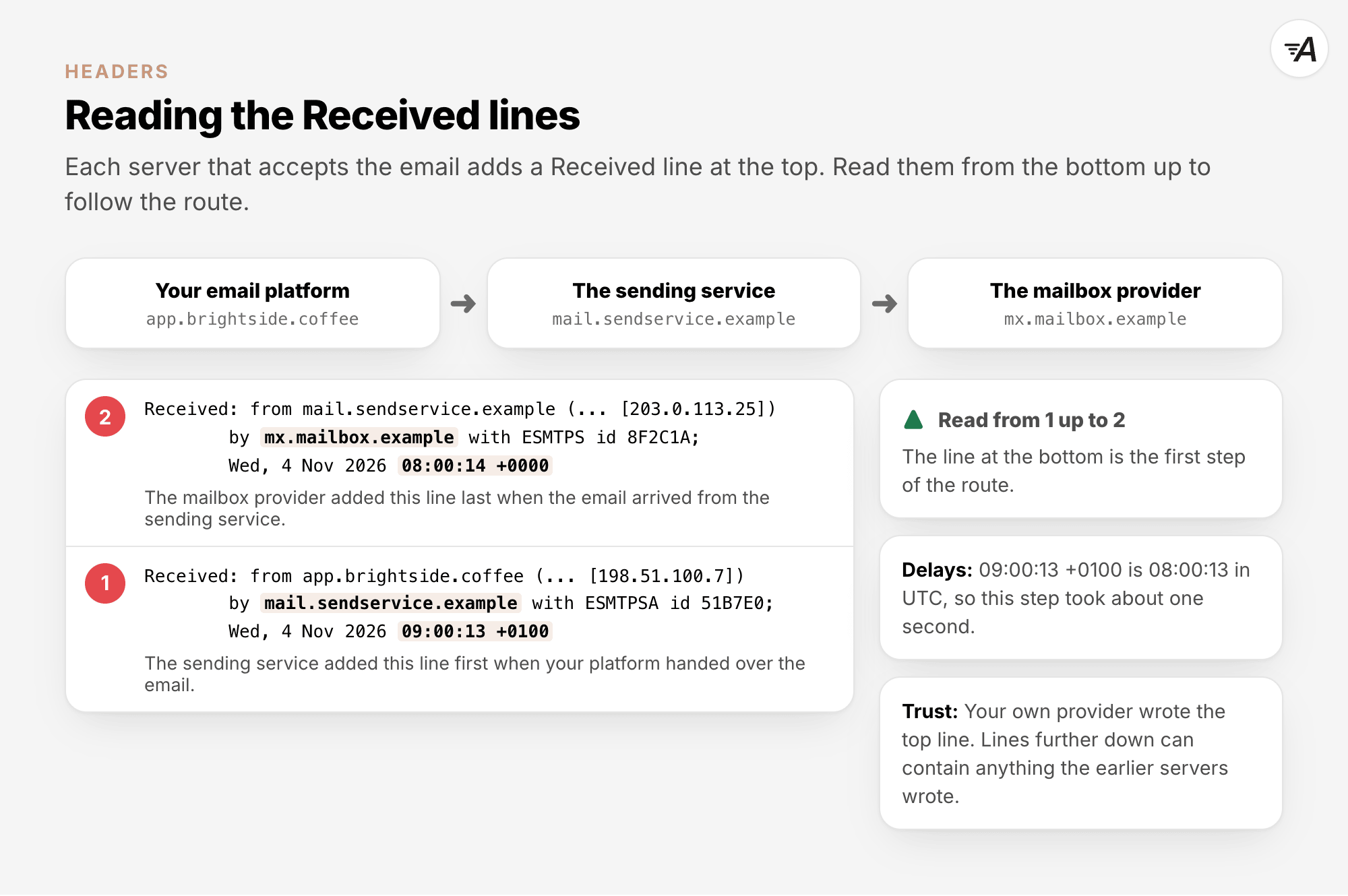
Each server that accepts a message to pass on or deliver adds a Received line at the top. RFC
5321 says that "SMTP servers MUST prepend Received lines to
messages". Servers must also preserve the Received lines already present.
A line usually identifies the sending server after from and the receiving server after by. It can
also include the connection method after with, an ID and the recipient after for. Every line ends
with a timestamp after a semicolon.
Read these lines from the bottom up to follow the route in order. The bottom line was added first, while the top line was added last.
This example shows a message moving from an application through a sending service:
Received: from mail.sendservice.example (mail.sendservice.example [203.0.113.25])
        by mx.mailbox.example with ESMTPS id 8F2C1A;
        Wed, 4 Nov 2026 08:00:14 +0000
Received: from app.brightside.coffee (app.brightside.coffee [198.51.100.7])
        by mail.sendservice.example with ESMTPSA id 51B7E0;
        Wed, 4 Nov 2026 09:00:13 +0100
The lower line records the sending service accepting the message from the application. The upper line records the receiving server accepting it from that service.
Account for time-zone offsets before comparing the times. Here, 09:00:13 +0100 equals 08:00:13 UTC, so the second hop took about one second. Comparing consecutive timestamps can help you find where a delay happened.
These lines still need careful reading. SPF, DKIM and DMARC do not show that every Received line is
genuine. For the route itself, RFC 5321 warns that "SMTP mail
inherently cannot be authenticated" as it passes between servers. A sender can place false Received
lines at the bottom, and earlier servers may be outside your control. Trust the lines your own mailbox
provider added at the top.
The diagram shows how to follow the chain from the oldest line upwards.
5. Authentication lines
A DKIM-Signature is added by the system that signs the message, usually the email platform or the
sending service. Its tags describe the signature:
d=names the domain taking responsibility and the domain under which the key is published.s=identifies the selector, a label that tells the receiving server where to find the domain’s public key in DNS. The server uses that key to check the signature.h=lists the signed header fields.bh=contains the body hash, a value calculated from the body so that a change can be detected.b=contains the signature itself.a=identifies the algorithm.
RFC 6376 defines these tags. The signature records what was
signed, while Authentication-Results records a receiving server’s checks.
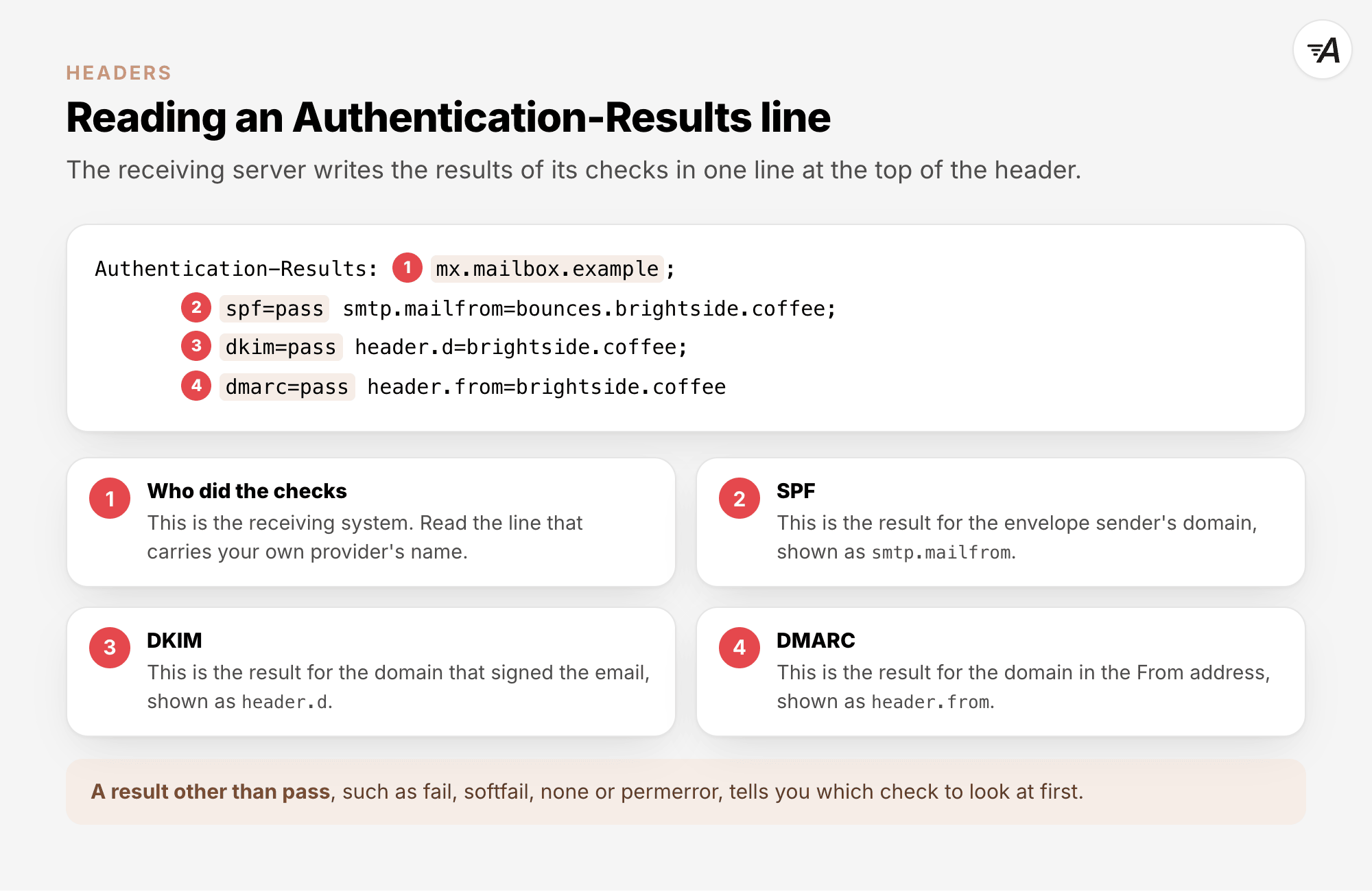
The first value in Authentication-Results is the authentication service identifier, or authserv-id,
which usually names the receiving domain. The results come next, with properties that identify the
domain checked by each method.
This example shows all three checks passing:
Authentication-Results: mx.mailbox.example;
       spf=pass smtp.mailfrom=bounces.brightside.coffee;
       dkim=pass header.d=brightside.coffee;
       dmarc=pass header.from=brightside.coffee
Here, smtp.mailfrom identifies the envelope sender’s domain checked by SPF. header.d identifies the
DKIM signing domain, and header.from identifies the From domain checked by DMARC.
Look near the top for the Authentication-Results line that your own mailbox provider added. Its
identifier is usually your provider’s domain or one of its mail servers. Under RFC
8601, a receiving server must delete authentication results
that falsely claim to come from inside its own system.
RFC 9989 says that a receiver that chooses not to follow a
domain’s DMARC policy should at least add Authentication-Results. It recommends this when the receiver
delivers a message that fails DMARC. Microsoft also adds compauth, a composite authentication result
with a three-digit reason code.
You may see ARC-Seal, ARC-Message-Signature and ARC-Authentication-Results on forwarded mail or
messages passing through mailing lists. ARC is an Experimental standard, defined in RFC
8617.
An October 2026 Internet-Draft proposes retiring it, with the status Historic, and "recommends that ARC no longer be deployed or relied upon between disparate senders and receivers". The proposal is still a draft, and its lessons are going into DKIM2, the proposed successor to DKIM.
Email Authentication Explained covers how the checks work. This diagram shows where their results appear in one header field.
6. List, bulk and feedback lines
Some headers help mail apps offer controls or help mailbox providers group complaint reports.
| Header | Who reads it | What it is for |
|---|---|---|
List-Unsubscribe + List-Unsubscribe-Post |
Mail apps and mailbox providers such as Gmail and Yahoo read these fields. | They support one-click unsubscribe. |
Feedback-ID |
Gmail Postmaster Tools reads this field, and Orange asks large senders to add it. | It lets Gmail report spam rates by campaign or email type. |
X-Mailru-Msgtype / X-Postmaster-Msgtype |
Mail.ru Postmaster reads these fields. | They identify email types for statistics. |
CFBL-Address |
Receivers supporting RFC 9477 read this field. | It gives the address for complaint reports. |
Precedence |
Some automatic responders read this field. | It can mark bulk mail, but it is not standard. |
One-click unsubscribe
List-Unsubscribe gives readers an address they can use to unsubscribe. For one-click unsubscribe, RFC
8058 asks for one List-Unsubscribe field and one
List-Unsubscribe-Post field. It says that "The List-Unsubscribe header field MUST contain one HTTPS
URI." The second field must contain List-Unsubscribe=One-Click.
When the reader asks to unsubscribe, the receiving system, which may be the mail app or the mailbox provider, sends a POST request to that HTTPS address. The request must not include cookies, HTTP authorisation or other context information. A DKIM signature must cover both unsubscribe headers, and a receiver should not offer one-click unsubscribe without that signature.
Gmail requires senders of more than 5,000 messages a day to Gmail accounts to support one-click
unsubscribe for marketing and subscribed messages. A mailto address or a link in the body does not meet
that requirement. Gmail’s FAQ asks senders to
"include one HTTPS URL in the List-unsubscribe: header". Yahoo’s best
practices also require bulk senders to offer a working
one-click unsubscribe in the List-Unsubscribe header. Yahoo highly recommends the RFC 8058 method but
still accepts a mailto address.
Feedback identifiers
Gmail’s feedback loop uses the format Feedback-ID: a:b:c:SenderId. The parts before SenderId hold up
to three optional identifiers, such as campaign or email type, and you can use fewer of them. SenderId
always comes last. The required SenderId has 5–15 characters and should stay the same across the mail
stream.
Gmail shows a spam rate for each identifier in the feedback loop dashboard of Postmaster Tools, but only for identifiers with an unusual spam rate. The data covers only @gmail.com recipients. It appears only when enough messages carry the identifier and it also appears in separate spam reports. Using a different value for every message, such as a Message-ID, prevents useful grouping.
After the header is added, the message must be DKIM-signed using a domain the sender owns. That domain also needs to be verified in Postmaster Tools before you can see the feedback loop data. Gmail’s feedback loop documentation gives the requirements.
Orange Postmaster also asks large senders to use Feedback-ID. Mail.ru Postmaster uses its message-type headers for statistics by email type.
Other list and bulk fields
List-Id identifies a mailing list, while List-Help points to its instructions. CFBL-Address,
defined by Experimental RFC 9477, gives receivers an address
for complaint reports.
Some bulk senders, including AcelleMail, add Precedence: bulk. RFC
3834 says that "Precedence is not a standard header field". Its
effect varies. RFC 3834 says an automatic responder might not reply when the value is list, and its
example vacation program ignores messages marked list, junk or bulk.
Older custom names that start with X- are still used, including Microsoft’s filtering headers. RFC
6648 advised against using that naming pattern for new header
names.
7. Expires: an end date for time-limited offers
RFC 10080, published in October 2026, extends the old
Expires header to all Internet email. The header gives the time when a message "loses its validity".
The RFC includes this example:
Expires: Wed, 3 Dec 2025 17:22:57 +0000
A message can contain at most one Expires field. It can suit newsletters with time-limited offers,
event announcements or periodic messages.
Mail apps and mailbox providers could make expired messages less prominent or hide them from view. Hiding a message does not delete it. They could also let mailbox owners choose what happens.
However, the standard requires no particular handling by mail apps. Software must not discard or reject a message based solely on this field. It should not delete expired messages unless the mailbox owner has configured that behaviour.
We found no mailbox provider that documents support for it yet (November 2026). Treat Expires as a
hint and keep the offer’s end date in the email itself.
In AcelleMail
You can add Expires as a custom header with a fixed date, which suits a campaign with a fixed end
date. In an automation email, every message from that step carries the same date, even when the step
sends over several weeks. Use a fixed date there only when the same end date applies to every message.
8. Headers in AcelleMail
What AcelleMail writes
AcelleMail writes From, Reply-To, To and Subject for each campaign or automation email. It sets
a Date when it builds the email. Its Message-ID combines a timestamp, random characters and the
account’s ID, followed by the From domain after the @.
AcelleMail also adds Precedence: bulk and tracking headers whose names start with X-Acelle-. These
identify the campaign, the contact (for list subscribers), the account, the message and the sending
server. AcelleMail reads X-Acelle-Message-Id from returned bounces, complaint reports and replies to
match them to the original message.
A regular email has plain-text and HTML parts, while a plain-text email has only a text part.
With Local DKIM, AcelleMail signs the email itself, with a key it keeps for that sending domain. It adds
a DKIM-Signature when the campaign’s Enable DKIM signing option is on and the From domain exactly
matches a sending domain that uses Local DKIM. The option, under Advanced Settings, is on by
default. The signature covers the From, Subject, unsubscribe and custom headers, such as Feedback-ID,
but not Return-Path. With Amazon SES, AcelleMail leaves the signing to the service. When the sending
service signs instead, it decides which headers the signature covers.
Adding custom headers
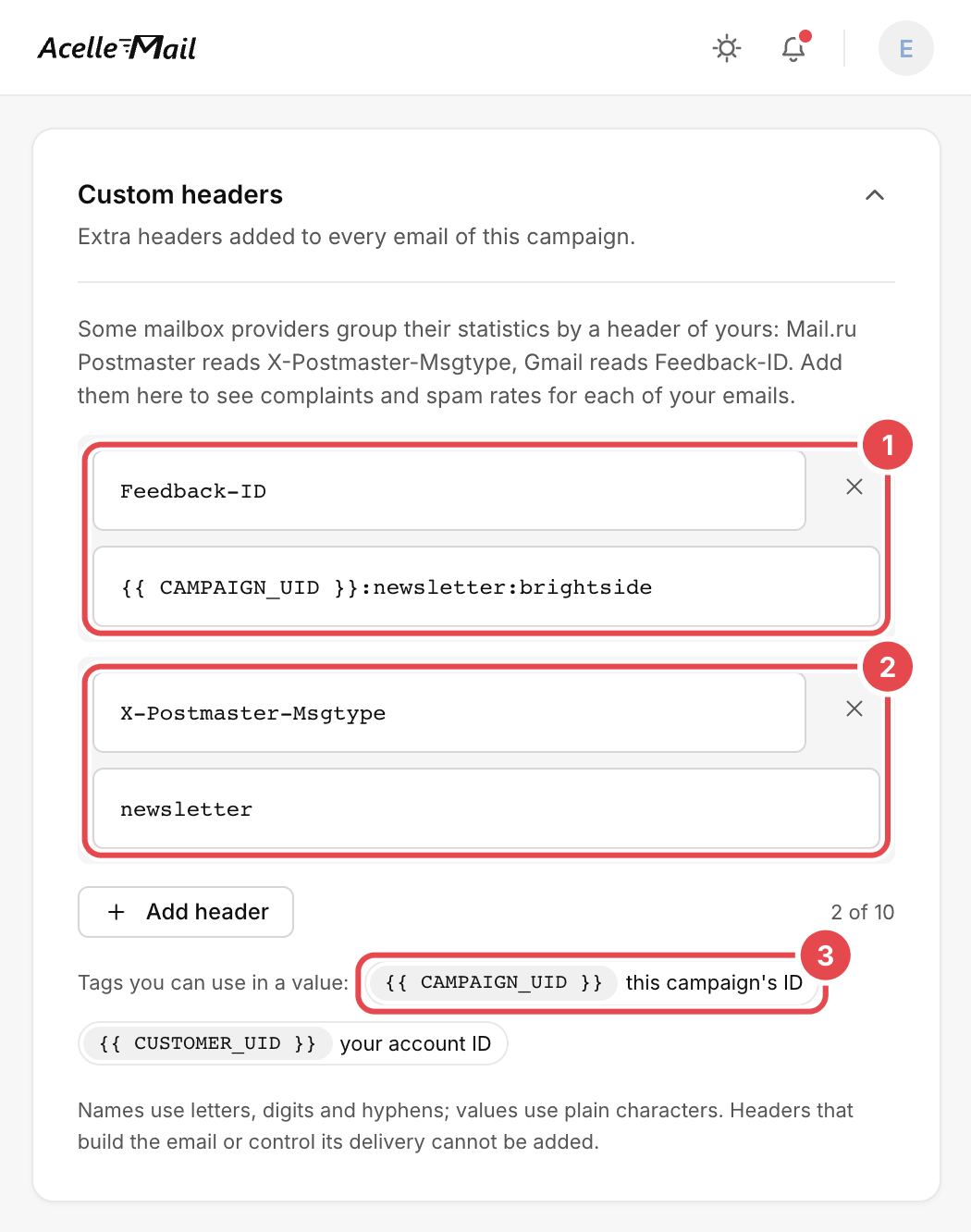
Open the campaign’s Setup step and find the Custom headers card. Each email step of an automation has the same section, and its headers go on every email that step sends.
The screenshot shows the Feedback-ID row (1), the X-Postmaster-Msgtype row (2) and the {{ CAMPAIGN_UID }} tag (3). Add header creates a row, and the counter beside it shows how many of the 10 headers
you have used.
The Elastic Email API and the Blastengine API pass only the addresses, subject and body to the sending service. Through those connections, AcelleMail’s tracking, unsubscribe and custom headers and its DKIM signature are lost. If any sending server this campaign can use is one of those connections, the Custom headers card warns you and names it.
Follow these steps to add a header:
- Open the campaign’s Setup step and the Custom headers card.
- Click Add header, then type the header name, such as
Feedback-ID, in the first box and its value in the box below it. - Insert the
{{ CAMPAIGN_UID }}tag in the value where you want the campaign’s ID. AcelleMail replaces it with that ID when it sends the email. In an automation email, the tag gives the ID of that email instead. - Save the step with Save & Continue.
The Feedback-ID example uses {{ CAMPAIGN_UID }}:newsletter:brightside. Here, {{ CAMPAIGN_UID }} is
the campaign identifier, and newsletter is the email type. The SenderId is brightside, which has 10
characters and meets Gmail’s 5–15 character requirement.
The second row uses X-Postmaster-Msgtype with the value newsletter. The available {{ CUSTOMER_UID }} tag gives your account ID.
You can add at most 10 headers, and each header name can appear only once. Header names can contain up to 64 letters, digits and hyphens, and values can contain up to 255 plain characters.
AcelleMail refuses headers used to build the message or control delivery. These include From, To,
Subject, Date, Message-ID, Return-Path, Received, DKIM-Signature, Authentication-Results,
List-Unsubscribe and Precedence. It also refuses names starting with Content-, ARC- or
X-Acelle-, but allows Expires and Feedback-ID.
One-click unsubscribe headers
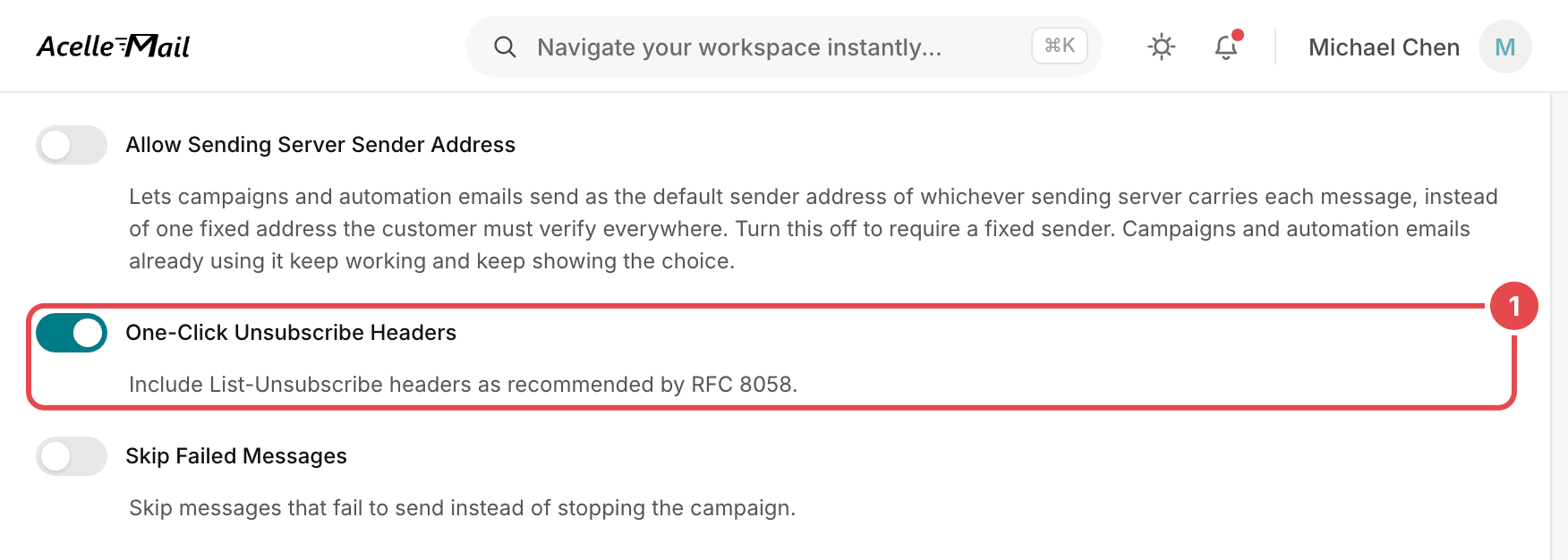
The administrator controls One-Click Unsubscribe Headers under Settings → General, and the setting is on by default.
While the setting is on, AcelleMail adds List-Unsubscribe and List-Unsubscribe-Post to campaign and
automation emails. To check that the sending connection keeps them, open the full header of a received
message. Look for both header names and a DKIM-Signature whose h= list includes them. Then check in
your mailbox provider’s Authentication-Results that this signature passed DKIM.
The screenshot marks the One-Click Unsubscribe Headers switch (1).
9. Common mistakes
| What you see | Why it is a problem | What to do |
|---|---|---|
| You forward an email for someone to check its header. | A forwarded copy is a new message and usually does not carry the original header lines. | Open the original message and, in Gmail, use Show original and Copy to clipboard. |
You read the top Received line as the starting point. |
Servers add new lines at the top. | Read the Received lines from the bottom up. |
You trust every Received or Authentication-Results line. |
Earlier lines may have been written by someone outside your mailbox provider’s system. | Trust the lines your own mailbox provider added at the top. |
| You expect SPF to check the From address. | SPF checks the envelope sender’s domain, which appears in Return-Path and smtp.mailfrom. |
Look at smtp.mailfrom in Authentication-Results. |
| You give every message a different Feedback-ID value. | Gmail cannot group reports when every message has a different value. | Use identifiers for the campaign, email type and sender. |
| You rely on a mailto unsubscribe address or a link in the email body. | These do not meet Gmail’s one-click requirement. | Turn on the administrator’s One-Click Unsubscribe Headers setting, then check in a received message that both headers arrived and that the DKIM signature covers them. |
You expect expired offers to disappear after adding Expires. |
Mail software must not discard or reject a message based solely on Expires, and we found no provider that documents support. |
Treat it as a hint and include the end date in the email. |
| You add custom headers while using the Elastic Email API or the Blastengine API. | Those connections do not pass on the custom, tracking or unsubscribe headers that AcelleMail adds. | Check the Custom headers warning or use a connection that passes headers on. |
Summary
- SMTP carries an envelope around the message’s header and body. The header contains fields with names and values, and an empty line separates it from the body.
- Start reading at the top to find the latest information from the receiving servers. Your email platform and sending service added other lines earlier.
- The From address and envelope sender can be different. SPF checks the envelope sender’s domain, while DMARC checks the From domain and authentication alignment.
- Read
Receivedlines from the bottom up to follow the route, and trust the lines your own mailbox provider added. - Your mailbox provider’s
Authentication-Resultsfield near the top records the SPF, DKIM and DMARC results. The identifier in this field tells you which system ran those checks. - Gmail’s one-click requirement needs
List-Unsubscribewith one HTTPS address,List-Unsubscribe-Post, and a DKIM signature that covers both. A link in the email body or a mailto address does not meet it, although Yahoo still accepts a mailto address. Feedback-IDlets Gmail report spam rates by campaign or type, while Mail.ru’s message-type headers group its statistics. AcelleMail supports these through custom headers if the sending connection keeps them.Expires, defined by RFC 10080, marks when a message is no longer valid. We have not yet found a mailbox provider that documents support, so keep offer end dates in the email itself.
Terms used here are defined in the Email Marketing Glossary.
0 comments
No comments yet — be the first to share a tip or question.