

What this is for
When all your customers send through one Amazon SES account, AWS counts every customer's bounces and complaints against that account. One customer who mails an old, purchased list can get the account paused, and then nobody on your platform can send.
An SES tenant is a container inside your AWS account that AWS measures, and can pause, on its own. This guide shows how to give a customer their own tenant on an Amazon SES sending server, how to approve the domains they send from, and what you and the customer see when AWS pauses a tenant.
How SES tenants work
These are AWS's rules, from the Amazon SES tenant documentation:
- A tenant lives in one AWS account and one region. It holds the identities (verified domains or email addresses) and the configuration sets its mail may use.
- Every message sent through a tenant names it. If the From identity or the configuration set of the message is not assigned to that tenant, SES refuses the message.
- SES tracks bounce rate, complaint rate and other reputation signals for each tenant separately. With Standard, the reputation policy AWS gives every new tenant, SES pauses a tenant by itself when it finds a high-severity problem. The other tenants keep sending.
- When AWS Trust & Safety would otherwise act on your whole account, it can pause only the tenants causing the problem.
- You stay responsible for the account. The combined sending of all tenants still shapes your account's reputation, so a tenant limits the damage of one bad sender, it does not make bad sending safe.
- An account can have 10,000 tenants per region by default. AWS charges for tenants and for the email sent through them: see the Amazon SES pricing page.
How AcelleMail uses them
- One tenant per customer, per sending server. You create each one. Nothing creates a tenant on its own.
- A customer without a tenant sends exactly as before, at account level.
- A customer with a tenant sends through it. While their tenant is being created, or if creating it failed, their mail through that server stops with an error. It is never sent around the tenant.
- You approve every domain the customer may send from through the tenant. A domain the customer verifies later waits for your approval.
- Tenants exist only on the platform's own Amazon SES servers (Amazon Web Service API or Amazon Web Service SMTP), not on a server a customer added for themselves.
- AcelleMail does not change AWS's defaults: each tenant keeps the Standard reputation policy, and all tenants share the account's suppression list. You can change the policy of a tenant in the SES console.
Before you start
- An Amazon SES sending server, added under Sending → Sending Servers as described in How to Set Up Amazon SES with AcelleMail, and used by the plans of the customers you want to isolate.
- On that server's Sender Identity tab, under Verification Options, Allow unverified from email must be off. A tenant can only send from identities you approved, so a server that accepts any From address cannot have tenants.
- The server's AWS key needs the tenant permissions. If its IAM user has
AmazonSESFullAccess, it already has them. With your own policy, add these actions:
{
  "Version": "2012-10-17",
  "Statement": [
    {
      "Effect": "Allow",
      "Action": [
        "ses:CreateTenant",
        "ses:CreateTenantResourceAssociation",
        "ses:DeleteTenantResourceAssociation",
        "ses:DeleteTenant",
        "ses:GetTenant",
        "ses:GetReputationEntity",
        "ses:ListConfigurationSets",
        "ses:CreateConfigurationSet",
        "ses:SendEmail",
        "sts:GetCallerIdentity"
      ],
      "Resource": "*"
    }
  ]
}
ses:SendEmail is what an Amazon Web Service API server sends with. An Amazon Web Service SMTP server sends with its SMTP credentials instead.
- Your queue worker must be running. Every tenant action runs as a background job, like an import or a campaign. See Email Queue Architecture in AcelleMail.
Step 1 — Open the Tenants tab and choose the configuration set
Open Sending → Sending Servers, click your Amazon SES server, then Tenants in the server's menu, under Advanced.
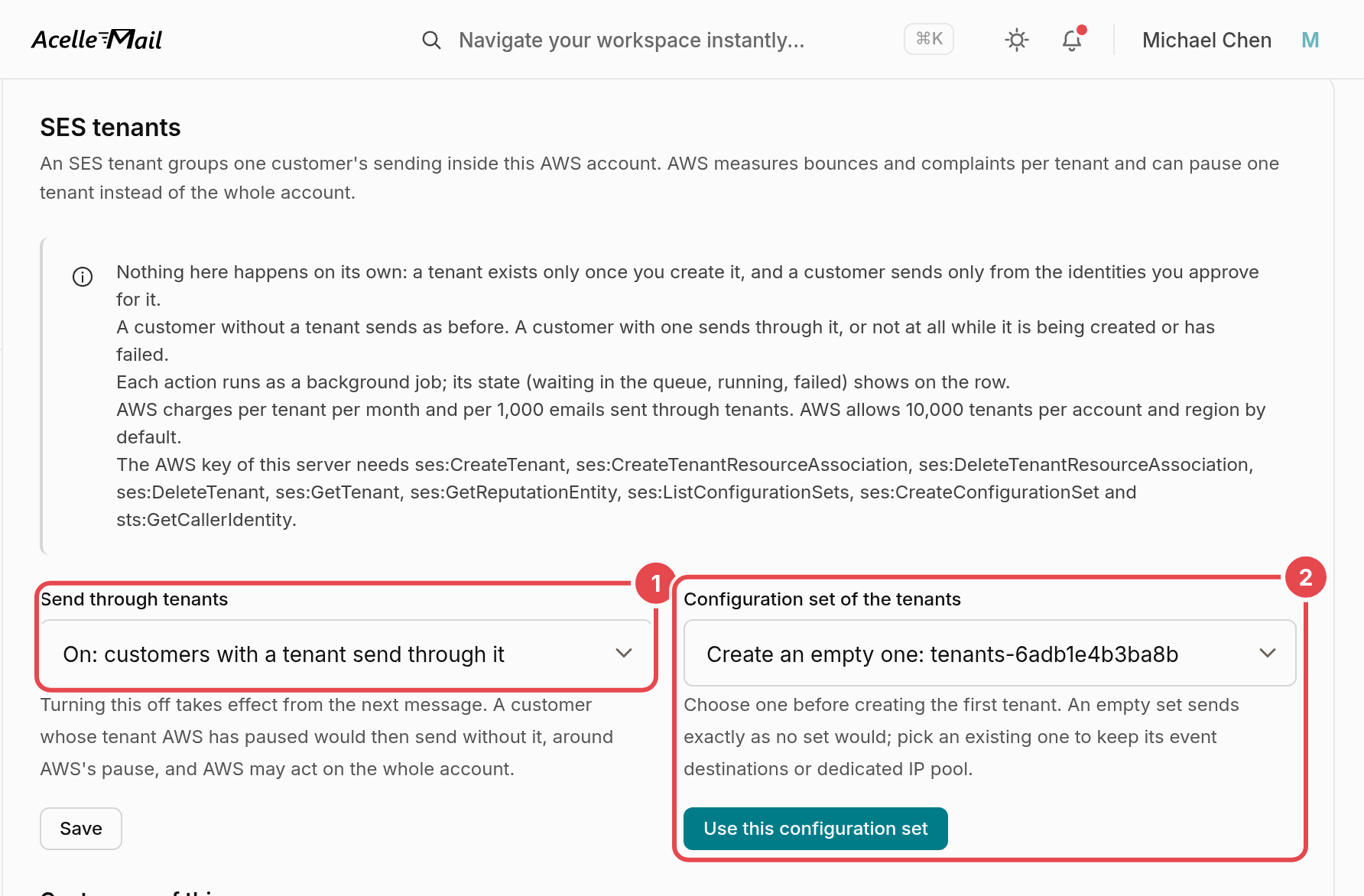
The box at the top sums up the rules above and lists the AWS permissions the server's key needs. Below it are two settings:
- Send through tenants is On for a new server. Leave it on. Turned off, every message of this server goes out without a tenant from the next message on.
- Configuration set of the tenants: every tenant of this server sends with this configuration set. Pick Create an empty one: tenants-… unless you already use a configuration set for event destinations or a dedicated IP pool, in which case pick that one. Then click Use this configuration set.
The configuration set cannot change while the server has tenants. Keep in mind that mail sent through a tenant uses this set, not the default configuration set you may have assigned to an identity in the SES console.
Step 2 — Create a tenant for a customer
Further down the tab, Customers of this server lists every customer with an active subscription on a plan that uses this server, and anyone who already has a tenant on it. Click ⋮ on the customer's row and choose Create tenant….
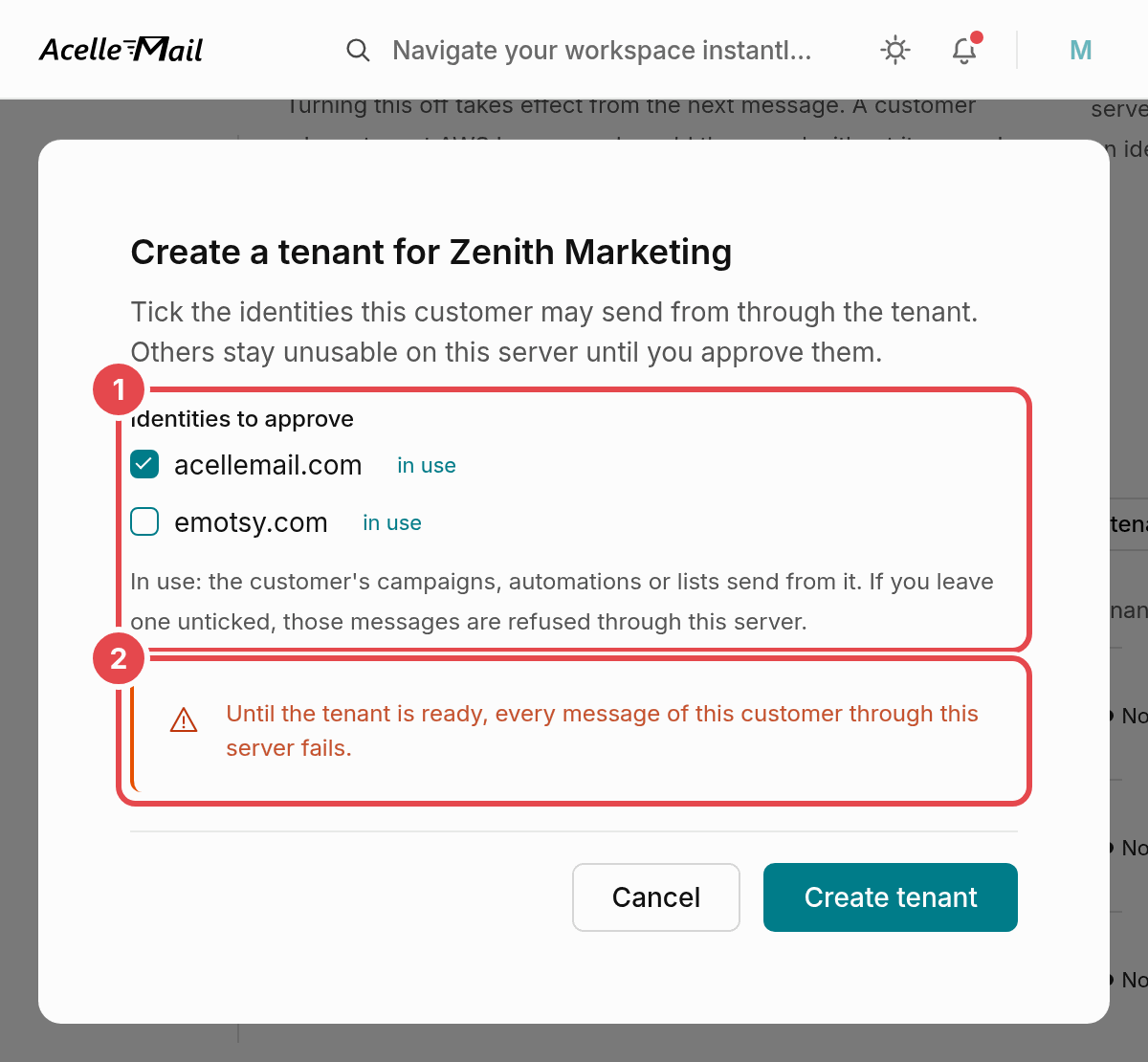
- Identities to approve lists the domains this customer can send from on this server. in use marks the ones their campaigns, automations or lists already send from. Leave a domain unticked and their messages from it are refused through this server until you approve it later. In the example,
emotsy.comis left for later on purpose. - Until the tenant is ready, every message of this customer through this server fails. Creating a tenant takes a few seconds once the job runs, but choose a moment when the customer is not in the middle of a large campaign.
Click Create tenant.
To create tenants for several customers at once, tick their rows and click Create tenants above the table. Each one approves every identity its customer can send from at that moment.
Step 3 — Wait for the tenant to be ready
The row now shows the job waiting in the queue, with the time it was queued.
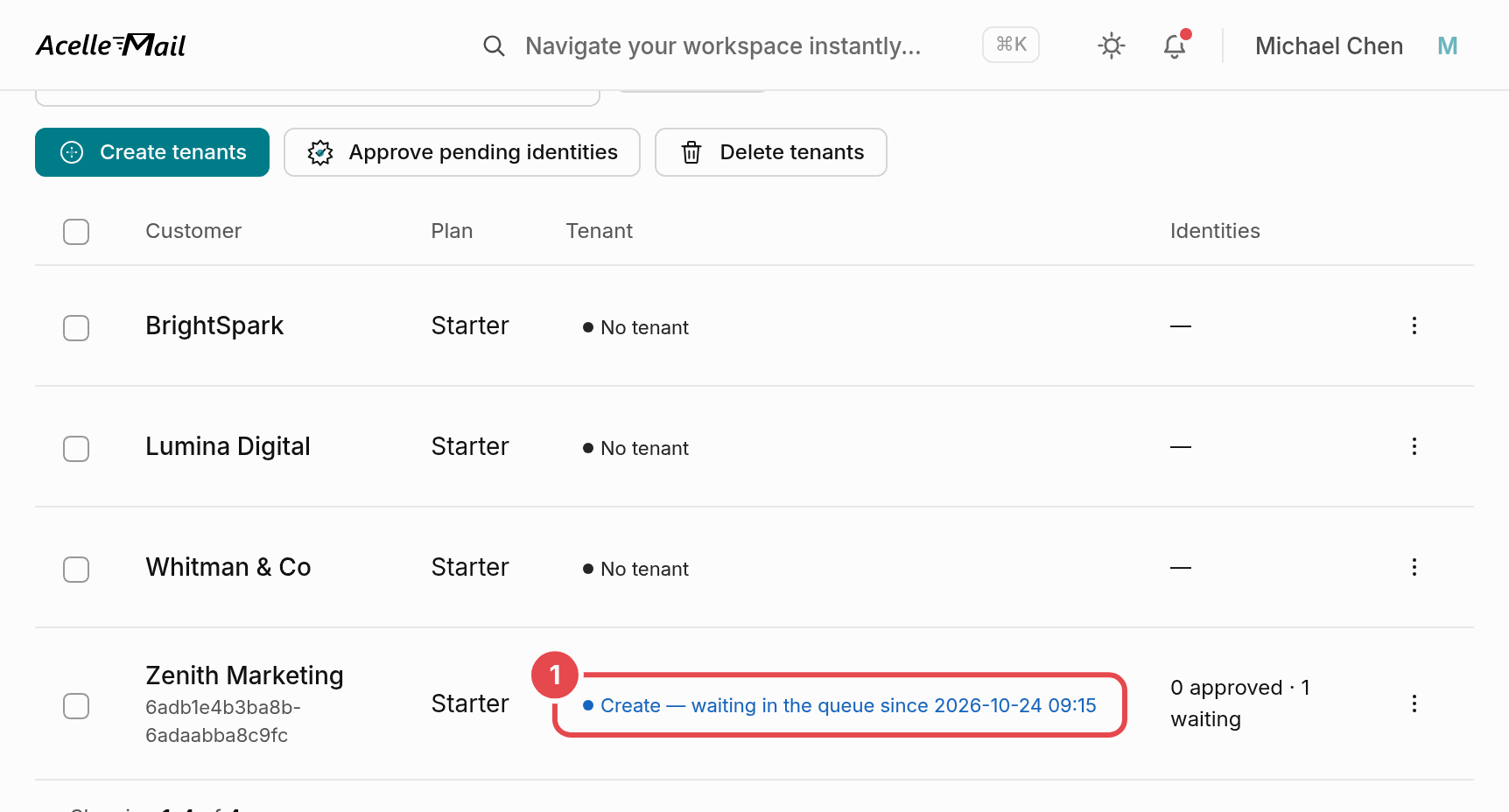
The page refreshes itself while a job waits or runs. When the queue worker has run the job, the row turns Ready.
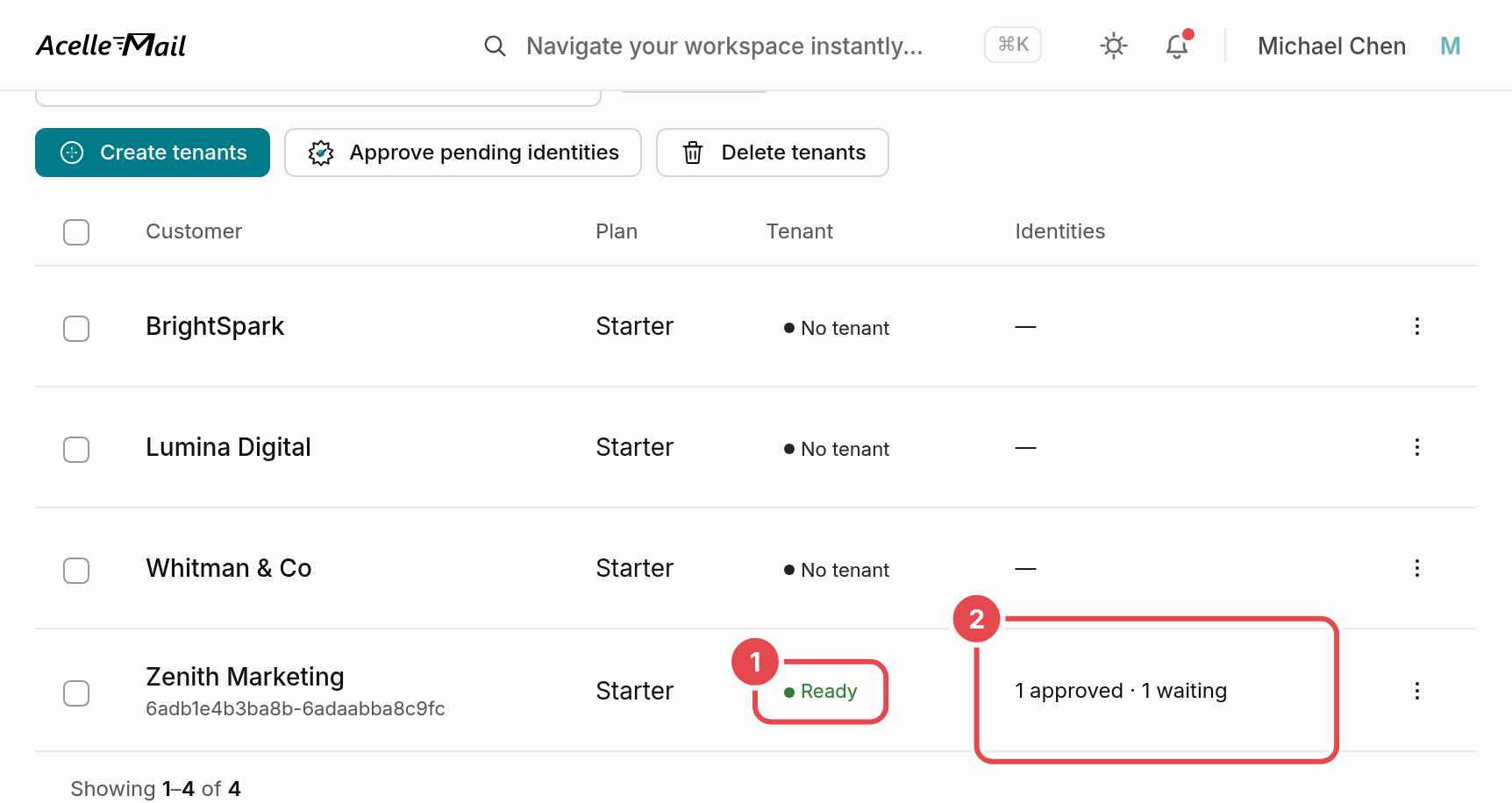
- Ready: the tenant exists in AWS with its configuration set and the identities you approved. From now on this customer's mail through this server goes through the tenant.
- 1 approved · 1 waiting: one identity is attached; one the customer can use is not approved yet (
emotsy.com, left unticked in Step 2).
The second line under the customer's name is the tenant's name in AWS. You will find the same name on the Tenants page of the SES console.
Step 4 — Approve a domain the customer adds later
When a customer with a tenant verifies a new domain, AcelleMail tells the admins with a notification: Identities waiting for approval: [customer]. The customer sees the domain as verified, with Awaiting approval next to it on their Sending Domains page.
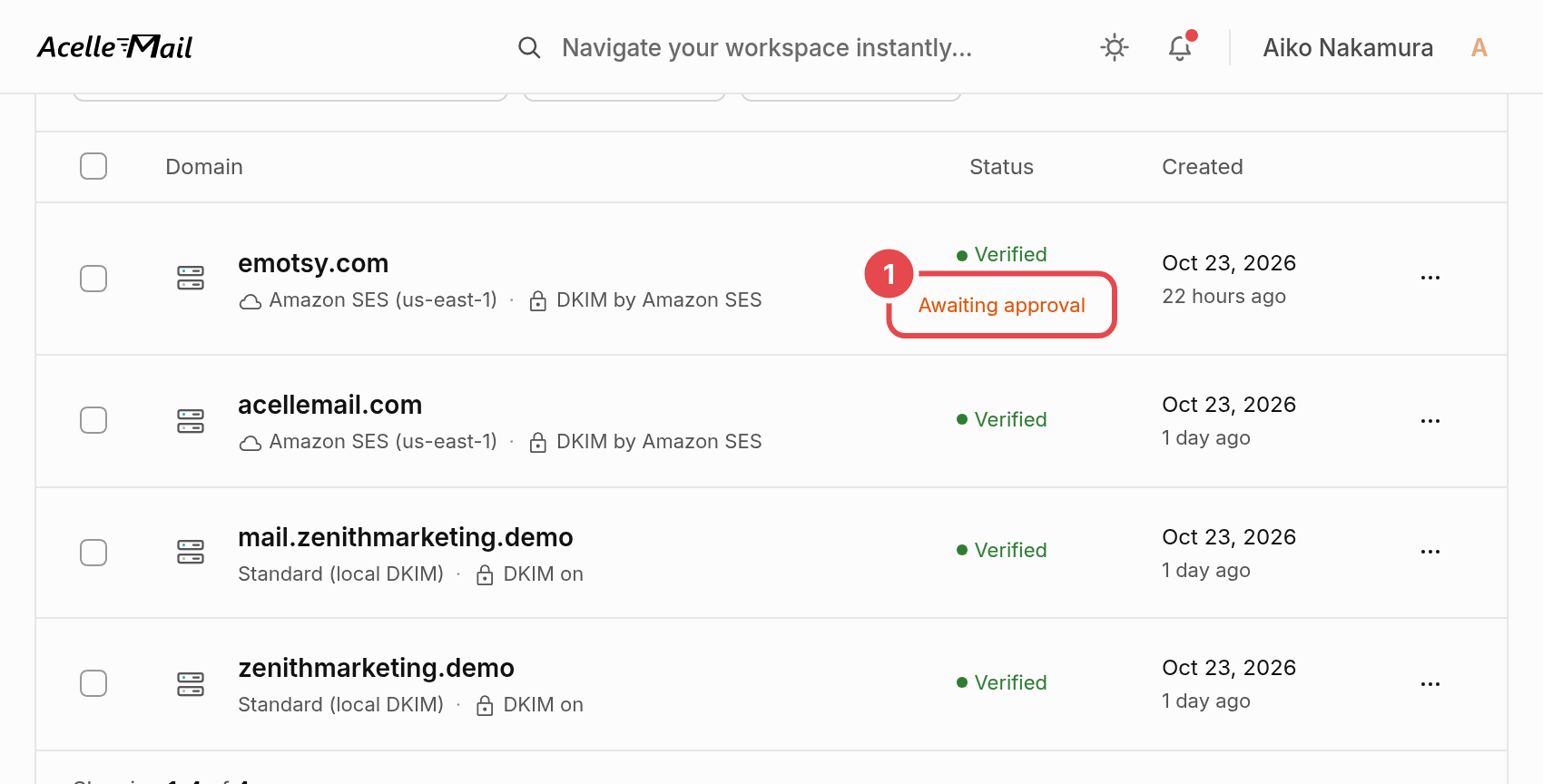
Until you approve it, a campaign from that domain is refused before it starts, with this message to the customer:
The sender address … is waiting for an administrator to approve it for your sending account on one of the platform's sending servers. Choose another sender, or contact support. (code: tenant_identity_pending)
To approve it, click ⋮ on the customer's row and choose Identities….
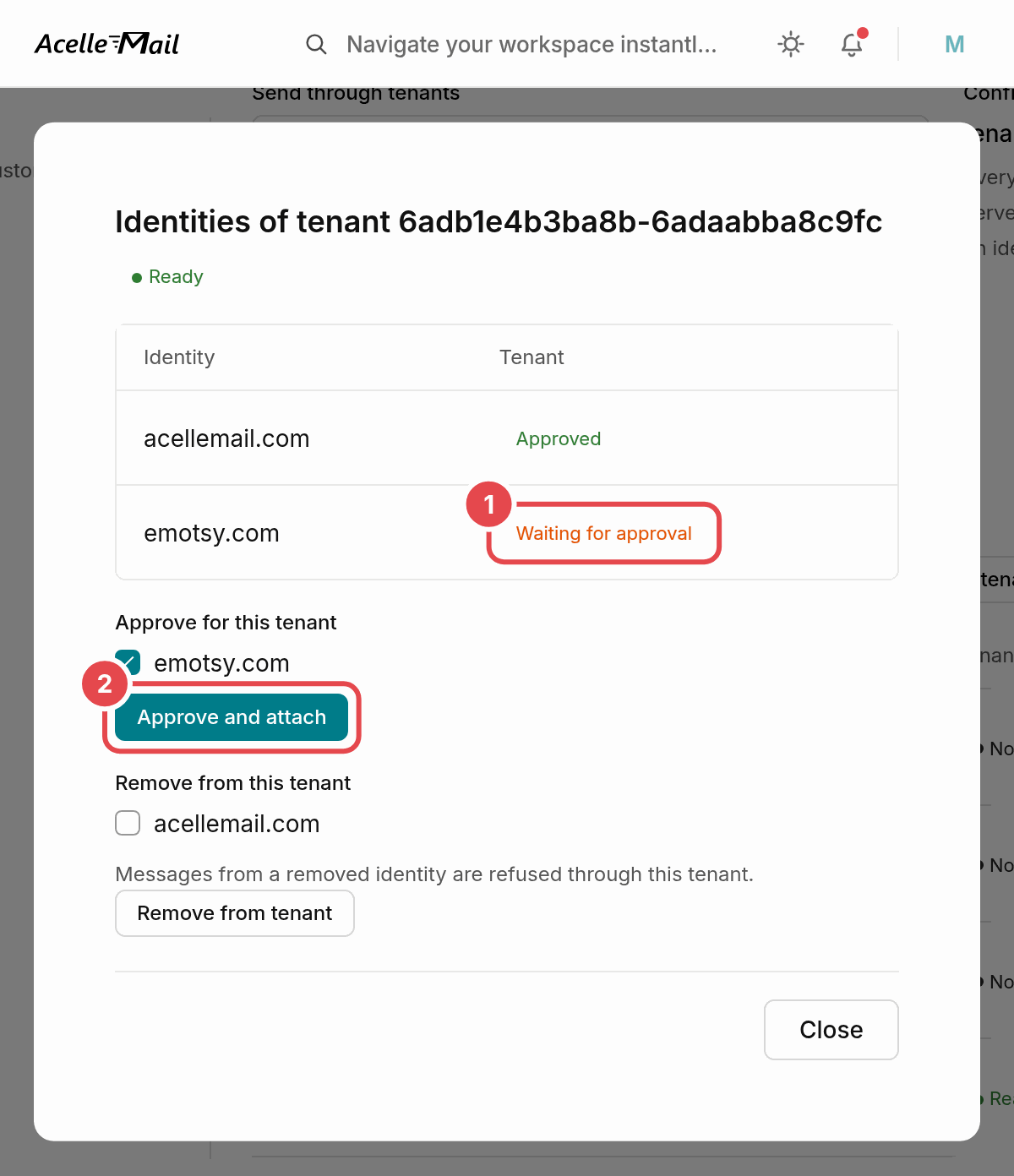
- Each identity shows where it stands: Approved, Waiting for approval, Being attached, Failed, or No longer the customer's when the customer can no longer use it.
- Under Approve for this tenant, tick the identities and click Approve and attach. Like creating a tenant, this runs as a job, and the row shows it until it is done.
Remove from this tenant does the opposite: messages from a removed identity are refused through this tenant. To approve the waiting identities of several customers at once, tick their rows and click Approve pending identities.
Step 5 — Check a tenant's status in AWS
Click ⋮ on the customer's row and choose Check status in AWS…. AcelleMail asks AWS directly and shows its answer.
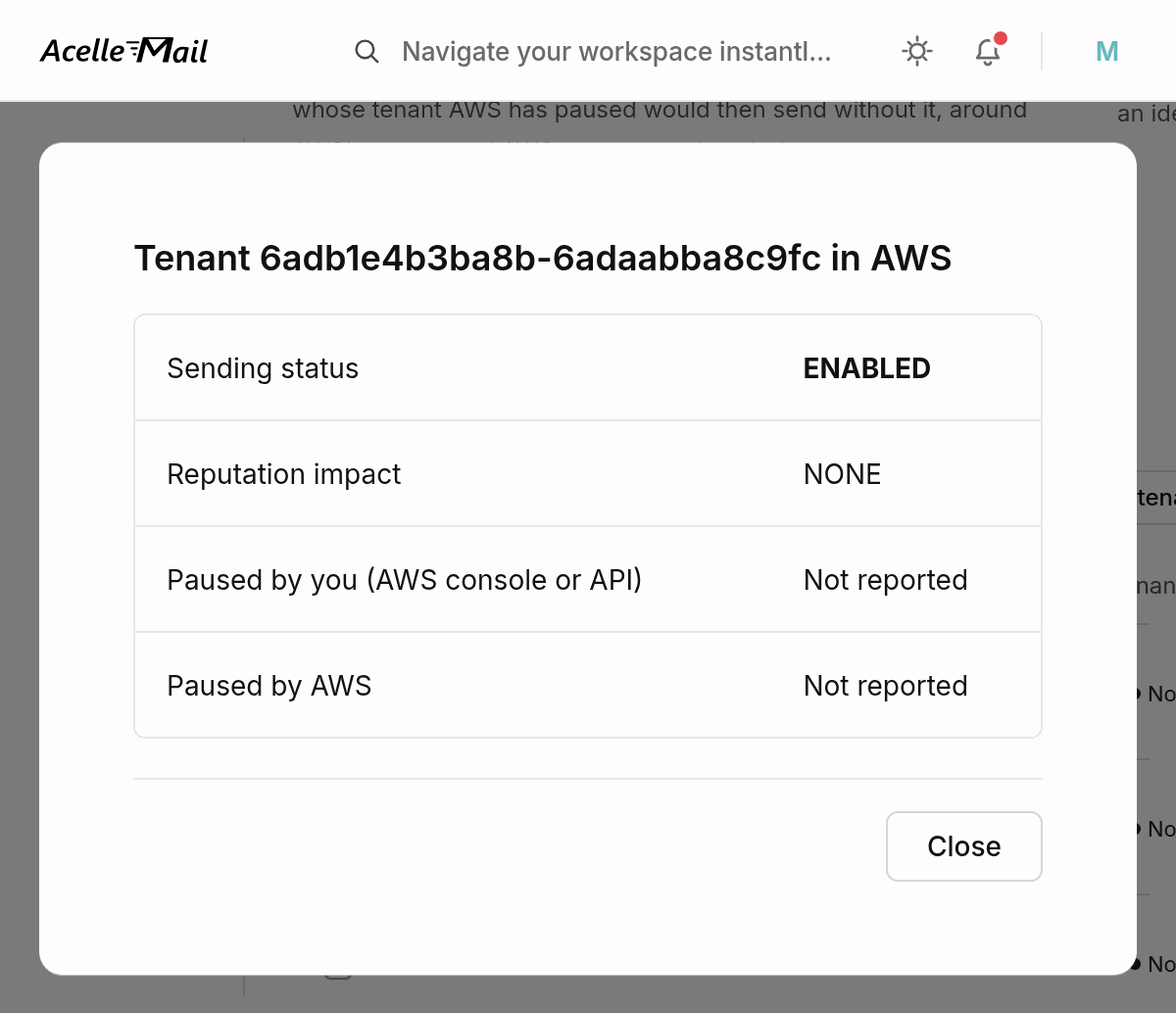
- Sending status is ENABLED while the tenant can send.
- Reputation impact is AWS's view of the tenant's reputation problems.
- Paused by you (AWS console or API) and Paused by AWS show who paused the tenant. They read Not reported when AWS reports nothing there, for a tenant that was never paused.
When AWS pauses a tenant
Only that customer stops. Every message of theirs through this server is refused, and a running campaign stops with:
Campaign stopped. The email provider has paused sending for your account on one of the platform's sending servers, so nothing can be sent through it. Contact support. (code: tenant_paused)
You get a notification, SES tenant refused a send: [customer], with SES's own words. Your other customers keep sending.
Look into the cause with the customer first: the list they mailed, the bounces and complaints of their last campaigns. Then resume the tenant in the SES console: open Tenants, select the tenant and choose Resume sending. Nothing changes in AcelleMail: the customer's next message goes through.
Turning tenants off, or deleting a tenant
- Send through tenants → Off: every message of this server is sent without a tenant, from the next message on. The tenants stay in AWS. As the help text under the setting says, a customer whose tenant AWS has paused then sends around that pause, and AWS may act on the whole account.
- ⋮ → Delete tenant, or Delete tenants for several customers: from the next message the customer sends without a tenant, and a background job deletes the tenant in AWS.
- Deleting a customer deletes their tenants in AWS too. The delete confirmation tells you how many.
- While a server has tenants, AcelleMail refuses changes that would leave them behind: deleting the server, changing its region, saving a key of another AWS account, turning on Allow unverified from email, and changing the configuration set. Delete the tenants first.
Common issues
| What you see | What to do |
|---|---|
| No tenant can be created on this server and This server accepts any From address, so there is no list of identities to approve. | On the server's Sender Identity tab, turn off Allow unverified from email and save. |
| Choose the configuration set for this server's tenants first. | Choose it on the Tenants tab (Step 1). |
| Approve at least one identity: a tenant cannot send without one. | The customer has no verified domain they can use on this server yet. Ask them to add one under Sending Domains, then create the tenant. |
| The row stays Create — waiting in the queue since … | Nothing picks up the job: check that your queue worker and cron job are running. |
The row shows Failed with an AWS error such as AccessDeniedException |
Add the missing permission to the server's IAM user (see Before you start), then ⋮ → Retry. |
| A customer reports (code: tenant_identity_pending) | Approve the domain for their tenant (Step 4). |
| A customer reports (code: tenant_not_ready) | Their tenant is still being created. Wait until the row is Ready. |
| A customer reports (code: tenant_unavailable) | Creating their tenant failed. ⋮ → Retry, or delete the tenant. |
| A customer reports (code: tenant_paused) | AWS paused their tenant. See When AWS pauses a tenant. |
| A customer reports (code: tenant_out_of_sync) | SES does not have their tenant the way AcelleMail recorded it: the sender domain or the configuration set is not attached, or the tenant was deleted in the SES console. The admin notification quotes SES. Approve the domain, Retry, or delete the tenant and create it again. |
| This server has SES tenants in its current region. Tenants do not move with the server: delete them on the Tenants tab before changing the region. | Delete the tenants first, or keep the region. |
What to do after
- Make sure every plan that should isolate its customers uses this server: Sending Servers for a Plan.
- If a plan uses several Amazon SES servers, create the customer's tenant on each of them. A tenant belongs to one server: mail that goes out through a server where the customer has no tenant is sent at account level.
- Keep an eye on the reputation of your senders: Sender Reputation Explained.
0 comments
No comments yet — be the first to share a tip or question.